The Storage and Availability Tech Marketing team runs a podcast called Virtually Speaking Podcast every week. This week it was my turn to be a guest on their show. We spoke about VSAN / use cases / all-flash and various other random topic that came up. It was a fun conversation, and I am going to try to tune in more often for sure. (Although I do listen to it every week, I haven’t been able to join live…) Make to sign up, so you don’t miss out on an episode. Listen to Pete Flecha, John Nicholson and I through the below player. I hope you will enjoy it as much as I did.
Server
Cool tool update: RVTools 3.8
It has been a year since version 3.7, but finally here it is… RVTools 3.8. Rob de Vey has been developing this tool since early 2008 and over half a million copies have been downloaded so far. I understand why, as it is a very easy to use tool that produces a lot of great information. On top of everything it was already providing, Rob introduced the following in version 3.8:
- VI SDK reference changed from 5.5 to 6.0
- on vInfo tab page new field: ChangeVersion unique identifier for a given version of the configuration
- on vInfo tab page new field: HA VM Monitoring status
- on vInfo tab page new fields: Number of supported monitors and Video RAM in KB
- on vInfo tab page new field: Config status. Config issues are visible on the vHealth tab page
- on vInfo tab page new field: OS according to the VMware Tools
- on vTools tab page new fields: App state, App heartbeat status and Kernel crash state
- on vTools tab page new fields: Operations availability, State change support and Interactive Guest Operations availability
- on vHost tab page new field: NTPD running state.
- NTP issues are visible on the vHealth tab page
- on vHost tab page new field: Config status. Config issues are visible on the vHealth tab page
- on vCluster tab page new field: Config status. Config issues are visible on the vHealth tab page
- on vDatastore tab page new field: Config status. Config issues are visible on the vHealth tab page
- on vSC+VMK tab page new fields: IP 6 Address and IP 6 Gateway
- all VM related tab pages now have a VM Object ID and VM UUID columns
- all VM related tab pages now have powerstate and template columns
- all tab pages. Now have a vCenter UUID column (= unique identifier for a vCenter Server)
- all VM related tab pages. The Custom Attributes columns are now ordered alphabetically
- all tab pages. A select is now a full row select so it is easier to follow the information across many columns
- bug fix: Refresh data issue on vRP and vCluster tab pages solved
- bug fix: Filter issue on vCluster tab page solved
- bug fix: On vInfo tab page the HA information was not filled with cluster default values
- bug fix: Content Libraries vmdk files are no longer reported as possible zombie files
- bug fix: msi installer sometimes installs RVTools in root of c:\ drive. This is solved now.

Cool fling: vSphere HTML5 Web Client! #h5client
 Many have asked for it, today the first iteration of the vSphere HTML5 Web Client has been delivered through the VMware Flings website. After the huge success of the ESXi Embedded Host Client (one of my fav flings) it was decided to take the same route for the HTML5 client. The amount of feedback on the ESXi Embedded Host Client fling was overwhelming and it allowed the engineers to incorporate feedback in a very agile while, respond to customers / users requirements literally within days sometimes. Of course the Web Client is a much larger undertaking, but the goal is very much similar. Having said that, it is not fully baked yet, VMware focused on the key workflows first and will expand over time.
Here are list of the most important features/workflows available:
- VM power operations (common cases)p>
- VM Edit Settings (simple CPU, Memory, Disk changes)
- VM Console
- VM and Host Summary pages
- VM Migration (only to a Host)
- Clone to Template/VM
- Create VM on a Host (limited)
- Additional monitoring views: Performance charts, Tasks, Events
- Global Views: Recent tasks, Alarms (view only)
- Feedback Tool (New feature to collect feedbacks from you)
- And more.
So if you are interested in testing the latest and willing to provide feedback, start your engines! Note that the product management and engineering team will be closely monitoring twitter, VMTN communities and the feedback loop that is build in to the client itself. Here is how and where you can leave feedback:
- Fling Comment Section: https://labs.vmware.com/flings/vsphere-html5-web-client
- VMTN community: https://communities.vmware.com/community/vmtn/vcenter
- On twitter through #h5client
- Or in the UI by clicking that smiley at the top right
- If you would like to receive email updates and surveys from us regarding this fling, sign up here: http://goo.gl/forms/IqGJ5twYHf.
I have tried it long before it was even close to ready, and can honestly say that I very much enjoyed how quick it was… it feels to snappy and fresh, yet gets the job done without any nonsense. Great work guys…

VSAN 6.2, checksumming where you should
Today I was talking to a customer about the checksum functionality that is part of VSAN 6.2. They asked me if VSAN was still prone to bit rot scenarios, and they mentioned other potential bottlenecks like no data locality… It was fairly straight forward to set it straight as with VSAN 6.2 we do have a “host local read cache” and we checksum all data by default on write and on read, and yes we also scrub the disk to pro-actively detect potential issues. I’ve already written about these features a couple of times, but today when explaining to this customer how VSAN’s checksumming functionality is implemented the customer immediately realized the benefits of our hypervisor based implementation. Note that the diagram below shows the VM running on a different host then where the actual data is located, the VM could easily be running on the same host as where one of the replicas is located…
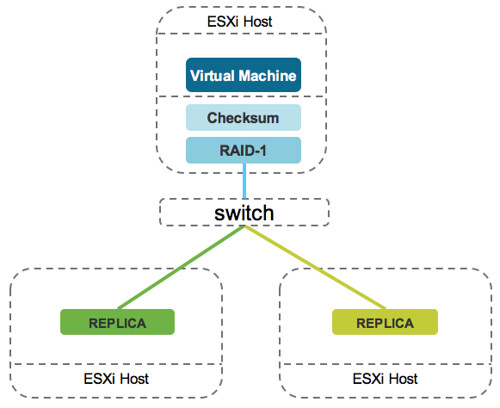
When it comes to checksums, these are calculated on the host where the VM resides. Why? Well you can imagine that you will want to protect your data against all types of potential corruption and issues. Not just when at rest, but you want to calculate the checksum before the data leaves the host, before it is replicated / distributed, before it hits the disk controller, before it goes to persistent media! Even if a bit flips while traveling across the network to be written to persistent media this will be detected and corrected.That is exactly what VSAN does, which is unique. As the title says, checksumming where you should… at the source.
Migrating from Hybrid to All-Flash VSAN
I had this question twice last week and I went through the exercise in the lab so I figured I would share the experience. Migrating from Hybrid to All-Flash VSAN is pretty straight forward, and is pretty much an rolling migration. One thing I want to point out is that you need to do the full migration first before you enable any dataservices (dedupe/compression/raid-5/6). This is how you do it:
- Open the vSphere Web Client.
- Click the Hosts and Clusters tab.
- Select the cluster which you want to migrate to all-flash Virtual SAN.
- Click the Manage tab.
- Click Settings.
- Click Disk Management.
- Select the first Disk Group and click the Remove Disk Group icon
- Select Full data migration and click Yes
- Remove the physical HDDs from the host
- Add the new Flash devices to the host
- Ensure there are no partitions on the flash devices
- Ensure they are marked as flash devices
- Now create a new Disk Group on this host by clicking the “Create a new disk group” button
- Select the Caching Device
- Select the Capacity Devices
- Click OK
Repeat above steps for each host in the cluster. When finished upgrading all hosts in your cluster you can now enable your dataservices and/or change policies.