• Skip to primary navigation
  • Skip to main content
  • Skip to primary sidebar

Yellow Bricks

by Duncan Epping

  • Home
  • Unexplored Territory Podcast
  • HA Deepdive
  • ESXTOP
  • Stickers/Shirts
  • Privacy Policy
  • About
  • Show Search
Hide Search

Server

Update: HA Advanced Options

Duncan Epping · Aug 1, 2008 ·

A while back I wrote down all the HA advanced options. With ESX 3.5 Update 2 VMware added a couple extra advanced options, this is the complete list:

  • das.failuredetectiontime – Amount of milliseconds, timeout time for isolation response action(with a default of 15000 milliseconds).
  • das.isolationaddress[x] – IP adres the ESX hosts uses for it’s heartbeat, where [x] = 0‐9. It will use the default gateway by default.
  • das.usedefaultisolationaddress – Value can be true or false and needs to be set in case the default gateway, which is the default isolation address shouldn’t be used for this purpose.
  • das.poweroffonisolation – Values are False or True, this is for setting the isolation response. Default a VM will be powered off.
  • das.vmMemoryMinMB – Higher values will reserve more space for failovers.
  • das.vmCpuMinMHz – Higher values will reserve more space for failovers.
  • das.defaultfailoverhost – Value is a hostname, this host will be the primary failover host.

The new ones:

  • das.failuredetectioninterval – Changes the heartbeat interval among HA hosts. By default, this occurs every second (1000 milliseconds).
  • das.allowVmotionNetworks – Allows a NIC that is used for VMotion networks to be
    considered for VMware HA usage. This permits a host to have only one NIC configured for management and VMotion combined.
  • das.allowNetwork[x] – Enables the use of port group names to control the networks used for VMware HA, where [x] = 0 – ?. You can set the value to be ʺService Console 2ʺ or ʺManagement Networkʺ to use (only) the networks associated with those port group names in the networking configuration.
  • das.isolationShutdownTimeout – Shutdown time out for the isolation response “Shutdown VM”, default is 300 seconds. In other words, if a VM isn’t shutdown clean when isolation response occured it’s being powered off after 300 seconds.
Follow Up: HA Change (isolation response)

Duncan Epping · Jul 31, 2008 ·

I’ve been asking around why the default isolation response has been changed from “power off” to “leave powered on”. It seems that this is done because a lot of customers had VM’s being powered off unnecessary. This happened because the service console or physical switches weren’t setup redundant and thus caused HA to kick in. In other words, for those having complete redundancy, switches and nics, change the default back to “power off” or use the new option “Shutdown VM”.

Shutdown VM requires VMware Tools to be installed. If HA is unable to shutdown the VM within 5 minutes it will be powered down. I would prefer this option, especially when you virtualized services like Exchange, SQL, Oracle etc.

VirtualCenter database

Duncan Epping · Jul 31, 2008 ·

There has always been much discussion about the VirtualCenter database if it was important enough to back it up. Most people agreed that the information that the database held was not important. A datacenter and cluster could be easily reconfigured and all other settings were saved on the host. HA wasn’t even using VirtualCenter, and DRS well a day without DRS is something most companies could afford.

VirtualCenter 2.5 already contained a feature called “Distributed Power Management”, with this feature the VirtualCenter database became more important but still one could easily do without it. But VMware just released VirtualCenter 2.5 Update 2. This update contains a new feature for HA. HA will get it’s IP info straight from VirtualCenter instead of the /etc/hosts file or DNS. With this info HA fills up /etc/FT_HOSTS. This all of a sudden makes the VirtualCenter database and the VirtualCenter server more important than ever.

I guess it’s time to start building the VirtualCenter server in a different way. Going virtual might be the best solution for having a highly available VirtualCenter server and database. But what about actually backing up the Database, via a maintenance plan or a backup engine. In time the VirtualCenter database will only get more important, especially when for instance DPM evolves. I can imagine DPM will detect trends and switch servers on and off accordingly.

Anyway, the only message I wanted to get out is start backing up that database!

Cool feature of the VMware Converter plugin

Duncan Epping · Jul 30, 2008 ·

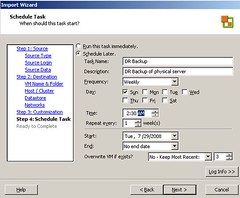
How about backing up that dreadful application/server that you couldn’t or did not wanted to virtualize to your ESX environment? It could be useful to have a copy of a server that for whatever reason you did not virtualize. The new VMware Converter plugin for VirtualCenter gives you this option. You can create a reoccurring schedule for a p2v, you can even save several version of the converted machine. How cool is that! Seems like a great way to backup a machine!

How do I do this:

  1. click on scheduled tasks
  2. click new and pick “import a machine”
  3. select “physical” and enter the servers name/ip and username and password
  4. select the disks you want to import
  5. type a name for the VM
  6. select the destination host
  7. select a datastore
  8. select a network
  9. and schedule the task!

ESXi 3.5 Update 2 on a USB memory key

Duncan Epping · Jul 29, 2008 ·

For those like me who would like to check ESXi 3.5 update 2 but don’t want to install on a local harddisk. Here’s a good pdf about how to install it on a USB memory key. It’s fairly easy and I just booted my IBM X61 laptop with ESXi.


In short:

  1. First get the following tools: 7-Zip(Free), WinImage(Demo)
  2. Download the ESXi ISO
  3. Open the ISO with 7-Zip
  4. Extract “install.tgz”
  5. Open “install.tgz” with 7-Zip
  6. Click on “install.tar”
  7. Browse to “usr\lib\vmware\installer\”
  8. Open “VMware-VMvisor-big-3.5.0_Update_2-103909.i386.dd.bz2”
  9. Extract “VMware-VMvisor-big-3.5.0_Update_2-103909.i386.dd”
  10. Open WinImage and go to Disk, click on “Restore Virtual Harddisk Image on physical drive”
  11. Select a physical drive
  12. Select “VMware-VMvisor-big-3.5.0_Update_2-103909.i386.dd”
  13. And click “yes” to write the DD image to the USB Disk

Done! For a more detailed procedure check the pdf above, it also includes screenshots!

  • « Go to Previous Page
  • Page 1
  • Interim pages omitted …
  • Page 305
  • Page 306
  • Page 307
  • Page 308
  • Page 309
  • Interim pages omitted …
  • Page 336
  • Go to Next Page »

Primary Sidebar

About the Author

Duncan Epping is a Chief Technologist and Distinguished Engineering Architect at Broadcom. Besides writing on Yellow-Bricks, Duncan is the co-author of the vSAN Deep Dive and the vSphere Clustering Deep Dive book series. Duncan is also the host of the Unexplored Territory Podcast.

Follow Us

  • X
  • Spotify
  • RSS Feed
  • LinkedIn

Recommended Book(s)

Also visit!

For the Dutch-speaking audience, make sure to visit RunNerd.nl to follow my running adventure, read shoe/gear/race reviews, and more!

Do you like Hardcore-Punk music? Follow my Spotify Playlist!

Do you like 80s music? I got you covered!

Copyright Yellow-Bricks.com © 2026 · Log in