• Skip to primary navigation
  • Skip to main content
  • Skip to primary sidebar

Yellow Bricks

by Duncan Epping

  • Home
  • Unexplored Territory Podcast
  • HA Deepdive
  • ESXTOP
  • Stickers/Shirts
  • Privacy Policy
  • About
  • Show Search
Hide Search

Server

vMotion and Quick Resume

Duncan Epping · Apr 13, 2011 ·

I was reading up on vMotion today and stumbled on this excellent article by my colleague Kyle Gleed and noticed something that hardly anyone has blogged about…. Quick Resume. Quick Resume is a feature that allows you to vMotion a virtual machine which has a high memory page change rate. Basically when the change rate of your memory pages exceeds the capabilities of your network infrastructure you could end up in a scenario where vMotioning a virtual machine would fail as the change rate would make a switch-over impossible. With Quick Resume this has changed.

Quick Resume enables the source virtual machines to be stunned while starting the destination virtual machine before all pages have copied. However, as the virtual machine is already running at the destination it could possibly attempt to touch (read or write) a page which hasn’t been copied yet. In that case Quick Resume requests the page from the source to allow the guest to complete the action while continuously copying the remaining memory pages until all pages are migrated. But what if the network would fail at that point, wouldn’t you end up with a destination virtual machine which cannot access certain memory pages anymore as they are “living” remotely? Just like Storage IO Control, vMotion leverages shared storage. A special file would be created in the case Quick Resume is used and this file is basically used as a backup buffer. In the case the network would fail this file would allow for the migration to complete. This file is typically in the order of just a couple MBs. Besides being used as a buffer for transferring the memory pages it also enables bi-directional communication between the two hosts allowing the vMotion to complete as though the network hadn’t failed. Is that cool or what?

The typical question that arises immediately  is if this will impact performance? It is good to realize that without Quick Resume vMotioning large memory active virtual machines would be difficult. The switch-over time could potentially be too large and lead to temporary loss of connection with the virtual machine. Although Quick Resume will impact performance when pages that are not copied yet are accessed, the benefits of being able to vMotion very large virtual machines with minimal impact by far outweigh this temporary increase of memory access time.

There is so many cool features and enhancements in vSphere that I just keep being amazed.
Disk.UseDeviceReset do I really need to set it?

Duncan Epping · Apr 13, 2011 ·

I noticed a discussion on an internal mailinglist which mentioned the advanced setting “Disk.UseDeviceReset” as it is mentioned in the FC SAN guide. The myth that you need to set this setting to “0 “in order to allow for Disk.UseLunReset to function properly has been floating around too long. Lets discuss first what this options does. In short, when an error or SCSI reservations need to be cleared a SCSI reset will be send. We can either do this on a device level or on a LUN level. With device level meaning that we will send it to all disks / targets on a bus. As you can imagine this can be disruptive and when there is no need to reset a SCSI but this should be avoided. With regards to the settings here is what will happen with the different settings:

  • Disk.UseDeviceReset = 0  &  Disk.UseLunReset = 1  --> LUN Reset
  • Disk.UseDeviceReset = 1  &  Disk.UseLunReset = 1  --> LUN Reset
  • Disk.UseDeviceReset = 1  &  Disk.UseLunReset = 0  --> Device Reset

I hope that this makes it clear that there is no point in changing the Disk.UseDeviceReset setting as Disk.UseLunReset overrules it.

ps: I filed a document bug and hope that it will be reflected in the doc soon.

Per-volume management features in 4.x

Duncan Epping · Apr 7, 2011 ·

Last week I noticed that one of the articles that I wrote in 2008 is still very popular. This article explains the various possible combinations of the advanced settings “EnableResignature” and “DisallowSnapshotLUN”. For those who don’t know what these options do in a VI3 environment; they allow you to access a volume which is marked as “unresolved” due to the fact that the VMFS metadata doesn’t match the physical properties of the LUN. In other words, the LUN that you are trying to access could be a Snapshot of a LUN or a copy (think replication) and vSphere is denying you access.

These advanced options where often used in DR scenarios where a fail-over of a LUN needed to occur or when for instance when a virtual machine needed to be restored from a snapshot of a volume. Many of our users would simply change the setting for either EnableResignature to 1 or for DisallowSnapshotLUN to 0 and force the LUN to be available again. Those readers who paid attention noticed that I used “LUN” instead of “LUNs” and here lies one of the problems…. These settings were global settings. Which means that ANY given LUN that was marked as “unresolved” would be resignatured or mounted. This unfortunately more than often lead to problems where incorrect volumes were mounted or resignatured. These volumes should probably have not have been presented in the first place but that is not the point. The point is that a global setting increases the chances that issues like these occur. With vSphere this problem was solved as VMware introduced “esxcfg-volume -r”.

This command enables you to resignature on a per volume basis…. Well not only that, “esxcfg-volume -m” enables you to mount volumes and “-l” is used to list volumes. Of course you can also do this through the vSphere client as well:

  • Click the Configuration tab and click Storage in the Hardware panel.
  • Click Add Storage.
  • Select the Disk/LUN storage type and click Next.
  • From the list of LUNs, select the LUN that has a datastore name displayed in the VMFS Label column and click Next.
    The name present in the VMFS Label column indicates that the LUN is a copy that contains a copy of an existing VMFS datastore.
  • Under Mount Options, select Assign a New Signature and click Next.
  • In the Ready to Complete page, review the datastore configuration information and click Finish.

But what if I do want to resignature all these volumes at once? What if you have a corner case scenario where this is a requirement? Well in that case you could actually still use the advanced features as they haven’t exactly disappeared, they have been hidden in the UI (vSphere Client) but they are still around. From the commandline you can still query the status:

esxcfg-advcfg -g /LVM/EnableResignature

Or you can change the global configuration option:

esxcfg-advcfg -s 1 /LVM/EnableResignature

Please note that the first step was hiding them, but they will be deprecated at some future release. It is recommended to use “esxcfg-volume” and resignature on a per volume basis.

Mythbusters: ESX/ESXi caching I/O?

Duncan Epping · Apr 7, 2011 ·

We had a discussion internally about ESX/ESXi caching I/Os. In particular this discussion was around caching of writes  as a customer was concerned about consistency of their data. I fully understand that they are concerned and I know in the past some vendors were doing write caching however VMware does not do this for obvious reasons. Although performance is important it is worthless when your data is corrupt / inconsistent. Of course I looked around for  data to back this claim up and bust this myth once and for all. I found a KB article that acknowledges this and have a quote from one of our VMFS engineers.

Source Satyam Vaghani (VMware Engineering)
ESX(i) does not cache guest OS writes. This gives a VM the same crash consistency as a physical machine: i.e. a write that was issued by the guest OS and acknowledged as successful by the hypervisor is guaranteed to be on disk at the time of acknowledgement. In other words, there is no write cache on ESX to talk about, and so disabling it is moot. So that’s one thing out of our way.

Source – Knowledge Base
VMware ESX acknowledges a write or read to a guest operating system only after that write or read is acknowledged by the hardware controller to ESX. Applications running inside virtual machines on ESX are afforded the same crash consistency guarantees as applications running on physical machines or physical disk controllers.

das.failuredetection time and the isolation response

Duncan Epping · Apr 4, 2011 ·

I had a discussion on the VMTN forums about this last week and the question basically was, what should my das.failuredetection time be set to when the isolation response is set to “Shut down”.

Lets first explain what the das.failuredetectiontime is, I described it on our book as follows:

Failure Detection Time is basically the time it takes before the “isolation response” is triggered. There are two primary concepts when we are talking about failure detection time:

  • The time it will take the host to detect it is isolated
  • The time it will take the non-isolated hosts to mark the unavailable host as isolated and initiate the failover

So what does this have to do with your Isolation Response? Well not much actually, and that might sound weird but it had me thinking about it for a second as well….

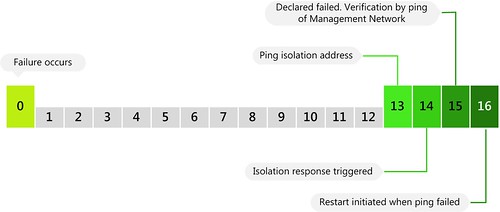
What if your Isolation Response is set to “Shut down” and an isolation occurs? Well in that case HA will try to “Shut down” the VMs in a clean way when Isolation has been detected. HA will do that on the 14th second. On the 16th second the restart will be initiated. So that leaves your VMs exactly two second to shut down in a clean way….So two questions pop-up immediately:

  1. What if I increase the das.failuredetectiontime?
  2. What are the chances restarts happens in time?

Increasing the das.failuredetectiontime wouldn’t make a difference as the “2 second” gap will just move up as well. HA will always ping the isolation address on “das.failuredetectiontime – 1” and it will always initiate the restarts on “das.failuredetection + 1”. In other words, 2 minutes or 20 seconds, it makes no difference. I guess a nice diagram makes this a bit clearer:

(created by Frank D. for our book)

So what are the chances these restarts will occur within 16 seconds? Slim indeed. So when will they be restarted? Well a year ago I wrote this article and the following still applies for vSphere 4.1:

  • T+0 – Restart
  • T+2 – Restart retry 1
  • T+4 – Restart retry 2
  • T+8 – Restart retry 3
  • T+8 – Restart retry 4
  • T+8 – Restart retry 5

In other words, if T+0 fails the restart will be retried 2 minutes later. If that one fails the restart will be retried 4 minutes later. (2+4 = 6 minutes after the initial restart) So as you can see selecting “shut down” will more than likely increase your restart latency and this needs to be taken into account for your SLA.

  • « Go to Previous Page
  • Page 1
  • Interim pages omitted …
  • Page 189
  • Page 190
  • Page 191
  • Page 192
  • Page 193
  • Interim pages omitted …
  • Page 336
  • Go to Next Page »

Primary Sidebar

About the Author

Duncan Epping is a Chief Technologist and Distinguished Engineering Architect at Broadcom. Besides writing on Yellow-Bricks, Duncan is the co-author of the vSAN Deep Dive and the vSphere Clustering Deep Dive book series. Duncan is also the host of the Unexplored Territory Podcast.

Follow Us

  • X
  • Spotify
  • RSS Feed
  • LinkedIn

Recommended Book(s)

Also visit!

For the Dutch-speaking audience, make sure to visit RunNerd.nl to follow my running adventure, read shoe/gear/race reviews, and more!

Do you like Hardcore-Punk music? Follow my Spotify Playlist!

Do you like 80s music? I got you covered!

Copyright Yellow-Bricks.com © 2026 · Log in