• Skip to primary navigation
  • Skip to main content
  • Skip to primary sidebar

Yellow Bricks

by Duncan Epping

  • Home
  • Unexplored Territory Podcast
  • HA Deepdive
  • ESXTOP
  • Stickers/Shirts
  • Privacy Policy
  • About
  • Show Search
Hide Search

Various

vSphere 6.5 and limits, do they still apply to SvMotion?

Duncan Epping · Jul 11, 2018 ·

I had a question this week and I thought I wrote about this before but apparently, I did not. Hopefully by now most of you the I/O scheduler has changed over the past couple of years. Within ESXi, we moved to a new scheduler, which often is referred to as mClock. This new scheduler, and a new version of SIOC (storage i/o control) also resulted in some behavioral changes. Some which may be obvious, others which are not. I want to explicitly point out two things which I have discussed in the past which changed with vSphere 6.5 (and 6.7 as such) and both are around the use of limits.

First of all: Limits and SvMotion. In the past when a limit was applied to a VM, this would also artificially limit SvMotion. As of vSphere 6.5 (may apply to 6.0 as well but I have not verified this) this is no longer the case. Starting vSphere 6.0 the I/O scheduler creates a queue for every file on the file system (VMFS), this to avoid for instance a VM stalling other types (metadata) of IO. The queues are called SchedQ and briefly described by Cormac Hogan here. Of course, there’s a lot more to it than Cormac or I discuss here, but I am not sure how much I can share so I am not going to go there. Either way, if you were used to limits being applied to SvMotion as well you are warned… this is no longer the case.

Secondly, the normalization of I/Os changed with limits. In the past when a limit was applied IOs were normalized at 32KB, meaning that a 64KB I/O would count as 2 I/Os and a 4KB I/O would count as 1. This was confusing for a lot of people and as of vSphere 6.5 this is no longer the case. When you place a limit of 100 IOPS the VMDKs will be limited at 100 IOPS, regardless of the I/O size. This, by the way, was documented here on storagehub, not sure though how many people realized this.

Module MonitorLoop power on failed error when powering on VM on vSphere

Duncan Epping · Jun 12, 2018 ·

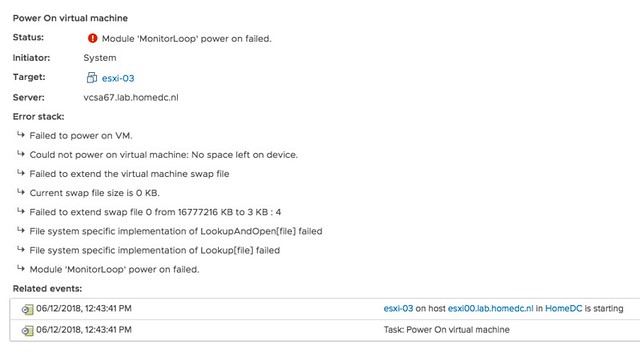
I was playing in the lab for our upcoming vSphere Clustering Deepdive book and I ran in to this error when powering on a VM. I had never seen it before myself, so I was kind of surprised when I figured out what it was referring to. The error message is the following:

Module MonitorLoop power on failed when powering on VM

Think about that for a second, if you have never seen it I bet you don’t know what it is about? Not strange as the message doesn’t give a clue.

f you go to the event however there’s a big clue right there, and that is that the swap file can’t be extended from 0KB to whatever it needs to be. In other words, you are probably running out of disk space on the device the VM is stored on. In this case I removed some obsolete VMs and then powered on the VM that had the issue without any problems. So if you see this “Module MonitorLoop power on failed when powering on VM” error, check your free capacity on the datastore the VM sits on!

More details:

Strange error message, for a simple problem. Yes, I will file a request to get this changed.


OSX audio stopped working

Duncan Epping · Jun 8, 2018 ·

I have this issue regularly where the OSX audio stopped working on my Macbook. I am using High Sierra right now but had the same problem with Sierra. Not sure what is causing the problem, and not sure how to prevent it from happening. I have figured out though how to solve it, and as occasionally I find myself searching for the solution I figured I would quickly document it on my own blog. If your audio has stopped working you can simply stop the service responsible for it.

For me the following works solving the problem:

sudo killall coreaudiod

For me audio comes back again automatically almost instantly, some actually have reported they need to start the service again

sudo launchctl start com.apple.audio.coreaudiod

I hope this helps others as well as running into the same problem. If you have and you solved the problem in a different way please leave a comment.

How to simplify vSAN Support!

Duncan Epping · May 25, 2018 ·

Last week I presented at the Tech Support Summit in Cork with Cormac. Our session was about the evolution of vSAN, where are we today but more importantly which directly will we be going. One thing that struck me when I discussed vSAN Support Insight, the solution we announced not to long ago, is that not too many people seemed to understand the benefit. When you have vSAN and you enable CEIP (Customer Experience Improvement Program) then you have a phone home solution for your vSphere and vSAN environment automatically. What this brings is fairly simple to explain: less frustration! Why? Well the support team will have, when you provide them your vCenter UUID, instant access to all of the metadata of your environment. What does that mean? Well the configuration for instance, the performance data, logs, health check details etc. This will allow them to instantly get a good understanding of what your environment looks like, without the need for you as a customer to upload your logs etc.
At the event I demoed the Support Insight interface, which is what the Support Team has available, and a lot of customers afterwards said: now I see the benefit of enabling this, I will do this for sure when I get back to the office. So I figured I would take the demo, do a voice over and release it to the public. We need more people to join the customer experience improvement program, so watch the video to see what this gives the support team. Note by the way that everything is anonymized, without you providing a UUID it is not possible to correlate the data to a customer. Even when you provide a UUID the support team can only see the host, vm, policy and portgroup (etc) names when you provide them with what is called an obfuscation map (key). Anyway, watch the demo and join now!

vSphere 6.7 announced!

Duncan Epping · Apr 17, 2018 ·

It is that time of the year again, a new vSphere release announcement! (For those interested in what’s new for vSAN make sure to read my other post.) vSphere 6.7, what’s in a name / release? Well a bunch of stuff, and I am not going to address all of the new functionality as the list would simply be too long. So this list features what I think is worth mentioning and discussing.

  • vSphere Client (HTML-5) is about 95% feature complete
  • Improved vCenter Appliance monitoring
  • Improved vCenter Backup Management
  • ESXi Single Reboot Upgrades
  • ESXi Quick Boot
  • 4K Native Drive Support
  • Max Virtual Disks increase from 60 to 256
  • Max ESXi number of Devices from 512 to 1024
  • Max ESXi paths to Devices from 2048 to 4096
  • Support for RDMA
  • vSphere Persistent Memory
  • DRS initial placement improvements

Note that there’s a whole bunch of stuff missing from this list, for instance there were many security enhancements, but I don’t see the point of me pretending to be an expert on that topic, while I know some of the top experts will have a blog out soon.

Not sure what I should tell about the vSphere Client (h5) at this point. Everyone has been waiting for this, and everyone has been waiting for it to reach ~90/95% feature complete. And we are there. I have been using it extensively for the past 12 months and I am very happy with how it turned out. I think the majority of you will be very very happy with what you will see and with the overall experience. It just feels fast(er) and seems more intuitive.

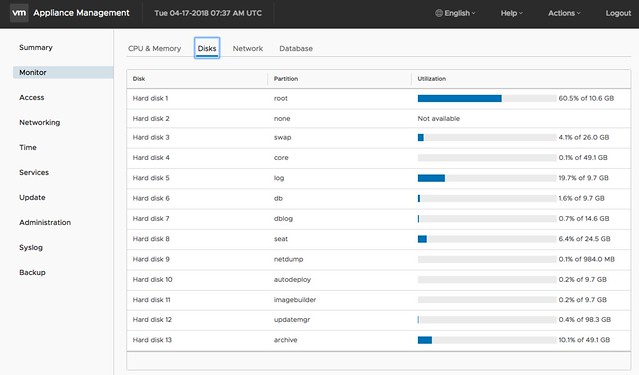
When it comes to management and monitoring of the vCenter Appliance (https://ip of vcenter:5480) there are a whole bunch of improvements. For me personally the changes in the monitoring tab are very useful and also the services tab is useful. Now you can immediately see when a particular disk is running out of space, as shown in the screenshot below. And you can for instance restart a particular service in the “Services” tab.

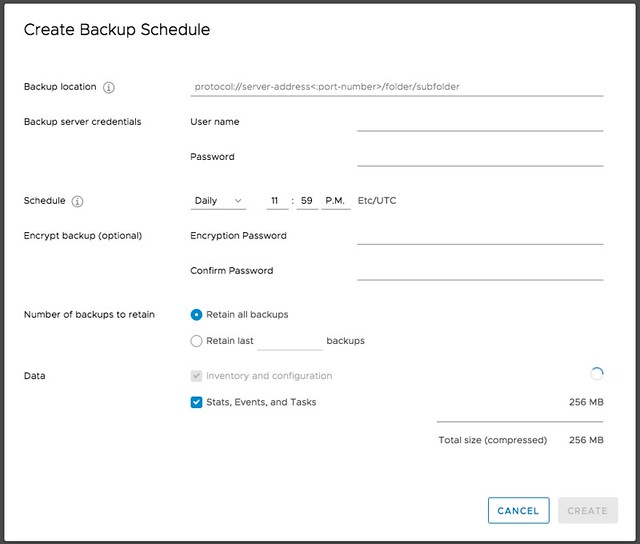
Next is vCenter Backup Management, a lot of people have been asking for this. We introduced Backup and Recovery of the appliance a while ago, very useful, but unfortunately it didn’t provide a scheduling mechanism. Sure you could create a script that would do this for you on a regular cadence, but not everyone wants to bother with that. Now in the Appliance Management UI you can simply create a schedule for backup. This is one of those small enhancements, which to me is a big deal! I’m sure that Emad or Adam will have a blog out soon on the topic of vCenter enhancements, so make sure to follow their blogs.

Another big deal is the fact that we shaved off a reboot for major upgrades. As of 6.7 you now only have 1 reboot with ESXi. Again, a tiny thing going from 2 back to 1, but when you have servers taking 10-15 minutes to go through the reboot process and you have dozens to of servers to reboot it makes Single Reboot ESXi Upgrades a big thing. For those on 6.5 right now, you will be able to enjoy the single reboot experience when upgrading to 6.7!

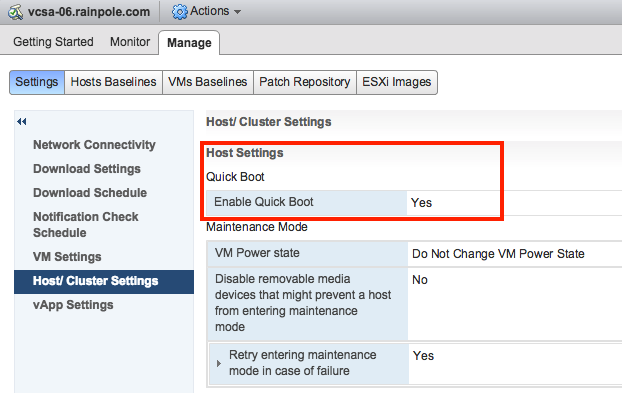
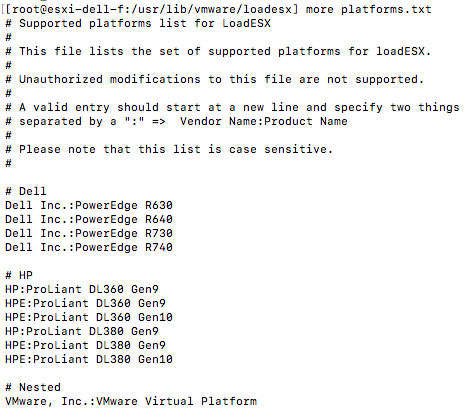
One feature I have personally been waiting for is ESXi Quick Boot. I saw a demo of this last year at our internal R&D conference at VMware and I was impressed. I don’t think many people at that stage saw the importance of the feature, but I am glad it made it in to the release. So what is it? Well basically it is a way to restart the hypervisor without going through the physical hardware reboot process. This means that you are now removing that last reboot, of course this only applies when your used server hardware supports it. Note that with the first release only a limited set of servers will support it, nevertheless this is a big thing. Not just for reboots, but also for upgrades / updates. A second ESXi memory image can be created and updated and when rebooting simply switched over to the latest and greatest instead of doing a full reboot. It will save, again, a lot time. I looked at a pre-GA build and noticed the following platforms are supported, this should be a good indication:

Of course you can also see if the host is supported in the vSphere Client, I found it in the Web Client but not in the H5 Client, maybe I am overlooking it, that could of course be the case.

Then up next are a bunch of core storage enhancements. First 4K Native Drive Support, very useful for those who want to use the large capacity devices. Not much else to say about it other than that it will also be supported by vSAN. I do hope that those using it for vSAN do take the potential performance impact in to account. (High capacity, Low IOPS >> low iops per GB!) Up next is the increase of a bunch of “max values“. Number of virtual disks going from 60 to 256 virtual disks for PVSCSI. And on top of that the number of Paths and Devices is also going up. Number of devices doubled from 512 to 1024 per host, and so has the number of paths as it is going from 2048 to 4096. Some of our largest customers will definitely appreciate that!

Then there’s also the support for RDMA, which is great for applications requiring extremely low latency and very high bandwidth! Note that when RDMA is used most of the ESXi Network stack is skipped, and when used in pass-through mode this also means that vMotion is not available. So that will only be useful for scale-out applications which have their own load balancing and high availability functionality. For those who can tolerate a bit more latency a paravirtualized RDMA adaptor will be available, you will need HW version 13 for this though.​

vSphere Persistent Memory is something that I was definitely excited about. Although there aren’t too many supported server configurations, or even persistent memory solutions, it is something that introduces new possibilities. Why? Well this will provide you performance much higher than SSD at a cost which is lower than DRAM. Think less than 1 microsecond of latency. Where nanoseconds is for DRAM and Flash typically is low milliseconds under load. I have mentioned this in a couple of my sessions so far, NVDIMM will be big, which is the name commonly used for Persistent Memory. For those planning on buying persistent memory, do note that your operating system also needs to understand how to use it. There is a Virtual NVDIMM device in vSphere 6.7 and if the Guest OS has support for it then it will be able to use this byte addressable device. I believe a more extensive blog about vSphere Persistent Memory and some of the constraints will appear on the Virtual Blocks blog soon, so keep an eye on that as well. Cormac already has his fav new 6.7 features up on his blog, make sure to read that as well.

And last but not least, there was a significant improvement done in the initial placement process for DRS. Some of this logic was already included in 6.5, but only worked when HA was disabled. As of 6.7 it is also available when HA is enabled, making it much more likely that you will be able to benefit from the 3x decrease in time that it takes for the initial placement process to complete. A big big enhancements in the DRS space. I am sure though that Frank Denneman will have more to say about this.

  • « Go to Previous Page
  • Page 1
  • Interim pages omitted …
  • Page 13
  • Page 14
  • Page 15
  • Page 16
  • Page 17
  • Interim pages omitted …
  • Page 127
  • Go to Next Page »

Primary Sidebar

About the Author

Duncan Epping is a Chief Technologist and Distinguished Engineering Architect at Broadcom. Besides writing on Yellow-Bricks, Duncan is the co-author of the vSAN Deep Dive and the vSphere Clustering Deep Dive book series. Duncan is also the host of the Unexplored Territory Podcast.

Follow Us

  • X
  • Spotify
  • RSS Feed
  • LinkedIn

Recommended Book(s)

Also visit!

For the Dutch-speaking audience, make sure to visit RunNerd.nl to follow my running adventure, read shoe/gear/race reviews, and more!

Do you like Hardcore-Punk music? Follow my Spotify Playlist!

Do you like 80s music? I got you covered!

Copyright Yellow-Bricks.com © 2026 · Log in