• Skip to primary navigation
  • Skip to main content
  • Skip to primary sidebar

Yellow Bricks

by Duncan Epping

  • Home
  • Unexplored Territory Podcast
  • HA Deepdive
  • ESXTOP
  • Stickers/Shirts
  • Privacy Policy
  • About
  • Show Search
Hide Search

Management & Automation

ESXi 5.0 and Scripted Installs

Duncan Epping · Jul 19, 2011 ·

When I was playing with ESXi 5.0 in my lab I noticed some changes during the installation process. Of course I had not bothered to read the documentation but when I watched the installer fail I figured it might make sense to start reading. I’ve documented the scripted installation procedure multiple times by now.

With ESXi 5.0 this has been simplified, this is what it looks like today:

I also want to point out that many of the standard installation commands have been replaced, removed or are not supported anymore. I created a simple script to automatically install an ESXi 5.0 host. It creates a second vSwitch and a second VMkernel for vMotion. It enables both the local and remote TSM and sets the default PSP for the EMC VMAX to Round Robin. As you can see there is a huge shift in this script towards esxcli. Although some of the old “esxcfg-*” commands might still be working they are deprecated and no longer supported. The new standard is esxcli, make sure you get familiarized with it and start using it today as over time this will be the only CLI tool available.


# Sample scripted installation file
# Accept the VMware End User License Agreement
vmaccepteula
# Set the root password for the DCUI and ESXi Shell
rootpw mypassword
# Install on the first local disk available on machine
install --firstdisk --overwritevmfs
# Set the network to DHCP on the first network adapater, use the specified hostname and do not create a portgroup for the VMs
network --bootproto=dhcp --device=vmnic0 --addvmportgroup=0
# reboots the host after the scripted installation is completed
reboot


%firstboot --interpreter=busybox
# Add an extra nic to vSwitch0 (vmnic2)
esxcli network vswitch standard uplink add --uplink-name=vmnic2 --vswitch-name=vSwitch0
#Assign an IP-Address to the first VMkernel, this will be used for management
esxcli network ip interface ipv4 set --interface-name=vmk0 --ipv4=192.168.1.41 --netmask=255.255.255.0 --type=static
# Add vMotion Portgroup to vSwitch0, assign it VLAN ID 5 and create a VMkernel interface
esxcli network vswitch standard portgroup add --portgroup-name=vMotion --vswitch-name=vSwitch0
esxcli network vswitch standard portgroup set --portgroup-name=vMotion --vlan-id=5
esxcli network ip interface add --interface-name=vmk1 --portgroup-name=vMotion
esxcli network ip interface ipv4 set --interface-name=vmk1 --ipv4=192.168.2.41 --netmask=255.255.255.0 --type=static
# Enable vMotion on the newly created VMkernel vmk1
vim-cmd hostsvc/vmotion/vnic_set vmk1
# Add new vSwitch for VM traffic, assign uplinks, create a portgroup and assign a VLAN ID
esxcli network vswitch standard add --vswitch-name=vSwitch1
esxcli network vswitch standard uplink add --uplink-name=vmnic1 --vswitch-name=vSwitch1
esxcli network vswitch standard uplink add --uplink-name=vmnic3 --vswitch-name=vSwitch1
esxcli network vswitch standard portgroup add --portgroup-name=Production --vswitch-name=vSwitch1
esxcli network vswitch standard portgroup set --portgroup-name=Production --vlan-id=10
# Set DNS and hostname
esxcli system hostname set --fqdn=esxi5.localdomain
esxcli network ip dns search add --domain=localdomain
esxcli network ip dns server add --server=192.168.1.11
esxcli network ip dns server add --server=192.168.1.12
# Set the default PSP for EMC V-MAX to Round Robin as that is our preferred load balancing mechanism
esxcli storage nmp satp set --default-psp VMW_PSP_RR --satp VMW_SATP_SYMM
# Enable SSH and the ESXi Shell
vim-cmd hostsvc/enable_ssh
vim-cmd hostsvc/start_ssh
vim-cmd hostsvc/enable_esx_shell
vim-cmd hostsvc/start_esx_shell

For more deepdive information read William’s post on ESXCLI and Scripted Installs.
New Whitepaper: VMware ESXi 4.1 Operations Guide

Duncan Epping · May 21, 2011 ·

As part of my new role within VMware Technical Marketing I am responsible for creating collateral. Most of you have seen the series of articles about the operational differences between ESX and ESXi. After finalizing the series I transformed them into a whitepaper. I guess one thing that stood out for me while going through that process is that writing a whitepaper is substantially different than writing a blog article and even a book. I am not sure how to explain it, but a whitepaper feels less personal and more official and requires a different writing style. On top of that there are of course multiple reviews, style edits and much more. But anyway, that is not the point of this article… I just wanted to let you know that it is out there, and I hope you will enjoy reading it.

VMware ESXi Operations Guide

Learn how to perform common datacenter tasks in your ESXi environment by seeing the operational differences from the legacy ESX architecture.

Download Operations Guide

Another whitepaper I wanted to point out is the ESXi Migrations Guide. It has been written by my colleague Kyle Gleed and is an excellent start for those looking to migrate from ESX to ESXi in the near future. Not only is the whitepaper very useful, but I am also confident you will appreciate the checklists and the configuration sheet which will help with a smooth transition.

VMware ESXi Migration Guide

Learn how to plan and perform your migration to the ESXi architecture from the legacy ESX framework, with helpful checklists for organizing the steps involved.

Download Migration Guide

Download Migration Checklists

Download Host Configuration Worksheet

We are also working on automating some parts of the upgrade, and I hope to be able to publish an update on that soon.

Which metric to use for monitoring memory?

Duncan Epping · Apr 29, 2011 ·

** PLEASE NOTE: This article was written in 2011 and discussed how to monitor memory usage, which is different then memory / capacity sizing. For more info on “active memory” read this article by Mark A. **

This question has come up several times over the last couple of weeks so I figured it was time to dedicate an article to it. People have always been used to monitoring memory usage in a specific way, mainly by looking at the “consumed memory” stats. This always worked fine until ESX(i) 3.5 introduced the aggressive usage of Large Pages. In the 3.5 timeframe that only worked for AMD processors that supported RVI and with vSphere 4.0 support for Intel’s EPT was added. Every architectural change has an impact. The impact is that TPS (transparent page sharing) does not collapse these so called large pages. (Discussed in-depth here.) This unfortunately resulted in many people having the feeling that there was no real benefit of these large pages, or even worse the perception that large pages are the root of all evil.

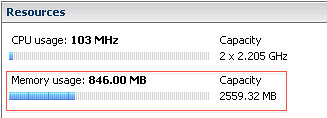
After having several discussions with customers, fellow consultants and engineers we managed to figure out why this perception was floating around. The answer was actually fairly simple and it is metrics. When monitoring memory most people look at the following section of the host – summary tab:

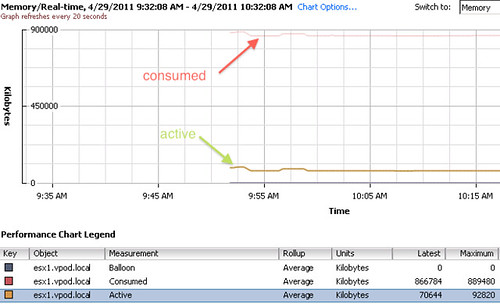
However, in the case of large pages this metric isn’t actually that relevant. I guess that doesn’t only apply to large pages but to memory monitoring in general, although as explained it used to be an indication.  The metric to monitor  is “active memory“. Active memory is is what the VMkernel believes is currently being actively used by the VM. This is an estimate calculated by a form of statistical sampling and this statistical sampling will most definitely come in handy when doing capacity planning. Active memory is in our opinion what should be used to analyze trends. Kit Colbert has also hammered on this during his Memory Virtualization sessions at VMworld. I guess the following screenshot is an excellent example of the difference between “consumed” and “active”. Do we need to be worried about “consumed” well I don’t think so, monitoring “active” is probably more relevant at this point! However, it should be noted that “active” represents a 5 minute time slot. It could easily be that the first 5 minute value observed is the same as the second, yet they are different blocks of memory that were touched. So it is an indication of how active the VM is. Nothing more than that.

PowerCLI Reference Book, the review

Duncan Epping · Apr 12, 2011 ·

I was checking Amazon during the weekend, just like I do everyday, to see if we had new reviews and how the book was selling until I noticed the reviews on the PowerCLI book. The reviews were mainly about the fact that there’s a formatting issue with the ebook which I agree with should be fixed by the publisher but rating it with a 3 / 4 stars just doesn’t cut it in my opinion. Here’s my review of the book, please note that I know the authors really well and they gave me a free copy nevertheless I have been completely honest about what I think about the book. If I would think it was crap I would let you know, before I copy/paste the review here I would like to ask the Authors to pressure their publisher to lower the price of the ebook as right now it is more expensive than the paper version which is just nonsense. Mr or Mrs Sybex, it is time to change your strategy.

Anyway, I gave the PowerCLI Reference Book 5 stars as I truly believe it is one of a kind, here’s my justification for it:

I received the paper-version of the book last week and started reading it straight away. The authors are THE number one PowerCLI experts in the world and take you through the trenches of vSphere automation.
Although I know vSphere inside out I am a novice when it comes to PowerCLI. The main reason being that I never gave myself the time to actually learn PowerCLI as I figured I could do things faster using the UI. Although this might be true in some cases the first thing the book tought me was that my perception was wrong. The book shows you how to optimize your day-to-day operations by taking advantage of what PowerCLI has to offer out of the box, but it also teaches you how to create your own functions. The amount of examples in there in terms of PowerCLI scripts are such a valuable asset that I would highly recommend it to anyone who is interested in learning PowerCLI and/or optimizing their operational procedures. We are not talking about reporting only, for instance configuring vSwitches or restricting the amount of snapshots is all shown in this book. Be warned though, don’t expect a step-by-step Learning PowerCLI Guide, this is 700+ pages of pure PowerCLI automation at its best which will enable you to get the most out of your environment.

Not included on Amazon, but I do feel it would have been nice if the structure of the book was slightly different. I would have personally started with an Introduction chapter, followed “in-box” reporting functionality and finishing it off with deepdive functions and pages of script. But than again, this is a reference book and not course material. All in all, this book is more than worth it.

You can buy it here if you are interested.
(yes it contains an affiliate link)

New version of RVTools!

Duncan Epping · Apr 11, 2011 ·

Rob just released a brand new version of RVTools. So what’s new?

Version 3.1 (April, 2011)

  • Logon form tab order rearranged
  • Logon form will remember your last selected host / vCenter server
  • On vInfo new fields Provisioned, Used and shared storage
  • On vInfo new fields install Boot Required, number of Virtual Disks
  • On vInfo new fields Fault Tolerance State,  FT Latency Status, FT Band width and FT Secondary Latency
  • On vInfo new field 128-bit SMBIOS UUID of the virtual machine.
  • On vDatastore new fields Total provisioned, Used and shared storage
  • On vDatastore new fields SIOC enabled flag and congested threshold value
  • On vDisk new field disk persistence mode.
  • On vNetwork all IP addresses of adapter are now visible
  • On vMemory new field distributed Memory Entitlement
  • On vCPU new fields static Cpu Entitlement and field distributed Cpu Entitlement
  • On vHost new fields Current EVC mode and Max EVC mode
  • New batch command line parameters -u user and -p password
  • Bugfix: custom fields not always visible on vSnapshot tab.
  • Bugfix: Export to Excel, some numeric columns are saved as text instead of numbers
  • RVToolsBatch.cmd with send by email example deployed in RVTools program file directory
  • « Go to Previous Page
  • Page 1
  • Interim pages omitted …
  • Page 11
  • Page 12
  • Page 13
  • Page 14
  • Page 15
  • Interim pages omitted …
  • Page 44
  • Go to Next Page »

Primary Sidebar

About the Author

Duncan Epping is a Chief Technologist and Distinguished Engineering Architect at Broadcom. Besides writing on Yellow-Bricks, Duncan is the co-author of the vSAN Deep Dive and the vSphere Clustering Deep Dive book series. Duncan is also the host of the Unexplored Territory Podcast.

Follow Us

  • X
  • Spotify
  • RSS Feed
  • LinkedIn

Recommended Book(s)

Also visit!

For the Dutch-speaking audience, make sure to visit RunNerd.nl to follow my running adventure, read shoe/gear/race reviews, and more!

Do you like Hardcore-Punk music? Follow my Spotify Playlist!

Do you like 80s music? I got you covered!

Copyright Yellow-Bricks.com © 2026 · Log in