• Skip to primary navigation
  • Skip to main content
  • Skip to primary sidebar

Yellow Bricks

by Duncan Epping

  • Home
  • Unexplored Territory Podcast
  • HA Deepdive
  • ESXTOP
  • Stickers/Shirts
  • Privacy Policy
  • About
  • Show Search
Hide Search

vSphere

iSCSI multipathing with esxcli! Exploring the next version of ESX

Duncan Epping · Mar 18, 2009 ·

In the “Multivendor post to iSCSI” article by Chad Sakac and others(Netapp, EMC, Dell, HP, VMware) a new multi-pathing method for iSCSI on the next version of ESX(vSphere) had already been revealed. Read the full article for in depth information on how this works in the current version and how it will work in the next version. I guess the following section sums it:

Now, this behavior will be changing in the next major VMware release. Among other improvements, the iSCSI initiator will be able to use multiple iSCSI sessions (hence multiple TCP connections).

I was wondering how to set this up and it’s actually quite easy. You need to follow the normal guidelines for configuring iSCSI. But instead of binding two nics to one VMkernel you create two(or more) VMkernels with a 1:1 connection to a nic. Make sure that the VMkernels only have 1 active nic. All other nics must be moved down to “Unused Adapters”. Within vCenter it will turn up like this: [Read more…] about iSCSI multipathing with esxcli! Exploring the next version of ESX
Upgrading ESX 3.5 to the next version with Update Manager

Duncan Epping · Mar 17, 2009 ·

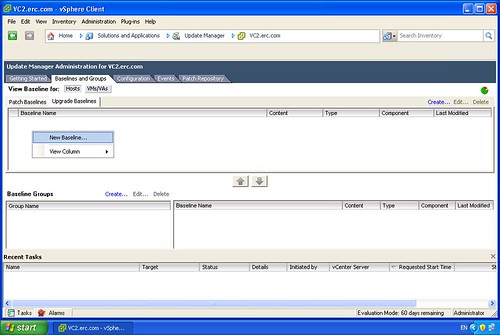
In my Lab I was exploring the upgrade possibilities from ESX 3.5 to the next version.  Usually I do a full reinstall just to be absolutely sure there’s no old packages floating around. For testing purposes I decided to do an upgrade of the ESX host. I opened up Update Manager and with a couple simple clicks I upgraded my host to the next version. (I did an upgrade of vCenter and Update Manager before I even started.) I removed a couple of screenshots that didn’t contain much useful info, in total it were 15 steps to create a baseline and update the host:

Create a new Baseline:

[Read more…] about Upgrading ESX 3.5 to the next version with Update Manager

esxcfg-scsidevs, Exploring the next version of ESX!

Duncan Epping · Mar 16, 2009 ·

Whenever I do a beta test of a product / OS the first thing I do is check if all the features / commands that I used with the previous version still exist. When I did an “esxcfg- tab tab” on the next version of ESX one thing stood out, esxcfg-vmhbadevs was gone. I use this command a lot when investigating SAN problems, same goes for esxcfg-mpath by the way. Both print really valuable information that I usually copy & paste for keeping track of changes.

With the upcoming version of ESX(vSphere) a new command will be introduced which replaces esxcfg-vmhbadevs: esxcfg-scsidevs.

This new command has a couple of extra command line options and prints more detail than ever before, of which -l is probably the most useful. Using “esxcfg-scsidevs -l” results in:

mpx.vmhba2:C0:T0:L0
   Device Type: Direct-Access
   Size: 6144 MB
   Display Name: Local VMware, Disk (mpx.vmhba2:C0:T0:L0)
   Plugin: NMP
   Console Device: /dev/sda
   Devfs Path: /vmfs/devices/disks/mpx.vmhba2:C0:T0:L0
   Vendor: VMware,   Model: VMware Virtual S  Revis: 1.0
   SCSI Level: 2  Is Pseudo: false Status: on
   Is RDM Capable: false Is Removable: false
   Is Local: true
   Other Names:
      vml.0000000000766d686261323a303a30

One of the options I used the most with esxcfg-vmhbadevs was “-m”, which would result in the following:

vmhba0:0:0:5 /dev/sdb5 49b785f3-f263cec4-a4bd-000c29123ede

For esxcfg-scsidevs the option -m also displays this information, but VMware has added the VMFS name which makes it clear what the relationship is and saves me the extra step of matching ID’s with names manually:

mpx.vmhba0:C0:T0:L0:5 /dev/sdb5
  49b785f3-f263cec4-a4bd-000c29123ede  0  Storage1

So far I’m happy with the improvements in the service console / remote cli! Up next: iSCSI.

Disabling the VMFS-2 module! Exploring the next generation of ESX

Duncan Epping · Mar 13, 2009 ·

When I started out with ESX 3.0.x the first thing I wanted to do was disable the VMFS-2 driver. There’s no need for it when you’re not accessing VMFS-2 volumes and removing it can lead to performance gains or at least a faster rescan of your storage. Removing it, according to to this section of the VMware website, was supposed to be really easy:

vmkload_mod -u vmfs2

Unfortunately, this just unloads the module and every time the server gets rebooted the module is loaded again. Same goes for the esxcfg-module command, it unloaded it but after a reboot the module was loaded again. You could add the command to /etc/rc.local of course. This would unload the module every time the server booted. I’m not a big fan of manually changing files like this, and luckily as of the next generation of ESX(vSphere) this doesn’t seem to be necessary anymore:

esxcfg-module -d
-d|--disable - Disable a given module,
indicating it should not be loaded on boot.

The funny thing is when I run the “esxcfg-module -l” command it still lists the module as loaded. If I run the “esxcfg-module -q”, which only queries the enabled modules, it’s not listed. After a closer investigation I noticed that the following line changed in “/etc/vmware/esx.conf”:

/vmkernel/module/vmfs2/enabled = "false"

I did a cross-check, it’s most definitely not loaded. Cool, remember this one “esxcfg-module -d”. It will come in handy some day.

VMFS recognized as a snapshot what to do? Exploring the next version of ESX…

Duncan Epping · Mar 13, 2009 ·

Your VMFS has been recognized as a snapshot, what are you going to do? Hopefully most of you have read my previous post on this topic by now. If you didn’t, be very ashamed and start reading my EnableResignature post before you continue.

I was just playing with a VMworld Europe lab manual, which was about the next version of ESX/vCenter(Part of vSphere). I noticed the following new command on the command-line: esxcfg-volume. I did a help and the following showed up:

-l | --list
-m | --mount <vmfs uuid|label>
-u | -- umount <vmfs uuid|label>
-r | -- resignature <vmfs uuid|label>
-M | --persistent-mount <vmfs uuid|label>

As you can imagine this command will come in handy when a VMFS/LUN is being recognized as a clone or snapshot! With version 3.5 you needed to change an advanced setting. This setting wasn’t specifically for just one LUN, but for all of them, which is a risk. With the next version of ESX you could do the following if a volume has been detected as a snapshot and you want to resignature it:

  1. esxcfg-volume -l
  2. esxcfg-volume -r 49ba276a-c9e135b6-26f8-000c29123ede

Or if the current cloned volume isn’t connected you could also just mount it:

  1. esxcfg-volume -l
  2. esxcfg-volume -m 49ba276a-c9e135b6-26f8-000c29123ede

And if you are absolutely sure the cloned volume will not return you could mount it persistantly, which is the equivallent of “EnableResignature=0, DisallowSnapshotLUN=0”:

  1. esxcfg-volume -l
  2. esxcfg-volume -M 49ba276a-c9e135b6-26f8-000c29123ede

Don’t you just love this new exciting command-line magic! There’s more to come over the next days/weeks.

btw: there’s also a way of doing this from the GUI… Just add a new LUN, select the LUN that you want to mount, depending on what needs to be done pick “Assign a new signature” or “Keep Existing Signature”. But where’s the fun in that?

  • « Go to Previous Page
  • Page 1
  • Interim pages omitted …
  • Page 156
  • Page 157
  • Page 158
  • Page 159
  • Go to Next Page »

Primary Sidebar

About the Author

Duncan Epping is a Chief Technologist and Distinguished Engineering Architect at Broadcom. Besides writing on Yellow-Bricks, Duncan is the co-author of the vSAN Deep Dive and the vSphere Clustering Deep Dive book series. Duncan is also the host of the Unexplored Territory Podcast.

Follow Us

  • X
  • Spotify
  • RSS Feed
  • LinkedIn

Recommended Book(s)

Advertisements


Copyright Yellow-Bricks.com © 2025 · Log in