• Skip to primary navigation
  • Skip to main content
  • Skip to primary sidebar

Yellow Bricks

by Duncan Epping

  • Home
  • Unexplored Territory Podcast
  • HA Deepdive
  • ESXTOP
  • Stickers/Shirts
  • Privacy Policy
  • About
  • Show Search
Hide Search

vsphere 7

Upgrading to vSphere 7.0b and not sure what the 7.0bs image is?

Duncan Epping · Jun 27, 2020 ·

Are you upgrading to vSphere 7.0b and not sure what the difference is between 7.0b and 7.0bs? Well that isn’t strange, I had the same problem. I asked around internally and after a bunch of email exchanges, I was informed that the vSphere 7.0bs image is “security updates only”. After I brought it up the team has since quickly modified the release notes to include the following:

Name and Version Release Date Category Detail
ESXi 7.0b – 16324942 06/16/2020 Enhancement Security and Bugfix image
ESXi 7.0bs – 16321839 06/16/2020 Enhancement Security only image

Like I said on twitter if you didn’t know, now you know!

Was upgrading our lab to 7.0b and noticed there were 2 images: 7.0b and 7.0bs. After asking around internally it seems that 7.0bs is just the security updates. Where 7.0b also contains bug fixes. If you didn't know, like me, now you know! https://t.co/ixIekHwsr6

— Duncan Epping (@DuncanYB) June 26, 2020

vCenter 7.0 stating “New vCenter server updates are available” while there are no updates?

Duncan Epping · Jun 8, 2020 ·

I have seen this issue reported on the VMware Community Forum a few times, when you run vCenter 7.0 you will receive a message in the vSphere Client stating the following “New vCenter server updates are available”. When you then click “View Updates” however you will notice that there are no updates available for vCenter Server and you are indeed running the latest and greatest version. We (Cormac and I) actually encountered the issue in our lab as well, which is demonstrated in the screenshot below.

Pretty confusing indeed. Please note that this is a known issue, there’s no need to report this to VMware. Soon a patch will be released for vCenter Server which will fix this problem.

The issue is fixed in 7.0b as documented in the release notes!

vSphere HA internals: restart placement changes in vSphere 7!

Duncan Epping · May 13, 2020 ·

Frank and I are looking to update the vSphere Clustering deep dive to vSphere 7. While scoping the work I stumbled on to something interesting, and this is the change that was introduced for the vSphere HA restart mechanism,  and specifically the placement of VMs in vSphere 7. In previous releases vSphere HA had a straight forward way of doing placement for VMs when VMs need to be restarted as a result of a failure. In vSphere 7.0 this mechanism was completely overhauled.

So how did it work pre-vSphere 7?

  • HA uses the cluster configuration
  • HA uses the latest compatibility list it received from vCenter
  • HA leverages a local copy of the DRS algorithm with a basic (fake) set of stats and runs the VMs through the algorithm
  • HA receives a placement recommendation from the local algorithm and restarts the VM on the suggested host
  • Within 5 minutes DRS runs within vCenter, and will very likely move the VM to a different host based on actual load

As you can imagine this is far from optimal. So what is introduced in vSphere 7? Well, we introduce two different ways of doing placement for restarts in vSphere 7:

  1. Remote Placement Engine
  2. Simple Placement Engine

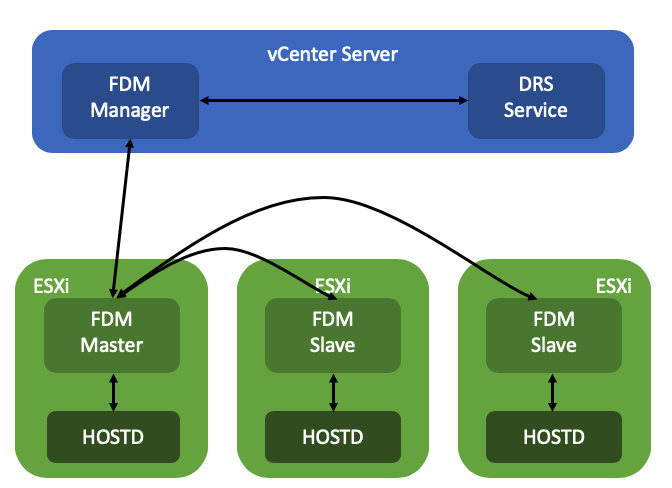
The Remote Placement Engine, in short, is the ability for vSphere HA to make a call to DRS for the recommendation of the placement of a VM. This will take the current load of the cluster, the VM happiness, and all configured affinity/anti-affinity/vm-host affinity rules into consideration! Will this result in a much slower restart? The great thing is that the DRS algorithm has been optimized over the past years and it is so fast that there will not be a noticeable difference between the old mechanism and the new mechanism. Added benefit of course for the engineering team is that they can remove the local DRS module, which means there’s less code to maintain. How this works is that the FDM Master communicated with the FDM Manager which runs in vCenter Server. FDM Manager communicates with the DRS service to request a placement recommendation.

Now some of you will probably wonder what happens when vCenter Server is unavailable, well this is where the Simple Placement Engine comes into play. The team has developed a new placement engine that basically takes a round-robin approach, but does consider of course “must rules” (VM to Host) and the compatibility list. Note, affinity, or anti-affinity rules, are not considered when SPE is used instead of RPE! This is a known limitation, which is considered to be fixed in the future. If a host, for instance, is not connected to the datastore the VM is running on that needs to be restarted than that host is excluded from the list of potential placement targets. By the way, before I forget, version 7 also introduced a vCenter heartbeat mechanism as a result. HA will be heart beating the vCenter Server instance to understand when it will need to resort to the Simple Placement Engine vs the Remote Placement Engine.

I dug through the FDM log to find some proof of these new mechanisms, (/var/log/fdm.log) and found an entry that shows there are indeed two placement engines:

Invoking the RPE + SPE Placement Engine

RPE stands for “remote placement engine”, and SPE for “simple placement engine”. Where Remote of course refers to DRS. You may ask yourself, how do you know if DRS is being called? Well, that is something you can see in the logs in the DRS log files, when a placement request is received, the below entry shows up in the log file:

FdmWaitForUpdates-vim.ClusterComputeResource:domain-c8-26307464

This even happens when DRS is disabled and also when you use a license edition which does not include DRS even, which is really cool if you ask me. If for whatever reason vCenter Server is unavailable, and as a result DRS can’t be called, you will see this mentioned in the FDM log, and as shown below, it will use the Simple Placement Engine’s recommendation for the placement of the VM:

Invoke the placement service to process the placement update from SPE

A cool and very useful small HA enhancement if you ask me for vSphere 7.0!


** Disclaimer: This article contains references to the words master and/or slave. I recognize these as exclusionary words. The words are used in this article for consistency because it’s currently the words that appear in the software, in the UI, and in the log files. When the software is updated to remove the words, this article will be updated to be in alignment. **

vSphere HA internals: VMCP super aggressive option in vSphere 7

Duncan Epping · May 11, 2020 ·

Most of you probably heard about a feature called VMCP aka VM Component Protection. If not, this is the functionality in vSphere HA that enabled you to restart VMs which have been impacted by a PDL (permanent device loss) or APD (all paths down) scenario. (If you have no idea what I am talking about read this article first.)

When you configure the APD response you have four options:

  1. Disable
  2. Issue Event
  3. Power Off / Restart – Conservative
  4. Power Off / Restart – Aggressive

The main difference between Conservative and Aggressive is that if you find yourself in a situation where HA isn’t sure whether a VM can be restarted during an APD scenario it will not power off the VM when using Conservative. If you have it configured as Aggressive it will power off the VM. However, if HA is certain that a VM can’t be powered on it will not power off the VM. Basically it prefers availability of the VM.

As you can imagine, in certain scenarios having a VM running while it is impacted by an “APD” situation makes no sense. The VM has lost access to storage, and you simply may prefer to kill the workload. Why? Well, when it loses access to storage it can’t write to disk. You could find yourself in a situation where a change is acknowledged and you think it is written to disk but it somehow is sitting in a memory cache etc.

If you prefer the VM to be killed, regardless of whether it can be restarted or not, you can enable this via a vSphere HA advanced setting. Now before you implement this, do note that if a cluster-wide APD situation occurs, you could find yourself in the scenario where ALL virtual machines are powered off by HA and not restarted as the resources are not available. Anyway, if you feel this is a requirement, you can configure the following vSphere HA advanced setting in vSphere 7:

das.restartVmsWithoutResourceChecks = true

ESXTOP in vSphere 7

Duncan Epping · Apr 2, 2020 ·

I was playing around with Scalable Shares and then noticed some enhancements in esxtop which I didn’t realize were there. I figured I would list the changes I spotted so people are aware of what was added to esxtop in vSphere 7.0. Although it isn’t a huge amount, it is still very valuable to know!

  • RDMA Device “display” is added, so a fully new category for those running RDMA!
    • This, of course, has fields like “Megabits Tx/s”, “% Packets Dropped” etc.
  • CPU Display now has the ability to disable the PCPU usage info at the top by typing “f” followed by “k”
  • vSAN Display now provides UNMAP stats (E, F) additionally

What is also new is that you can now suppress the server physical CPU stats when you type “esxtop -u”, this could be useful when dumping your info into a .csv file. I just added the new details to my ESXTOP page as well, for those who use that as a reference. If there’s more I stumble into then I will report it.

  • Page 1
  • Page 2
  • Go to Next Page »

Primary Sidebar

About the Author

Duncan Epping is a Chief Technologist and Distinguished Engineering Architect at Broadcom. Besides writing on Yellow-Bricks, Duncan is the co-author of the vSAN Deep Dive and the vSphere Clustering Deep Dive book series. Duncan is also the host of the Unexplored Territory Podcast.

Follow Us

  • X
  • Spotify
  • RSS Feed
  • LinkedIn

Recommended Book(s)

Advertisements


Copyright Yellow-Bricks.com © 2025 · Log in