• Skip to primary navigation
  • Skip to main content
  • Skip to primary sidebar

Yellow Bricks

by Duncan Epping

  • Home
  • Unexplored Territory Podcast
  • HA Deepdive
  • ESXTOP
  • Stickers/Shirts
  • Privacy Policy
  • About
  • Show Search
Hide Search

VMware

Disk controllers for vSAN with or without cache?

Duncan Epping · Dec 13, 2016 ·

I got this question today and I thought I already wrote something on the topic, but as I cannot find anything I figured I would write up something quick. The question was if a disk controller for vSAN should have cache or not? It is a fair question as many disk controllers these days come with 1GB, 2GB or 4GB of cache.

Let it be clear that with vSAN you are required to disable the write cache at all times. The reason for this is simple, vSAN is in control of data consistency and vSAN does not expect a write cache (battery backed or not) in its data path. Make sure to disable it. From a read perspective you can have caching enabled. In some cases we see controllers where people simply set the write cache to 0% and the rest automatically then becomes read cache. This is fully supported, however our tests have shown that there’s little added benefit in terms of performance. Especially as reads come from SSD anyway typically, theoretically there could be a performance gain, but personally I would rather spend my money on flash for vSAN.

My recommendation is fairly straight forward: use a disk controller which is a plain pass through controller without any fancy features. You don’t need RAID on the disk controller with vSAN, you don’t need caching on the disk controller with vSAN, keep it simple, that works best. So if you have the option to dumb it down, go for it.
Storage capacity for swap files and TPS disabled

Duncan Epping · Dec 8, 2016 ·

A while ago (2014) I wrote an article on TPS being disabled by default in future release. (Read KB 2080735 and 2097593 for more info) I described why VMware made this change from a security perspective and what the impact could be. Even today, two years later, I am still getting questions about this and what for instance the impact is on swap files. With vSAN you have the ability to thin provision swap files, and with TPS being disabled is this something that brings a risk?

Lets break it down, first of all what is the risk of having TPS enabled and where does TPS come in to play?

With large pages enabled by default most customers aren’t actually using TPS to the level they think they are. Unless you are using old CPUs which don’t have EPT or RVI capabilities, which I doubt at this point, it only kicks in with memory pressure (usually) and then large pages get broken in to small pages and only then will they be TPS’ed, if you have severe memory pressure that usually means you will go straight to ballooning or swapping.

Having said that, lets assume a hacker has managed to find his way in to you virtual machine’s guest operating system. Only when memory pages are collapsed, which as described above only happens under memory pressure, will the hacker be able to attack the system. Note that the VM/Data he wants to attack will need to be on the located on the same host and the memory pages/data he needs to breach the system will need to be collapsed. (actually, same NUMA node even) Many would argue that if a hacker gets that far and gets all the way in to your VM and capable of exploiting this gap you have far bigger problems. On top of that, what is the likelihood of pulling this off? Personally, and I know the VMware security team probably doesn’t agree, I think it is unlikely. I understand why VMware changed the default, but there are a lot of “IFs” in play here.

Anyway, lets assume you assessed the risk and feel you need to protect yourself against it and keep the default setting (intra-VM TPS only), what is the impact on your swap file capacity allocation? As stated when there is memory pressure, and ballooning cannot free up sufficient memory and intra-VM TPS is not providing the needed memory space either the next step after compressing memory pages is swapping! And in order for ESXi to swap memory to disk you will need disk capacity. If and when the swap file is thin provisioned (vSAN Sparse Swap) then before swapping out those blocks on vSAN will need to be allocated. (This also applies to NFS where files are thin provisioned by default by the way.)

What does that mean in terms of design? Well in your design you will need to ensure you allocate capacity on vSAN (or any other storage platform) for your swap files. This doesn’t need to be 100% capacity, but should be more than the level of expected overcommitment. If you expect that during maintenance for instance (or an HA event) you will have memory overcommitment of about 25% than you could ensure you have 25% of the capacity needed for swap files available at least to avoid having a VM being stunned as new blocks for the swap file cannot be allocated and you run out of vSAN datastore space.

Let it be clear, I don’t know many customers running their storage systems in terms of capacity up to 95% or more, but if you are and you have thin swap files and you are overcommitting and TPS is disabled, you may want to re-think your strategy.

All-Flash HCI is taking over fast…

Duncan Epping · Nov 23, 2016 ·

Two weeks ago I tweeted about All-Flash HCI taking over fast, maybe I should have said All-Flash vSAN as I am not sure every vendor is seeing the same trend. Reason for it being of course is the price of flash dropping while capacity goes up. At the same time with vSAN 6.5 we introduced “all-flash for everyone” by dropping the “all-flash” license option down to vSAN Standard.

I love getting these emails about huge vSAN environments… this week alone 900TB and 2PB raw capacity in a single all-flash vSAN cluster

— Duncan Epping (@DuncanYB) November 10, 2016

So the question naturally came, can you share what these customers are deploying and using, I shared those later via tweets, but I figured it would make sense to share it here as well. When it comes to vSAN there are two layers of flash used, one for capacity and the other for caching (write buffer to be more precise). For the write buffer I am starting to see a trend, the 800GB and 1600 NVMe devices are becoming more and more popular. Also the write-intensive SAS connected SSDs are often used. I guess it largely depends on the budget which you pick, needless to say but NVMe has my preference when budget allows for it.

For the capacity tier there are many different options, most people I talk to are looking at the read intensive 1.92TB and 3.84TB SSDs. SAS connected are a typical choice for these environments, but it does come at a price. The SATA connected S3510 1.6TB (available at under 1 euro per GB even) seems to be a choice many people make who have a tighter budget, these devices are relatively cheap compares to the SAS connected devices. With the downside being the shallow queue depth though, but if you are planning on having multiple devices per server than this probably isn’t a problem. (Something I would like to see at some point is a comparison between SAS and SATA connected for real life workloads for drives with similar performance capabilities to see if there actually is an impact.)

With prices still coming down and capacity still going up it will be interesting to see how the market shifts in the upcoming 12-18 months. If you ask me hybrid is almost dead, of course there are still situations where it may make sense (low $ per GB requirements), but in most cases all-flash just makes more sense these days.

I would interested in hearing from you as well, if you are doing all-flash HCI/vSAN, what are the specs and why are you selecting specific devices/controllers/types?

The difference between VM Encryption in vSphere 6.5 and vSAN encryption

Duncan Epping · Nov 7, 2016 ·

More and more people are starting to ask me what the difference is between VMCrypt aka VM Encryption and the beta feature we announced not to long ago called vSAN Encryption. (Note, we announced a beta, no promises were made around dates or actual releases or releasing of the feature.) Both sounds very much the same and essential both end up encrypting the VM but there is a big difference in terms of how it is implemented. There are advantages and disadvantages to both solutions. Lets look at VM Encryption first.

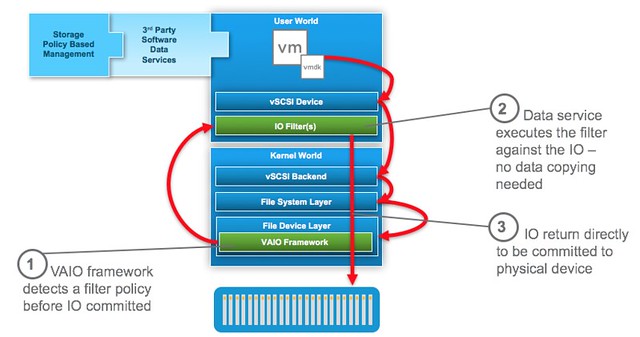
VM Encryption is implemented through VAIO (vSphere APIs for IO Filters). The VAIO framework allows a filter driver to do “things” to/with the IO that a VM sends down to a device. One of these things is encryption. Now before I continue, take a look at this picture of where the filter driver sits.

As you can see the filter driver is implemented in the User World and the action against the IO is taken at the top level. If this for instance is encryption then any data send across the wire is already encrypted. Great in terms of security of course. And all of this can be enabled through policy. Simply create the policy, select the VM or VMDK you want to encrypt and there you go. So if it is that awesome, why vSAN Encryption?

Well the problem is that all IO is encrypted at the top level. This means that it is received in the vSAN write buffer fully encrypted, then the data at some point needs to be destaged and is deduplicated and compressed (in all-flash). As you can imagine, encrypted blocks do not dedupe (or compress) well. As such in an all-flash environment with deduplication and compression enabled any VM that has VM Encryption through VAIO enabled will not provide any space savings.

With vSAN Encryption this will be different. The way it will work is that it will provide “encryption at rest”. The data travels to the destination unencrypted then when it reaches its destination it is written encrypted to the cache tier, then it is decrypted before it is destaged, and it will be encrypted after it is deduplicated and/or compressed again. This means that you will benefit from space saving functionality, however encryption in this case is a cluster wide option, which means that every VM will be encrypted, which may not be desirable.

So in short:

  • VM Encryption (VAIO)
    • Policy based (enable per VM)
    • Data travels encrypted
    • No/near zero dedupe
  • vSAN Encryption
    • Enabled on a cluster level
    • Data travels unencrypted, but it is written encrypted to the cache layer
    • Full compatibility with vSAN data services

I hope that clarifies why we announced the beta of vSAN Encryption and what the difference is with VM Encryption that is part of vSphere 6.5.

vSphere 6.5 what’s new – Storage IO Control

Duncan Epping · Oct 26, 2016 ·

There are many enhancements in vSphere 6.5, an overhaul of Storage IO Control is one of them. In vSphere 6.5 Storage IO Control has been reimplemented by leveraging the VAIO framework. For those who don’t know VAIO stands for vSphere APIs for IO Filtering. This is basically a framework that allows you to filter (storage) IO and do things with it. So far we have seen caching and replication filters from 3rd party vendors, and now a Quality of Service filter from VMware.

Storage IO Control has been around for a while and hasn’t really changed that much since its inception. It is one of those features that people take for granted and you actually don’t know you have turned on in most cases. Why? Well Storage IO Control (SIOC) only comes in to play when there is contention. When it does come in to play it ensure that every VM gets its fair share of storage resources. (I am not going to explain the basics, read this posts for more details.) Why the change in SIOC design/implementation? Well fairly simple, the VAIO framework enabled policy based management. This goes for caching, replication and indeed also QoS. Instead of configuring disks or VMs individually, you will now have the ability to specify configuration details in a VM Storage Policy and assign that policy to a VM or VMDK. But before you do, make sure you enable SIOC first on a datastore level and set the appropriate latency threshold. Lets take a look at how all of this will work:

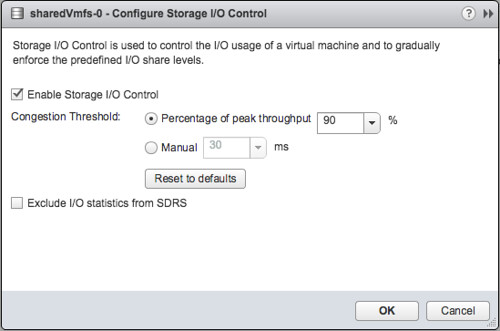
  • Go to your VMFS or NFS Datastore and right click datastore and click “Configure SIOC” and enable SIOC
  • By default the congestion threshold is set to 90% of peak throughput you can change this percentage or specify a latency threshold manually by defining the number of miliseconds latency
  • Now go to the VM Storage Policy section
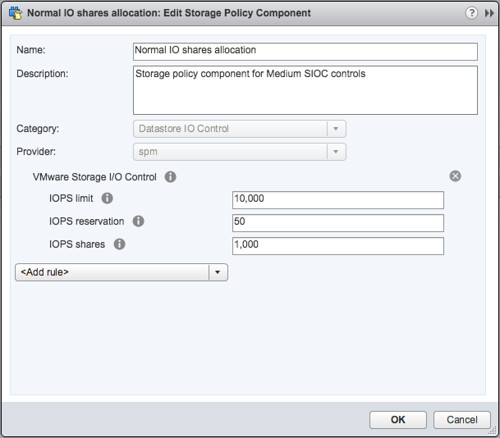
  • Go to Storage Policy Components section first and check out the pre-created policy components, below I show “Normal” as an example
  • If you want you can also create a Storage Policy Component yourself and specify custom shares, limits and a reservation. Personally I would prefer to do this when using SIOC and probably remove the limit if there is no need for it. Why limit a VM on IOPS when there is no contention? And if there is contention, well then SIOC shares based distribution of resource will be applied.
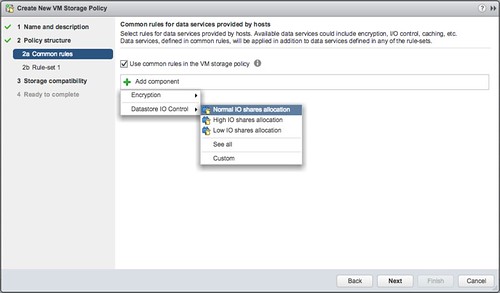
  • Next you will need to do is create a VM Storage Policy, click that tab and click “create VM storage policy”
  • Give the policy a name and next you can select which components to use
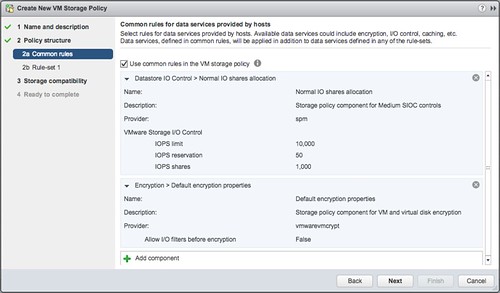
  • In my case I select the “Normal IO shares allocation” and I also add Encryption, just so we know what that looks like. If you have other data services, like replication for instance, you could even stack those on top. That is what I love about the VAIO Framework.
  • Now you can add rules, I am not going to do this. And next the compatible datastores will be presented and that is it.
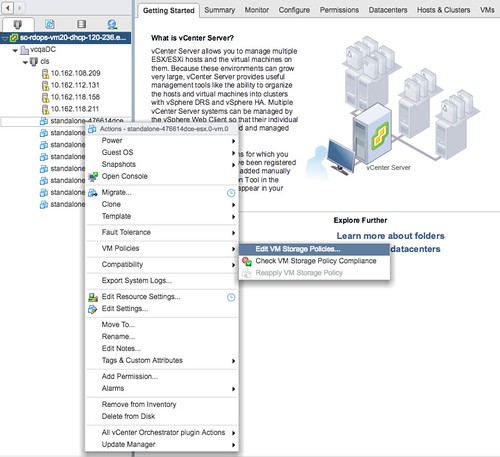
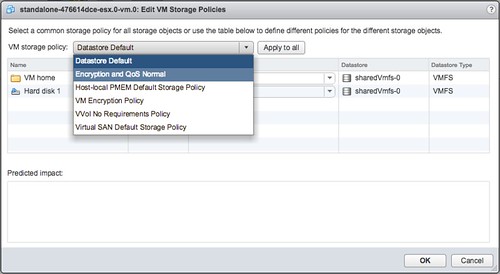
  • You can now assign the policy to a VM. You do this by right clicking a particular VM and select “VM Policies” and then “Edit VM Storage Policies”
  • Now you can decide which VM Storage Policy to apply to the disk. Select your policy from the dropdown and then click “apply to all”, at least when that is what you would like to do.
  • When you have applied the policy to the VM you simply click “OK” and now the policy will be applied to the VM and for instance the VMDK.

And that is it, you are done. Compared to previous versions of Storage Policy Based Management this may all be a bit confusing with the Storage Policy Components, but believe me it is very powerful and it will make your life easier. Mix and match whatever you require for a workload and simply apply it.

Before I forget, note that the filter driver at this point is used to enforce limits only. Shares and the Reservation still leverages the mClock scheduler.


  • « Go to Previous Page
  • Page 1
  • Interim pages omitted …
  • Page 39
  • Page 40
  • Page 41
  • Page 42
  • Page 43
  • Interim pages omitted …
  • Page 124
  • Go to Next Page »

Primary Sidebar

About the Author

Duncan Epping is a Chief Technologist and Distinguished Engineering Architect at Broadcom. Besides writing on Yellow-Bricks, Duncan is the co-author of the vSAN Deep Dive and the vSphere Clustering Deep Dive book series. Duncan is also the host of the Unexplored Territory Podcast.

Follow Us

  • X
  • Spotify
  • RSS Feed
  • LinkedIn

Recommended Book(s)

Also visit!

For the Dutch-speaking audience, make sure to visit RunNerd.nl to follow my running adventure, read shoe/gear/race reviews, and more!

Do you like Hardcore-Punk music? Follow my Spotify Playlist!

Do you like 80s music? I got you covered!

Copyright Yellow-Bricks.com © 2026 · Log in