• Skip to primary navigation
  • Skip to main content
  • Skip to primary sidebar

Yellow Bricks

by Duncan Epping

  • Home
  • Unexplored Territory Podcast
  • HA Deepdive
  • ESXTOP
  • Stickers/Shirts
  • Privacy Policy
  • About
  • Show Search
Hide Search

vmotion

High latency VPLEX configuration and vMotion optimization

Duncan Epping · Jul 10, 2015 ·

This week someone asked me about an advanced setting to optimize vMotion for VPLEX configurations. This person referred to the vSphere 5.5 Performance Best Practices paper and more explicitly the following section:

Add the VMX option (extension.converttonew = “FALSE”) to virtual machine’s .vmx files. This option optimizes the opening of virtual disks during virtual machine power-on and thereby reduces switch-over time during vMotion. While this option can also be used in other situations, it is particularly helpful on VPLEX Metro deployments.

I had personally never heard of this advanced setting and I did some searches both internally and externally and couldn’t find any references other than in the vSphere 5.5 Performance paper. Strange, as you could expect with a generic recommendation like the above that it would be mentioned at least in 1 or 2 other spots. I reached out to one of the vMotion engineers and after going back and forth I figured out what the setting is for and when it should be used.

During testing with VPLEX and VMs using dozens of VMDKs in a “high latency” situation it could take longer than expected before the switchover between hosts had happened. First of all, when I say “high latency” we are talking about close to the max tolerated for VPLEX which is around 10ms RTT. When “extension.converttonew” is used the amount of IO needed during the switchover is limited, and when each IO takes 10ms you can imagine that has a direct impact on the time it takes to switchover. Of course these enhancements where also tested in scenarios where there wasn’t high latency, or a low number of disks were used, and in those cases the benefits of the enhancements were negligible and the operation overhead of configuring this setting did not weigh up against the benefits.

So to be clear, this setting should only be used in scenarios where high latency and a high number of virtual disks results in a long switchover time during migrations of VMs between hosts in a vMSC/VPLEX configuration. I hope that helps.
What does support for vMotion with active/active (a)sync mean?

Duncan Epping · Mar 23, 2015 ·

Having seen so many cool features being released over the last 10 years by VMware you sometimes wonder what more they can do. It is amazing to see what level of integration we’ve see between the different datacenter components. Many of you have seen the announcements around Long Distance vMotion support by now.

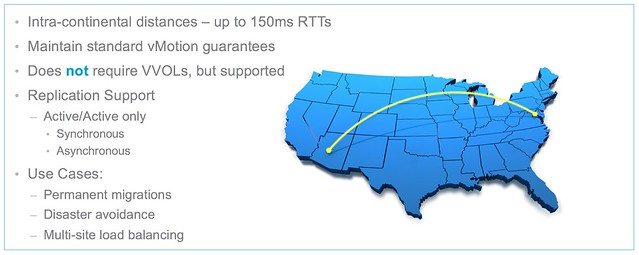
When I saw this slide something stood out to me instantly and that is this part:

  • Replication Support
    • Active/Active only
      • Synchronous
      • Asynchronous

What does this mean? Well first of all “active/active” refers to “stretched storage” aka vSphere Metro Storage Cluster. So when it comes to long distance vMotion some changes have been introduced for sync stretched storage. (** note that “active/active” storage is not required for long distance vMotion**)With stretched storage writes can come from both sides at any time to a volume and will be replicated synchronously. Some optimizations have been done to the vMotion process to avoid writes during switchover to avoid any delay during the process as a result of replication traffic.

For active/active asyncronous the story is a bit different. Here again we are talking about “stretched storage” but in this case the asynchronous flavour. One important aspect which was not mentioned in the deck is that async requires Virtual Volumes. Now, at the time of writing there is no vendor yet who has a VVol capable solution that offers active/active async. But more important, is this process any different than the sync process? Yes it is!

During the migration of a virtual machine which uses virtual volumes, with an “active/active async” configuration backing it, the array is informed that a migration of the virtual machine is taking place and is requested to switch from asynchronous replication to synchronous. This to ensure that the destination is in-sync with the source when the VM is switched over from side A to side B. Besides switching from async to sync when the migration has completed the array is informed that the migration has completed. This allows the array to switch the “bias” of the VM for instance, especially in a stretched environment this is important to ensure availability.

I can’t wait for the first vendor to announce support for this awesome feature!

What is new for vMotion in vSphere 6.0?

Duncan Epping · Feb 5, 2015 ·

vMotion is probably my favourite VMware feature ever. It is one of those features which revolutionized the world and just when you think they can’t really innovate anymore they take it to a whole new level. So what is new?

  • Cross vSwitch vMotion
  • Cross vCenter vMotion
  • Long Distance vMotion
  • vMotion Network improvements
    • No requirement for L2 adjacency any longer!
  • vMotion support for Microsoft Clusters using physical RDMs

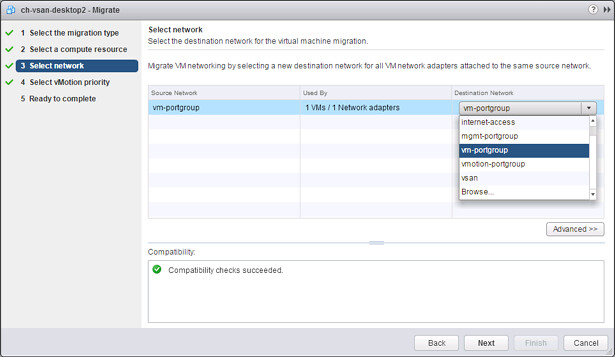
That is a nice long list indeed. Lets discuss each of these new features one by one and lets start at the top with Cross vSwitch vMotion. Cross vSwitch vMotion basically allows you to do what the name tells you. It allows you to migrate virtual machines between different vSwitches. Not just from vSS to vSS but also from vSS to vDS and vDS to vDS. Note that vDS to vSS is not supported. This is because when migrating from vDS metadata of the VM is transferred as well and the vSwitch does not have this logic and cannot handle the metadata. Note that the IP Address of the VM that you are migrating will not magically change, so you will need to make sure both  the source and the destination portgroup belong to the same layer 2 network. All of this is very useful during for instance Datacenter Migrations or when you are moving VMs between clusters for instance or are migrating to a new vCenter instance even.

Next on the list is Cross vCenter vMotion. This is something that came up fairly frequent when talking about vMotion, will we ever have the ability to move a VM to a new vCenter Server instance? Well as of vSphere 6.0 this is indeed possible. Not only can you move between vCenter Servers but you can do this with all the different migration types there are: change compute / storage / network. You can even do it without having a shared datastore between the source and destination vCenter aka “shared nothing migration. This functionality will come in handy when you are migrating to a different vCenter instance or even when you are migrating workloads to a different location. Note, it is a requirement for the source and destination vCenter Server to belong to the same SSO domain. What I love about this feature is that when the VM is migrated things like alarms, events, HA and DRS settings are all migrated with it. So if you have affinity rules or changed the host isolation response or set a limit or reservation it will follow the VM!

My personal favourite is Long Distance vMotion. When I say long distance, I do mean long distance. Remember that the max tolerated latency was 10ms for vMotion? With this new feature that just went up to 150ms. Long distance vMotion uses socket buffer resizing techniques to ensure that migrations succeed when latency is high. Note that this will work with any storage system, both VMFS and NFS based solutions are fully supported. (** was announced with 100ms, but updated to 150ms! **)

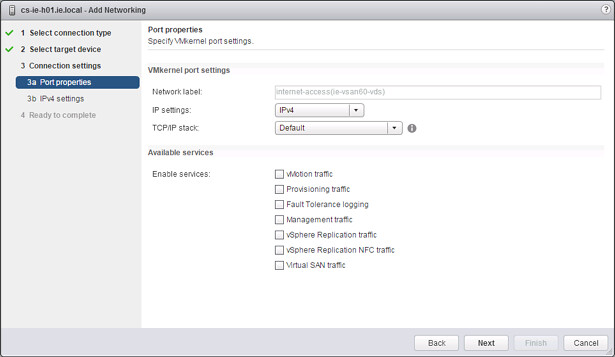
Then there are the network enhancements. First and foremost, vMotion traffic is now fully supported over an L3 connection. So no longer is there the need for L2 adjacency for your vMotion network, I know a lot of you have asked for this and I am happy to be able to announce it. On top of that. You can now also specify which VMkernel interface should be used for migration of cold data. It is not something many people are aware off, but depending on the type of migration you are doing and the type of VM you are migrating it could be in previous versions that the Management Network was used to transfer data. (Frank Denneman described this scenario in this post.) For this specific scenario it is now possible to define a VMkernel interface for “Provisioning traffic” as shown in the screenshot below. This interface will be used for, and let me quote the documentation here, “Supports the traffic for virtual machine cold migration, cloning, and snapshot creation. You can use the provisioning TPC/IP stack to handle NFC (network file copy) traffic during long-distance vMotion. NFC provides a file-type aware FTP service for vSphere, ESXi uses NFC for copying and moving data between datastores.”

Full support for vMotion of Microsoft Cluster virtual machines is also newly introduced in vSphere 6.0. Note that these VMs will need to use physical RDMs and only supported with Windows 2008, 2008 R2, 2012 and 2012 R2. Very useful if you ask me when you need to do maintenance or you have resource contention of some kind.

That was it for now… There is some more stuff coming with regards to vMotion but I cannot disclose that yet unfortunately.

vSwitch Traffic Shaping, what is what?

Duncan Epping · Jun 30, 2014 ·

I was troubleshooting an issue where vMotion would time-out constantly, I had no clue where it was coming from so I started digging. In this case the environment was using a regular vSwitch and 10GbE networking. When I took a closer look I noticed that some form of traffic shaping was applied, as unfortunately the Distributed vSwitch was not an option for this environment. Now traffic shaping was enabled and the peak value was specified and the rest was left to the default value… and unfortunately this is exactly what cause the problem.

So when it comes to vSwitch Traffic Shaping, what is what? There are 3 settings you can set per portgroup:

  • Average Bandwidth – specified in Kbps
  • Peak Bandwidth – specified in Kbps
  • Burst Size – specified in KB

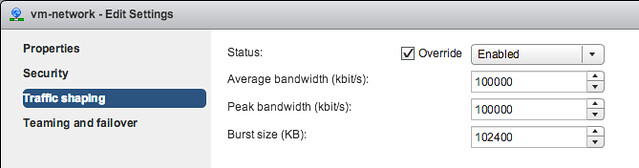
So if you have a 10Gbps NIC port for your traffic this means you have a total of 10,485,760 Kbps. When you enable vSwitch Traffic Shaping by default it is set to have “Average Bandwidth” to 100,000 Kbps , Peak Bandwidth to 100,000 Kbps and Burst Size to 1024,00 KB. So what does that mean? Well it means that if you enable it and do not change the values that the traffic is limited to 100,000 Kbps. 100,000 Kbps is… yes roughly 100Mbps, even less to be more precise: 97.6Mbps. Which is not a lot indeed, and not even a supported configuration for vMotion.

So what if I simply bump up the Peak Bandwidth to lets say 5Gbps, as I do not want vMotion to ever consume more than half of the NIC port (note, vSwitch traffic shaping is only for egress aka outbound traffic). Well setting the peak bandwidth sounds like it may do something, but probably not what you would hope for as this is how the settings are applied:

By default the traffic stream will get what is specified by “Average Bandwidth”. However, it is possible to exceed this when needed by specifying a higher “Peak Bandwidth” value. Your traffic will be allowed to burst until the value of “Burst Size” has been exceeded. In other words, in the above example when only Peak Bandwidth is increased this would lead to the following: By default the traffic is limited to 100Mbps, however it can peak to 5Gbps but only for 100MB worth of data traffic. As you can imagine in the case of vMotion when the full memory content of a VM is transferred that 100MB is hit within a second, after which the vMotion process is throttled back to 100Mbps and the remainder of the VM memory takes ages to copy and eventually times out.

So if you apply traffic shaping using your vSwitch, make sure to think through the numbers. In the above scenario for instance, specifying a 5Gbps Average and Peak would be what was desired.

Drag and drop vMotion not working with the 5.5 Web Client?

Duncan Epping · Sep 23, 2013 ·

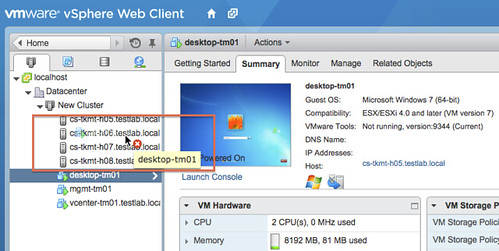
A couple of weeks I bumped into this issue where I constantly received a red cross when I wanted to “drag and drop” vMotion a virtual machine using the vSphere 5.5 Web Client. Annoying as it is something which I was waiting for to use as I used this all the time with the vSphere Client. Unfortunately it so happened that I stumbled in to a bug. Apparently when you do a drag and drop migration certain scenarios are filtered out to avoid issues. I guess the filter is too aggressive as today it filters out drag and drop to a host without the use of resource pools. The screenshot shows what this problem looks like in the UI.

I filed the bug of course, but unfortunately it was too late for the fix to make it in to the release. The engineering team has told me they are aiming to fix this in the first update release. So consider this an FYI to avoid getting frustrated around not being able to get this drag and drop thingie working. The support team just published a KB article on this matter as well.

  • « Go to Previous Page
  • Page 1
  • Page 2
  • Page 3
  • Page 4
  • Interim pages omitted …
  • Page 8
  • Go to Next Page »

Primary Sidebar

About the Author

Duncan Epping is a Chief Technologist and Distinguished Engineering Architect at Broadcom. Besides writing on Yellow-Bricks, Duncan is the co-author of the vSAN Deep Dive and the vSphere Clustering Deep Dive book series. Duncan is also the host of the Unexplored Territory Podcast.

Follow Us

  • X
  • Spotify
  • RSS Feed
  • LinkedIn

Recommended Book(s)

Also visit!

For the Dutch-speaking audience, make sure to visit RunNerd.nl to follow my running adventure, read shoe/gear/race reviews, and more!

Do you like Hardcore-Punk music? Follow my Spotify Playlist!

Do you like 80s music? I got you covered!

Copyright Yellow-Bricks.com © 2026 · Log in