• Skip to primary navigation
  • Skip to main content
  • Skip to primary sidebar

Yellow Bricks

by Duncan Epping

  • Home
  • Unexplored Territory Podcast
  • HA Deepdive
  • ESXTOP
  • Stickers/Shirts
  • Privacy Policy
  • About
  • Show Search
Hide Search

vcenter

vCenter Plugin Survey

Duncan Epping · Mar 1, 2012 ·

This is just a short survey so I am hoping all of you are willing to provide feedback about the use of vCenter Plugins. It will only take you two minutes max to fill out, only 6 questions!

As VMware moves from the traditional desktop admin client, to the new Web Based client for vSphere administration, we’d like to get a feeling from you on which partner plug-ins are crucial for to make the upgrade to a new client

http://www.surveymonkey.com/s/Y3TR2CB

Stratus vCenter Uptime Appliance

Duncan Epping · Feb 10, 2012 ·

I noticed the term “Stratus vCenter Uptime Appliance” a couple of weeks ago but couldn’t find any details on it. It appears that Stratus has now officially announced their vCenter Uptime Appliance. The appliance is built on the company’s fault-tolerant, Intel® processor-based ftServer architecture. In short, these systems are kept in lockstep and if one fails the other one will take over.

Not totally unexpected Stratus compares its solution to vCenter Heartbeat, which they say is more expensive and more complicated to implement. The Stratus solution is roughly $ 6.5k (source), but keep in mind that this is for a 4u physical system and you will need to add the cost of power/cooling/rackspace on top of that, where of course you could run vCenter Heartbeat perfectly virtual. It is not difficult to compare the price, but I’d rather see a cost comparison. Anyway, lets look at the architecture used. The following diagram, created by Stratus, compares the two solutions. I guess it is obvious straight away what the main difference is:

The difference is that Heartbeat is two instances being kept in sync where Stratus is a single instance. Although Stratus takes the “simplicity” approach to compare both architectures, in my opinion this also shows the strength of vCenter Heartbeat. That second instance could be running in a different datacenter / location. I guess each of these have its advantages / disadvantages.

Both of the solutions are definitely worth looking in to when deploying critical environments, but before you make a decision list the benefits/ costs / complexity / resiliency and weight them against each other. Nevertheless it is great to see solutions like these being developed.


Distributed vSwitches and vCenter outage, what’s the deal?

Duncan Epping · Feb 8, 2012 ·

Recently my colleague Venky Deshpande released  a whitepaper around VDS Best Practices. This white paper describes various architectural options when adopting a VDS only strategy. A strategy of which I can see the benefits. On Facebook multiple people made comments around why this would be a bad practice instead of a best practice, here are some of the comments:

“An ESX/ESXi host requires connectivity to vCenter Server to make vDS operations, such as powering on a VM to attach that VM’s network interface.”

“The issue is that if vCenter is a VM and changes hosts during a disaster (like a total power outage) and then is unable to grant itself a port to come back online.”

I figured the best way to debunk all these myths was to test it myself. I am confident that it is no problem, but I wanted to make sure that I could convince you. So what will I be testing?

  • Network connectivity after Powering-on a VM which is connected to a VDS while vCenter is down.
  • Network connectivity restore of vCenter attached to a VDS after a host failure.
  • Network connectivity restore of vCenter attached to a VDS after HA has moved the VM to a different host and restarted it.

Before we start I think it is useful to rehash something, which is different types of portgroups which is described in more depth in this KB:

  • Static binding – Port is immediately assigned and reserved for it when VM is connected to the dvPortgroup through vCenter. This happens during the provisioning of the virtual machine!
  • Dynamic binding – Port is assigned to a virtual machine only when the virtual machine is powered on and its NIC is in a connected state. The Port is disconnected when the virtual machine is powered off or the virtual machine’s NIC is disconnected. (Deprecated in 5.0)
  • Ephemeral binding – Port is created and assigned to a virtual machine when the virtual machine is powered on and its NIC is in a connected state. The Port is deleted when the virtual machine is powered off or the virtual machine’s NIC is disconnected. Ephemeral Port assignments can be made through ESX/ESXi as well as vCenter.

Hopefully this makes it clear straight away that their should be no problem at all, “Static Binding” is the default and even when vCenter is down a VM which has been provisioned before vCenter went down can easily be powered on and will have network access. I don’t mind spending some lab hours on this, so lets put this to a test. Lets use the defaults and see what the results are.

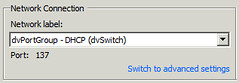
First I made sure all VMs were connected to a dvSwitch. I powered of a VM and checked the “Network settings and this is what it revealed… a port already assigned even when powered off:

This is not the only place you can see port assignments, you can verify it on the VDS’s “ports” tab:

Now lets test this, as that is ultimately what it is all about. First test, Network connectivity after Powering-on a VM which is connected to a VDS while vCenter is down:

  • Connected VM to dvPortgroup with static binding (is the default and best practice)
  • Power off VM
  • Power off vCenter VM
  • Connect vSphere Client to host
  • Power on VM
  • Ping VM –> Positive result
  • You can even see on the command line that this VM uses its assigned port:
    esxcli network vswitch dvs vmware list
    Client: w2k8-001.eth0
    DVPortgroup ID: dvportgroup-516
    In Use: true
    Port ID: 137

Second test, Network connectivity restore of vCenter attached to a VDS after a host failure:

  • Connected vCenter VM to dvPortgroup with static binding (is the default and best practice)
  • Power off vCenter VM
  • Connect vSphere Client to host
  • Power on vCenter VM
  • Ping vCenter VM –> Positive result

Third test, Network connectivity restore of vCenter attached to a VDS after HA has moved the VM to a different host and restarted it.

  • Connected vCenter VM to dvPortgroup with static binding (is the default and best practice)
  • Yanked the cable out of the ESXi host on which vCenter was running
  • Opened a ping to the vCenter VM
  • HA re-registered the vCenter VM on a different host and powered it on
    • The re-register / power-on took roughly 45 – 60 seconds
  • Ping vCenter VM –> Positive result

I hope this debunks some of those myths floating around. I am the first to admit that there are still challenges out there, these will hopefully be addressed soon, but I can assure you that your virtual machines will regain connection as soon as they are powered on through HA or manually… yes even when your vCenter Server is down.


Using the vSphere Syslog Collector and want to change rotation/sizing?

Duncan Epping · Nov 23, 2011 ·

Yesterday I received a nice tip from @Shaun_Gee. During the installation of the vSphere Syslog Collector you have to select the max size of the log files and when a rotation will happen. But how do you change this after the installation? The answer is straight forward, but unfortunately not well documented, thanks Shaun for sharing.

The vSphere Syslog Collector settings can be found under:

  • Windows 2003 –> C:\Users\All Users\VMware\VMware Syslog Collector\vmconfig-syslog.xml
  • Windows 2008 –> C:\ProgramData\VMware\VMware Syslog Collector\vmconfig-syslog.xml

If you open this file you can change all the settings you configured during the installation.

<defaultValues>
<port>514</port>
<protocol>TCP,UDP</protocol>
<maxSize>2</maxSize>
<rotate>8</rotate>
<sslPort>1514</sslPort>
</defaultValues>

You never know when you might need it 🙂

Using the vCenter Appliance for the Web Client?

Duncan Epping · Nov 22, 2011 ·

Today on twitter there was a discussion around having an appliance for the vSphere Web Client. I didn’t get the question as there’s already a vCenter Appliance out there. Apparently not everyone realised that the Web Client is part of the vCenter Appliance. On top of that you could even split out the components and use the vCenter Appliance just for Web Client functionality. I remembered seeing an article from one of my colleagues not too long ago. I dug up the links and here they are. I included a short snippet so you know what to expect. These articles are by Michael Webster so all credits go to him:

Deploy vSphere Web Client without Additional Windows Server License

Prior to running through the steps below you should have downloaded and deployed the vCenter Server Virtual Appliance (VCVA) from the VMware web site. This process assumes you already have the VCVA connected to the network and configured with the correct timezone already. To de-register the local embedded vCenter System and to register an existing vCenter Server with the vSphere Web Client do the following….

This is the first step you can take to get the vSphere Web Client up and running. But what if you want to provide some additional redundancy. Or what if you have dozens of people literally using the Web Client and want to add some load balancing? Well Michael thought about that as well and came up with a cool solution for this.

Increase vSphere Web Client Availability and Scalability for Enterprise Environments

In the above design I’ve chosen to use the vCenter Virtual Appliance with the vCenter Services disabled to act as the vSphere Web Client Servers. I’ve used a F5 BIG-IP LTM VE to provide load balancing for the vSphere Web Client User access to the vSphere Web Client Servers, as well as for the vCenter Servers to access the vSphere License Plug-in. You can use any load balancer that will successfully load balance HTTPS traffic on port 9443, which is the port the vSphere Web Client uses.

I think this is a cool solution, and considering the Web Client is the way forward it is definitely an option exploring. I do want to point out that this has more than likely not been explicitly tested by VMware and I am uncertain if it is supported. I have reached out to our vCenter experts however to comment on it.

  • « Go to Previous Page
  • Page 1
  • Interim pages omitted …
  • Page 7
  • Page 8
  • Page 9
  • Page 10
  • Page 11
  • Interim pages omitted …
  • Page 27
  • Go to Next Page »

Primary Sidebar

About the Author

Duncan Epping is a Chief Technologist and Distinguished Engineering Architect at Broadcom. Besides writing on Yellow-Bricks, Duncan is the co-author of the vSAN Deep Dive and the vSphere Clustering Deep Dive book series. Duncan is also the host of the Unexplored Territory Podcast.

Follow Us

  • X
  • Spotify
  • RSS Feed
  • LinkedIn

Recommended Book(s)

Advertisements


Copyright Yellow-Bricks.com © 2025 · Log in
