• Skip to primary navigation
  • Skip to main content
  • Skip to primary sidebar

Yellow Bricks

by Duncan Epping

  • Home
  • Unexplored Territory Podcast
  • HA Deepdive
  • ESXTOP
  • Stickers/Shirts
  • Privacy Policy
  • About
  • Show Search
Hide Search

Lessons Learned

AMD Radeon settings window transparent in a VM?

Duncan Epping · Jan 6, 2020 ·

I have been playing with VR technology for the past month. The last couple of weeks my focus has been to install/configure a VM which streams the VR app over wifi to a headset. I ran into a problem with ALVR last week as documented here, but I also ran into an issue with the AMD Radeon software when I wanted to use the AMD tools to stream a VR app. When you install the AMD Radeon software within a VM and want to configure the (passthrough) graphics card or ReLive VR the Radeon configuration window shows up transparent, it looks as below. Which means you can’t configure it, you can’t enable things like ReLive VR.

The only way to get the window to show up normal is to remove the VMware SVGA device using Device Manager. Simply completely remove it and restart the VM and the problem is solved. If you have svga.present set to false you will need to click “view hidden devices” in Device Manager first before you can remove the installed software/driver by the way. When rebooted it will look normal again and it will allow you to enable and configure ReLive VR, or any other options you need to configure of course.

ESXi lockdown mode

Duncan Epping · Mar 23, 2010 ·

During the VCDX Defense panels one of the candidates mentioned using lock down mode for ESXi to add an extra layer of security. It seems that there is a common misunderstanding about the lockdown mode. Here’s how our documentation describes it:

Enabling lockdown mode disables all direct root access to ESXi machines. Any subsequent local changes to the host must be made in a vSphere Client session or vSphere CLI command to vCenter Server using a fully editable Active Directory account. You can also use a local user account defined by the host. By default, no local user accounts exist on the ESXi system. Such accounts can only be created prior to enabling lockdown mode in a vSphere Client session directly on the ESXi system. The changes to the host are limited to the privileges granted to that user locally on that host.

I guess this table explains it a bit better, I ripped this from “it’s all virtual” so credits where credits are due:

Access method Lockdown Disabled Access granted Lockdown Enabled Access granted
vCenter Yes Yes
Physical Console access with root Yes Yes
Physical Console access with anyother user No No
vSphere Client directly to ESXi with root Yes No
vSphere Client directly to ESXi with anyother user Yes Yes
PowerCLI / RCLI to ESXi with root Yes No
PowerCLI / RCLI to ESXi with anyother user Yes Yes

Changing the directory of your vSphere vCenter log files

Duncan Epping · Mar 10, 2010 ·

Something that a lot of people haven’t looked in to or just don’t think about is relocating the log files of vCenter, I wrote a short article 2 years ago and thought it was time to reiterate it. By default (Windows 2003) log files are stored in “C:\Documents and Settings\All Users\Application Data\VMware\VMware VirtualCenter\Logs”, and for Windows 2008 log files are stored in “C:\ProgramData\VMware\VMware VirtualCenter\Logs”.

As you can imagine the C:\ partition is not the ideal place for storing log files. I would personally recommend to use a separate drive for logfiles so avoid it from flooding any OS or Program related drives. You could pick a small size based on the expected log size and if needed increase the amount of logs that are stored and the size of the log file.

Changing this is pretty simple. Open “vpxd.cfg” and add the following line in between <log> and </log>

<directory>D:\VMware\Logs</directory>

Changing the amount of log files stored and the size is also pretty basic, in this example vCenter will store 10 logfiles which are max 10MB each:

<maxFileSize>10485760</maxFileSize>
<maxFileNum>10</maxFileNum>

Keep in mind that you will need to restart the vCenter Service after these changes before they take effect!

Adding NICs to your vSwitch on ESXi?

Duncan Epping · Mar 9, 2010 ·

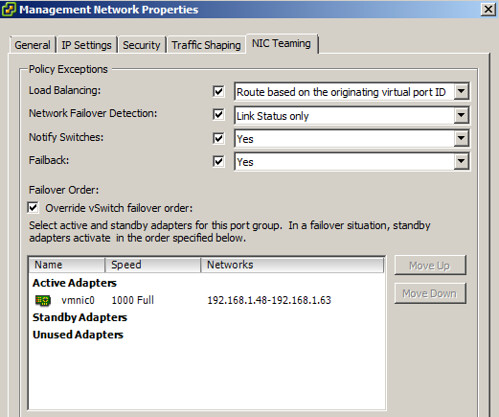
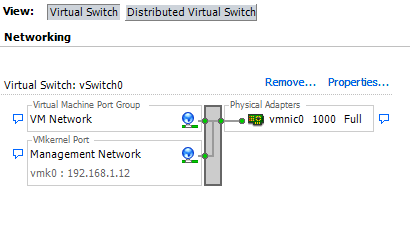
I just finished installing vSphere ESXi 4.0 update 1, I used all the default settings. I expected that all my portgroups would inherit all their settings from the vSwitch that was configured during installation… unfortunately this is not the case as can be seen in the screenshots below.

Default install with no redundancy:

VM Network inherits from vSwitch:

Management Network does not inherit from vSwitch:

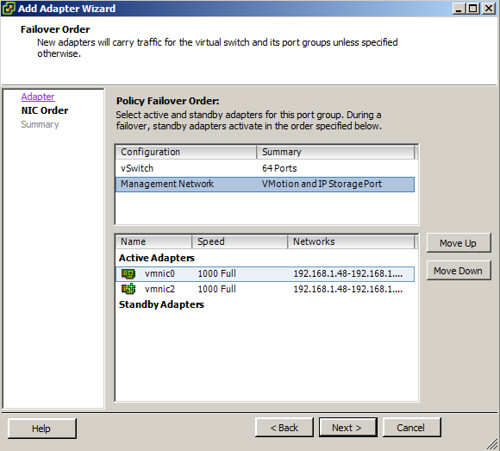
For the default “VM Network” portgroup everything works as expected. But for the “Management Network” it doesn’t. So what’s the problem? Well it might not be a huge issue but it is something you will need to keep in mind. I wanted to add two NICs to my vSwitch0 and expected that both would be marked as “active” on the vSwitch. And this is what happens on the vSwitch, BUT the “Management Network” does not inherit the vSwitch settings so what do you think will happen? Again see the screenshot below for the details:

For some weird reason one of the vmnics is set to “unused” instead of active… Keep this in mind when installing / configuring ESXi as you might end up with less redundancy then expected. I just did a quick search if it was a known/documented change and it appears that I am not the only one who ran into this, but is does not seem to be a commonly known “issue”/change.

Disable Tech Support on ESXi?

Duncan Epping · Mar 1, 2010 ·

We had an interesting discussion on one of the internal mailing lists this week. Someone asked what the general opinion was about disabling Tech Support. Of course some said disabling should not be a problem, but many also disagreed. The reason for this is simple: Support.

When Tech Support is disabled it removes the option to login to the console with “unsupported“. Please keep in mind that the console is the only way to get direct command line access to ESXi as SSH is disabled by default. This also means that in order to get access to the console you will need access to the physical host, or the IP KVM switch / DRAC / ILO for that matter. Hosts are usually located in a secured environment which removes the need for limiting console access in my opinion.

I can still imagine that people have a different opinion, but if you look at it from a support perspective you might change your mind. Troubleshooting an issue can get really complicated when there is no Tech Support access. I guess in a high secure environment you could treat ESXi as a stateless appliance and just install a new version when it fails. Personally I would prefer to find the root cause and try to prevent the same problem from occurring again.

Of course you can enable Tech Support again when needed but a reboot is required. This might cause the symptoms of the problem you were facing to disappear. It’s my recommendation to Keep Tech Support enabled.

[edit] Of course Alan “the king of powershell” Renouf jumped on this topic immediately and created a couple of lines of script which show you the current setting, disable it for all hosts or enable it for all hosts. Thanks Alan! [/edit]

  • Page 1
  • Page 2
  • Page 3
  • Go to Next Page »

Primary Sidebar

About the Author

Duncan Epping is a Chief Technologist and Distinguished Engineering Architect at Broadcom. Besides writing on Yellow-Bricks, Duncan is the co-author of the vSAN Deep Dive and the vSphere Clustering Deep Dive book series. Duncan is also the host of the Unexplored Territory Podcast.

Follow Us

  • X
  • Spotify
  • RSS Feed
  • LinkedIn

Recommended Book(s)

Also visit!

For the Dutch-speaking audience, make sure to visit RunNerd.nl to follow my running adventure, read shoe/gear/race reviews, and more!

Do you like Hardcore-Punk music? Follow my Spotify Playlist!

Do you like 80s music? I got you covered!

Copyright Yellow-Bricks.com © 2026 · Log in