• Skip to primary navigation
  • Skip to main content
  • Skip to primary sidebar

Yellow Bricks

by Duncan Epping

  • Home
  • Unexplored Territory Podcast
  • HA Deepdive
  • ESXTOP
  • Stickers/Shirts
  • Privacy Policy
  • About
  • Show Search
Hide Search

ESX

Cool feature of the VMware Converter plugin

Duncan Epping · Jul 30, 2008 ·

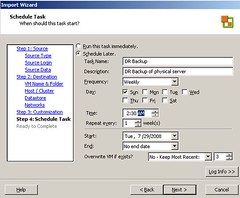
How about backing up that dreadful application/server that you couldn’t or did not wanted to virtualize to your ESX environment? It could be useful to have a copy of a server that for whatever reason you did not virtualize. The new VMware Converter plugin for VirtualCenter gives you this option. You can create a reoccurring schedule for a p2v, you can even save several version of the converted machine. How cool is that! Seems like a great way to backup a machine!

How do I do this:

  1. click on scheduled tasks
  2. click new and pick “import a machine”
  3. select “physical” and enter the servers name/ip and username and password
  4. select the disks you want to import
  5. type a name for the VM
  6. select the destination host
  7. select a datastore
  8. select a network
  9. and schedule the task!

High Availability change

Duncan Epping · Jul 29, 2008 ·

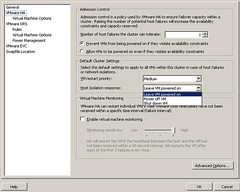
I just noticed the following, when creating a new(!) HA cluster on VirtualCenter 2.5 Update 2 the default isolation response is set to “Leave powered on”. In other words, when your ESX host hasn’t got a network connection any more the VM’s remain on. This is a huge change because the default used to be “Power Off”.

Besides “Power Off” and “Leave powered on” there’s a new option introduced. And this is one I was looking for, “Shutdown VM”. Shutdown VM doesn’t just pull the cord, it tries to shutdown the VM in a decent fashion, via the OS.

ESX 3.5 U2 and HA error

Duncan Epping · Jul 28, 2008 ·

Erik Zandboer just posted a topic on the VMTN forum about an HA error he received when he updates his machines to 3.5 U2. The error was one almost everyone has probably seen by now “could not contact primary HA agent”. This is normally solved by pressing “reconfigure for ha” or disabling and enabling HA. This wasn’t the case this time. after some research Erik discovered that the host file entry for the ESX host did not match the DNS name, one of them started with a capital while other did not. This caused HA to fail, after changing the hostname/dns name and a reboot everything worked fine again.

I can imagine this happens because of the fact that VirtualCenter is actually performing as a DNS/Hosts file for HA. Inconsistent naming has always been, and probably will always be a problem. So before upgrading, check your hostname and /etc/hosts file!

Previously, enabling VMware High Availability required DNS resolution of all ESX Server hosts in a High Availability cluster. This was done using configuring DNS records or by adding all of the host names and IP addresses to the /etc/hosts file on each server.
Starting with the ESX Server 3.5 Update2 release, DNS resolution or /etc/hosts file entries are no longer required to configure High Availability. The host name and IP address information will now be provided by the managing VirtualCenter Server. the source

Remote CLI Update!

Duncan Epping · Jul 26, 2008 ·

I just noticed that VMware also updated the Remote CLI, which was heavily criticized when it first came out because of the lack of commands. Now it contains almost every single command out there. And there’s a great PDF file about all the commands and the options.

I guess the Remote CLI matured, I was wondering what the benefits were of a Remote CLI. But know it makes sense. Start using ESXi, install the Remote CLI virtual appliance and you’ve got only 1 console to handle them all instead of “x”.

File Level Recovery from within a VMDK backup

Duncan Epping · Jul 24, 2008 ·

Today there was a cool article released on the Storage Nuts & Bolts blog. It’s about file level recovery from within a VMDK based on an NFS datastore. NFS is just mentioned cause this is the preferred way to go for the NetApp family, but it doesn’t matter NFS or VMFS the solution they came up with works for the both of them.

This option was recently discovered and further developed (Registry entries and Batch script) by one of the NetApp SE’s (Mike Arndt) and it’s very effective and free for those customers that already have a CIFS license with their NetApp arrays, which is a very large percentage. The other important factor is that Mike has made it a point-and-click process. Great job Mike!!!

As part of their VMware Disk Developer’s Kit, VMware provides a vmware-mount.exe utility that allows for mounting an existing VMDK on a Windows Driver letter. We’ll be using this utility as well to mount the VMDK as well as some Registry Entries and a Batch Script to further simplify the file recovery process.

I don’t to republish the complete article, so visit the blog and use the script and registry settings these guys created. Especially the first option with registry settings, which give you the possibility to mount a VMDK with just a “right click – mount” action is great!

  • « Go to Previous Page
  • Page 1
  • Interim pages omitted …
  • Page 59
  • Page 60
  • Page 61
  • Page 62
  • Page 63
  • Interim pages omitted …
  • Page 83
  • Go to Next Page »

Primary Sidebar

About the Author

Duncan Epping is a Chief Technologist and Distinguished Engineering Architect at Broadcom. Besides writing on Yellow-Bricks, Duncan is the co-author of the vSAN Deep Dive and the vSphere Clustering Deep Dive book series. Duncan is also the host of the Unexplored Territory Podcast.

Follow Us

  • X
  • Spotify
  • RSS Feed
  • LinkedIn

Recommended Book(s)

Also visit!

For the Dutch-speaking audience, make sure to visit RunNerd.nl to follow my running adventure, read shoe/gear/race reviews, and more!

Do you like Hardcore-Punk music? Follow my Spotify Playlist!

Do you like 80s music? I got you covered!

Copyright Yellow-Bricks.com © 2026 ยท Log in