• Skip to primary navigation
  • Skip to main content
  • Skip to primary sidebar

Yellow Bricks

by Duncan Epping

  • Home
  • Unexplored Territory Podcast
  • HA Deepdive
  • ESXTOP
  • Stickers/Shirts
  • Privacy Policy
  • About
  • Show Search
Hide Search

vSAN

vSAN 7.0 U2 Skyline Health History

Duncan Epping · Mar 15, 2021 ·

I have already discussed this briefly during my 7.0 U2 video presentation, which can be found here, but I also wanted to share the demo I recorded with you, and provide some additional details. Over the past years, one of the most requested features for Skyline Health, or Health Check as it used to be called, was the ability to go back in time to see what has happened between certain dates. This functionality was demonstrated at VMworld, and a few VMUGs the past year, and now finally made it into the release with vSAN 7.0 U2.

The “health history” feature simply provides a toggle that enables you to go back in time. When you tick the toggle, you can specify a date range. Note that the range can be anywhere between the current date, and 30 days back. The health check data is stored, for 30 days, in the vCenter Server database. This is important to know because if you feel that there’s no need to store the data, you can disable the feature under vSAN Services in the Configuration tab. When you disable the feature the data is deleted from the vCenter Server database. Now if you flip the toggle, set a date range, and look at the different checks you should see green checks. If a check is not green, but rather red or orange you can click the check.

When clicking on the red square, you will see which check failed, and when exactly it failed. The number in the square or circle refers to the number of checks that were run and resulted in the same state. In other words, 37 red, 45 green, 54 red checks etc. When you click on it, you will see the below.

Hopefully, this will then allow you, during troubleshooting, to correlate particular failures or configuration changes, to the issue that bubbled up in the health check. I feel that having the date/time is already very useful, as it will allow you to focus on a more specific date/time range while reading logs or going through the events section.

Anyway, if you would like to see the feature in action, check out the demo below.
Introducing VMware vSAN 7.0 Update 2 (video)

Duncan Epping · Mar 9, 2021 ·

As you may have seen, today VMware announced the release of VMware vSAN 7.0 Update 2 (and vSphere 7.0 U2 as well of course). I was planning on doing a post on the 7.0 U2 release, but then I figured that I would try to record a video discussing most of the new features and enhancements introduced. Note, I do not cover the full release, I picked the features which I felt deserved some attention. I uploaded the video to my Youtube Channel, make sure to visit it and subscribe, as I will be releasing demos on various features in the upcoming weeks with some more detail where needed. Hope you enjoy it, and again, make sure to like the video and subscribe to the channel!

Can I vMotion a VM while IO Insight is tracing it?

Duncan Epping · Mar 4, 2021 ·

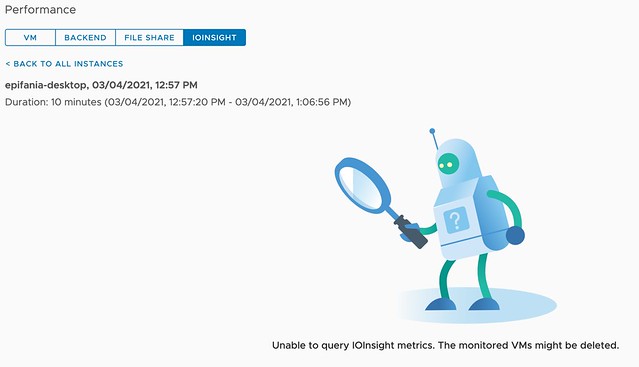
Today during the Polish VMUG we had a great question, basically, the question was if you can vMotion a VM while vSAN IO Insight is tracing it. I did not know the answer as I had never tried it, so I had to test and validate it in the lab. While testing it became obvious that IO Insight and vMotion are not a supported combination today. Or better said, when you vMotion a VM which has IO Insight enabled and the VM is being traced, then the tracing will stop and you will not be able to inspect the results. When you click on view results you will see the error suggesting that the “monitored VMs might be deleted” as shown below.

For now, if you are tracing a VM for an extended period of time, make sure to override the DRS automation level for that VM so that DRS does not interfere with the tracing. (You can do this on a per VM basis.) I would also recommend informing other administrators to not manually migrate the VM temporarily to avoid the situation where the trace is stopped.  You may wonder why this is the case, well it is pretty simple, tracing happens on a host level. We start a user world on the host where the VM is running to trace the IO. If you move the VM, the user world doesn’t know what has happened to the VM unfortunately. For now, who knows if this is something that may change over time… Either way, I would always recommend not migrating VMs while tracing, as that also impacts the data.

Hope that helps, and thank Tomasz for the great question!

I joined the Futr Tech Podcast last week, check out the episode here!

Duncan Epping · Feb 16, 2021 ·

Last week I had the pleasure of joining Chris and Sandesh on the Futr Tech podcast. The episode was just published online, and I wanted to share it with all of you via this blog post. Make sure to watch/listen to the episode and subscribe to the youtube channel or podcast. I’ve been following these guys for a while, and there are some very interesting conversations to check out. (I enjoyed the episode with Bipul Sinha very much.)

You can find them on youtube here, or add them to your podcast app of choice (buzzsprout, spotify, itunes) I had fun, looking forward to some more podcasting in 2021!

What if the disk controller driver included in my vendor’s ESXi image is not on the vSAN HCL?

Duncan Epping · Jan 15, 2021 ·

Sometimes unfortunately there are situations where a vendor’s ESXi image includes a disk controller driver that is not on the vSAN HCL/VCG (VMware Compatibility Guide). Typically it is a new version of the driver which is supported for vSphere, but not yet for vSAN. In that situation, what should you do? So far there are two approaches I have seen customers take:

  1. Keep running with the included driver and wait for the driver to be supported and listed on the vSAN HCL/VCG
  2. Downgrade the driver to the version which is listed on the vSAN HCL/VCG

Personally, I feel that option 2 is the correct way to go. The reason is simple, vSphere and vSAN have different certification requirements for disk controllers and the vSAN certification criteria are just more stringent than vSphere’s. Hence, sometimes you see vSAN skipping certain versions of drivers, this usually means a version did not pass the tests. Now, of course, you could keep running the driver and wait for it to appear on the vSAN HCL/VC. If however, you hit a problem, VMware Support will always ask you first to bring the environment to a fully supported state. Personally, I would not want the extra stress while troubleshooting. But that is my experience and preference. Just to be clear, from a VMware stance, there’s only one option, and that is option two, downgrade to the supported version!

  • « Go to Previous Page
  • Page 1
  • Interim pages omitted …
  • Page 16
  • Page 17
  • Page 18
  • Page 19
  • Page 20
  • Interim pages omitted …
  • Page 71
  • Go to Next Page »

Primary Sidebar

About the Author

Duncan Epping is a Chief Technologist and Distinguished Engineering Architect at Broadcom. Besides writing on Yellow-Bricks, Duncan is the co-author of the vSAN Deep Dive and the vSphere Clustering Deep Dive book series. Duncan is also the host of the Unexplored Territory Podcast.

Follow Us

  • X
  • Spotify
  • RSS Feed
  • LinkedIn

Recommended Book(s)

Also visit!

For the Dutch-speaking audience, make sure to visit RunNerd.nl to follow my running adventure, read shoe/gear/race reviews, and more!

Do you like Hardcore-Punk music? Follow my Spotify Playlist!

Do you like 80s music? I got you covered!

Copyright Yellow-Bricks.com © 2026 · Log in