• Skip to primary navigation
  • Skip to main content
  • Skip to primary sidebar

Yellow Bricks

by Duncan Epping

  • Home
  • Unexplored Territory Podcast
  • HA Deepdive
  • ESXTOP
  • Stickers/Shirts
  • Privacy Policy
  • About
  • Show Search
Hide Search

Archives for 2009

Virtualization Security Roundtable Podcast

Duncan Epping · Jan 14, 2009 ·

Most of you are familiar with the VMTN Podcasts by now which are hosted by VMware’s John Troyer. One of the regulars of the VMTN podcast, Edward Haletky (also known as Texiwill on VMTN and Twitter), formed a panel of experts on Security and will start a new podcast: The Virtualization Security Round Table Podcast. Those who listen to the VMTN Podcast know how passionate Edward is about security and virtualization so expect these weekly roundtables to be at least on the same level as the VMTN podcasts.

Info about the podcasts can be found on Edwards website:

Episode 1: First Panel Talkshoe on Thursday 15 January 2009 at 2:30 PM EST / 20:30 (CEST): http://www.talkshoe.com/tc/34217

Expect the following topics to be discussed in the near future:

  • Use of Virtualization in a DMZ.
  • Review of security lockdown standards/benchmarks and tools
  • Virtualization Security in shared and dedicated hosting environments
  • Providing VaaS (VMware as a Service) securely to SMBs for DR.
  • How virtualization security relates to cloud computing security
  • Top 3 security issues
  • Optimal Network configuration and design for security
  • How to accommodate small / medium and home businesses
  • Disaster recovery options – small, medium, large businesses
  • VLANs as a Security measure with vSwitch Security

If you’ve got ideas / topics for the roundtable hit Edward up on the VMTN forum or via Twitter. And off course it’s also possible to just drop your questions during the podcast on the Talkshoe chat. Mark the date in your agenda, every week on Thursday at 2:30 PM EST / 20:30 (CEST)!
Permissions and roles

Duncan Epping · Jan 13, 2009 ·

I was just troubleshooting a problem with permissions and roles at a customer site within vCenter. For some weird reason we could not create a VM. I hardly ever use this functionality and if I do it’s mostly on a “Hosts & Clusters” level.

This customer wanted to set permissions on a “HA-DRS” Cluster level. Each cluster will be administered by a different group of admins. These admins should not be allowed to do any administrative tasks on one of the other clusters in vCenter. Half of the setup worked, as in the admins could do certain tasks on the ESX hosts, but there was no way they could create VM’s.

I’ve browsed through my documentation but couldn’t find anything useful but luckily VI:OPS contained an excellent document on this topic: VI3 Roles and Permissions.

I did a copy and paste of the information that clarified the problem we were facing:

VMs appear in the inventory in two places: under the “Virtual Machines and Templates” view and the “Hosts and Clusters” view. This is also reflected in their privilege inheritance: VMs inherit privileges from both the containing host/cluster object as well as the containing VM/Template folder. Under Hosts and Clusters, possible containing objects include: folders, clusters, hosts, and resource pools. The two views and hierarchies become unified at the top level datacenter (or any folder that contains the datacenter)

Certain tasks require privileges on both sides of the hierarchy. For example, to create a VM, you need to have the “VM > Inventory > Create” privilege on a VM folder (in the VM view) as well as “Resource > Assign VM to Resource Pool” somewhere on an object in the Host view (folder, cluster, host, or resource pool). If you have a role which contains both these privileges, and you assign it at the datacenter level, it will propogate down both sides of the hierarchy. If, however, you want to limit its scope, then you’d need to apply it separately to individual subsections on each side of the hierarchy.

In other words, creating VM’s requires permissions on both levels “Datacenter” and “Cluster”.

Site Recovery Manager and MSCS

Duncan Epping · Jan 13, 2009 ·

When reading several SRM docs I was wondering if Microsoft Clustering was supported or not. I knew that in version 1.0 it wasn’t supported. When reading the Release Notes I noticed the following:

Full Support for RDM devices
SRM now provides full support for virtual machines that use raw disk mapping (RDM) devices. This enables support of several new configurations, including Microsoft Cluster Server. (Virtual machine templates cannot use RDM devices.)

Microsoft Clustering Services is supported as of Update 1. But you will need to keep in mind when creating your Recovery Plan that all nodes of the cluster will belong to the same Protection Group and can possibly  be started up or shutdown at the same time….. I haven’t configured SRM in combination with MSCS so far, if any of you has any tips/tricks let me know.

Site Recovery Manager is not about installing… Part II

Duncan Epping · Jan 12, 2009 ·

I’ve been playing around with Site Recovery Manager these last couple of days. Installing it was really easy and same goes for the basic configuration. I already wrote a blog about this topic a month ago or so but now I’ve experienced it myself. Most of the time during a Site Recover Manager project will be spent during the Plan & Design phase and writing documentation. I will just give you one example why. The following was taken from the SRM Course material:

Datastore Group
Replicated datastores containing the complete set of virtual machines that you want to protect with SRM

Protection Group
A group of virtual machines that are failed over together during test and recovery

For those who don’t know, there’s a one on one mapping between Datastore Groups and Protection Groups. So in other words, once you’ve mapped a Datastore Group to a Protection Group there’s no way of changing it without having to recreate the Protection Group.

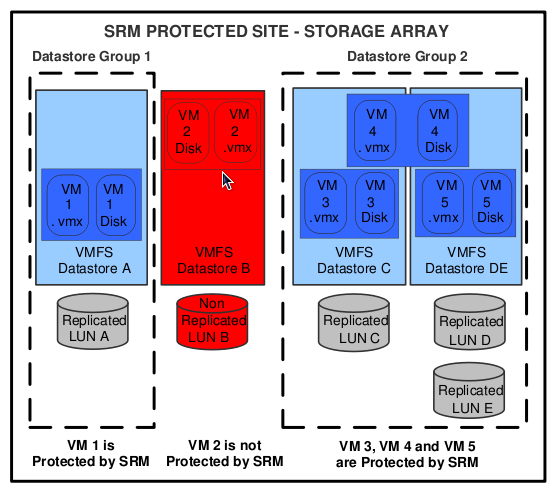
I think a picture says more than a 1000 words so I stole this one from the Evaluator Guide to clarify the relationship between datastore, Datastore Groups and Protection Groups:

Notice that there are multiple datastores in Datastore Group 2 because VM4 has disks in both datastores. So these datastores are joined into one Datastore Group. This Datastore Group will have a one to one relationship with a Protection Group. Keep in mind, this is really important: a Protection Group contains VM’s that are failed over together during test and recovery.

If you’ve got VM’s with multiple disks on multiple datastores with no logic in which disk is placed on which datastore you could and probably will end up with all datastores being member of the same Datastore Group. Being member of the same Datastore Group means being part of the same Protection Group. Being part of the same Protection Group will result in a less granular fail-over. It’s all or nothing in this case and I can imagine most companies would like to have some sort of tiering model in place or even better fail over services one at a time. (This doesn’t mean by the way that if you create multiple Protection Group that you can’t fail over everything at the same time, they can all be joined in a Recovery Plan)

Some might think that you would be able to randomly add disks to datastores after you finished configuring. This clearly isn’t the case. If you add a disk to a protected(!) VM the Datastore Group will be recomputed. In our situation this meant that all VM’s in the “Medium Priority” Protection Group were moved over to the “High Priority” Protection Group. This was caused by the fact that we added a disk to a “Medium Priority” VM and placed it on a “High Priority” datastore. As you can imagine this also causes your Recovery Plans to end up with a “warning”, you will need to reconfigure the moved VM’s before you can fail them over as part of your “High Priority” datastore. (Which probably wasn’t the desired strategy…)

When I was searching the internet for information on SRM I stumbled upon this article on the VMware Uptime blog by Lee Dilworth. I’ve taken the following from the “What we’ve learnt” post, which confirms what we’ve seen the last couple of days:

Datastore Group computation is triggered by the following events:

  • Existing VM is deleted or unregistered
  • VM is storage vmotioned to a different datastore
  • New disk is attached to VM on a datastore previously not used by the VM
  • New datastore is created
  • Existing datastore is expanded

So in other words, moving VM’s from one Datastore to another or creating a new disk on a different Datastore can cause problems because the Datastore Group computation will be re-run. Not only do you need to take virtual disk placement in consideration when configuring SRM, you will also need to be really careful when moving virtual disks. Documentation, Design and Planning is key here.

I would suggest documenting current disk placement before you even start implementing SRM, and given the results you might need to move disks around before you start with SRM. Make sure to check your documentation and design before randomly adding virtual disks when SRM has been implemented. Documenting your current disk placement can be done easily with the script that Hugo created this week by the way, and I would suggest to regularly create reports and save them.

Expect some more SRM stuff coming up over the next couple of weeks.

Tripwire Configcheck

Duncan Epping · Jan 12, 2009 ·

When I published my article on tools/scripts I use during a VMware Healthcheck I received a couple of emails on Tripwire’s Configcheck. I’ve been on a holiday for a couple of weeks so it took me a bit longer than usual to check out the product.

Configcheck can be downloaded for free. Configcheck is a Java Application so you will need to install JRE. Installing JRE can be a bit of a pain sometimes on a server so this is one of the reasons for me that will make it hard to actively use Configcheck at customer sites. (This depends on the customers policy.) Installing the product is fairly easy though:

  1. Download Java JRE.
  2. Download the file configcheck.zip to a Windows machine that has Java Runtime Environment (JRE) version 1.5, or higher.
  3. Unzip the configcheck.zip file

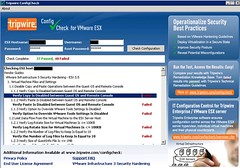
That’s it, fairly easy. Now you can run “configcheck.cmd” to check the specified ESX host on security issues. Once the check is complete you can click the test results to view remediation steps. The test results will look like this:

As you can see, 37 Passed and 40 Failed. Not really surprising considering the fact that I ran this against a newly build ESX 3.5 U3 host. No modifications whatsoever. Clicking the test results didn’t work on my test servers because of the lack of an internet connection. Unfortunately it’s also not possible to export the data in this version. It’s free and Tripwire’s Enterprise edition does give you this capability, if you need export and a whole lot more check it out. You can find a data-sheet with a comparison between Configcheck and enterprise here.

Luckily Tripwire also provides the remediation steps in pdf form. For instance the remediation steps for 1.2.2 “Verify the log files to keep is equal to 10”:

Description: 
This test determines if virtual machines are configured to keep 10 log files when the recommended log rotate size of 100KB is exceeded. Virtual machines log activity in their respective vmware.log files. If growth of these log files is not limited, it is possible for virtual machines to cause a denial of service on the ESX Server by filling up the VMFS volume. There are two options for preventing virtual machines from flooding the hard disk of the host: size-based log file rotation or disabling logging for the virtual machine. This policy checks for size-based log file rotation because disabling logging altogether limits troubleshooting options.

Remediation:
To remediate failure of this policy test, configure the virtual machine to keep 10 log files when the recommended log rotate size of 100KB is exceeded. Configuring the virtual machine to keep 10 log files when the recommended log rotate size of 100KB is exceeded:

Login to the VirtualCenter or use the VI Client to connect directly to the ESX Server hosting the improperly configured virtual machine.

  1. Power off the virtual machine if needed.
  2. Right click the virtual machine and click Edit Settings.
  3. Select the Options tab.
  4. Select Advanced > General, and click the Configuration Parameters button.
  5. Look for a row with log.keepOld and set the value to 10.
  6. If the row does not exist, then click the Add Row button.
  7. In the Name field type log.keepOld.
  8. In the Value field type the value to 10.
  9. Click OK to close the Configuration Parameters dialog.
  10. Click OK to close the Virtual Machine Properties dialog.
As you can see, the description and remediation explain why and what to do in a fairly extensive manner. Which is great cause not does this make solving the “problem” really easy, Tripwire’s Configcheck also educates the SysAdmin!
  • « Go to Previous Page
  • Page 1
  • Interim pages omitted …
  • Page 81
  • Page 82
  • Page 83
  • Page 84
  • Page 85
  • Go to Next Page »

Primary Sidebar

About the Author

Duncan Epping is a Chief Technologist and Distinguished Engineering Architect at Broadcom. Besides writing on Yellow-Bricks, Duncan is the co-author of the vSAN Deep Dive and the vSphere Clustering Deep Dive book series. Duncan is also the host of the Unexplored Territory Podcast.

Follow Us

  • X
  • Spotify
  • RSS Feed
  • LinkedIn

Recommended Book(s)

Also visit!

For the Dutch-speaking audience, make sure to visit RunNerd.nl to follow my running adventure, read shoe/gear/race reviews, and more!

Do you like Hardcore-Punk music? Follow my Spotify Playlist!

Do you like 80s music? I got you covered!

Copyright Yellow-Bricks.com © 2026 · Log in