• Skip to primary navigation
  • Skip to main content
  • Skip to primary sidebar

Yellow Bricks

by Duncan Epping

  • Home
  • Unexplored Territory Podcast
  • HA Deepdive
  • ESXTOP
  • Stickers/Shirts
  • Privacy Policy
  • About
  • Show Search
Hide Search

Archives for 2009

VCP 4 exam…

Duncan Epping · Nov 14, 2009 ·

Today, Friday the 13th, I did my VCP 4 exam. I was a bit nervous as I, literally, only had a couple of hours to prepare. I did however pass. Because I only had a couple of hours to prepare I focused on what I expected to be the most difficult part to score on, the max configs. I used Simon’s VCP vSphere practice exam to test if I actually knew them or not. Here are the links to the resources I used:

  • Configuration Maximums for VMware vSphere 4.0 (Updated 9/23/2009)
  • http://www.simonlong.co.uk/blog/vcp-vsphere-4-practice-exam/
  • Resource Management Guide
  • What’s New in VMware vSphere 4.0

So who’s next?
Resource Pools and Shares

Duncan Epping · Nov 13, 2009 ·

I just wanted to write a couple of lines about Resource Pools. During most engagements I see environments where Resource Pools have been implemented together with shares. These Resource Pools are usually labeled “Low”, “Normal” and “High” with the shares set respectively. This is the traditional example being used during the VMware vSphere / VI3 course. Why am I writing about this you might ask yourself as many have successfully deployed environments with resource pools.

The problem I have with default implementations is the following:

Sibling resource pools share resources according to their relative share values.

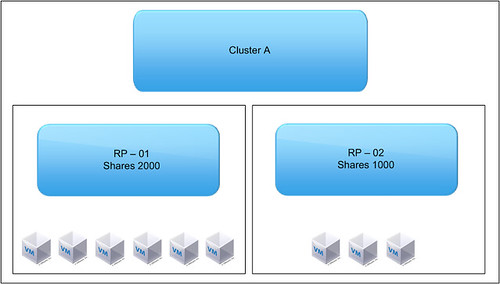
Please read this line a couple of times. And then look at the following diagram:

What’s the issue here?

RP – 01 -> 2000 Shares -> 6 VMs
RP – 02 -> 1000 Shares -> 3 VMs

So what happens if these 9 VMs start fight for resources. Most people assume that the 6 VMs, which are part of RP-01,  get more resources than the 3 VMs. Especially when you name them “Low” and “Normal” you expect the VMs which are part of “Low” to get a “lower” amount of resources than those which belong to the “Normal” resource pool. But is this the case?

No it is not. Sibling resource pools share resources according to their relative share values. In other words, resources are divided on a resource pool level, not on a per VM level. So what happens here? RP-01 will get 66% of the resources and RP-02 will get 33% of the resources. But because RP-01 contains twice as many VMs as RP-02 this will not make a difference when all VMs are fighting over resources… Each VM will roughly get the same amount of processor time. This is something that not many people take into account when designing an infrastructure or when implementing resource pools.

VMFS Metadata size?

Duncan Epping · Nov 11, 2009 ·

When designing your VMware vSphere / VI3 environment there are so many variables you need to take into account that it is easy to get lost. Something hardly anyone seem to be taking into account when creating VMFS volumes is that the metadata will also take up a specific amount of disk space. You might think that everyone has at least 10% disk space free on a VMFS volume but this is not the case. Several of my customers have dedicated VMFS volumes for a single VMDK and  noticed during the creation of a VMDK that they just lost a specific amount of MBs. Most of you guessed by now that that is due to the metadata but how much disk space will the actually metadata consume?

There’s a simple formula that can be used to calculate how much disk space the metadata will consume. This formula used to be part of the “SAN System Design and Deployment Guide” (January 2008) but seems to have been removed in the updated versions.

Approximate metadata size in MB = 500MB + ((LUN Size in GB – 1) x 0.016KB)

For a 500GB LUN this would result in the following:

500 MB + ((500 - 1) x 0.016KB) = 507,984 MB
Roughly 1% of the total disk size used for metadata

For a 1500MB LUN this would result in the following:

500 MB + ((1.5 - 1) x 0.016KB) = 500,008 MB
Roughly 33% of the total disk size used for metadata

As you can see for a large VMFS volume(500GB) the disk space taken up by the metadata is only 1% and can almost be neglected, but for a very small LUN it will consume a lot of the disk space and needs to be taken into account….

[UPDATE]: As mentioned in the comments, the formula seems to be incorrect. I’ve looked into it and it appears that this is the reason it was removed from the documentation. The current limit for metadata is 1200MB and this should be the number you should use for sizing your datastores.

Changing the block size of your local VMFS during the install…

Duncan Epping · Nov 11, 2009 ·

I did not even knew it was possible but on the VMTN Community Forums user PatrickD revealed a workaround to set a different block size for your local VMFS. Of course the question remains why you would want to do this and not create a dedicated VMFS for your Service Console and one for your VMs. Anyway, it’s most definitely a great work around thanks Patrick for sharing this.

There isn’t an easy way of doing that right now. Given that a number of people have asked for it we’re looking at adding it in future versions.

If you want to do this now, the only way to do it is by mucking around with the installer internals (and knowing how to use vi). It’s not that difficult if you’re familiar with using a command line. Try these steps for changing it with a graphical installation:

  1. boot the ESX installation DVD in text mode
  2. switch to the shell (Alt-F2)
  3. ps | grep Xorg
  4. kill the PID which comes up with something like “Xorg -br -logfile …”. On my system this comes up as PID 590, so “kill 590”
  5. cd /usr/lib/vmware/weasel
  6. vi fsset.py
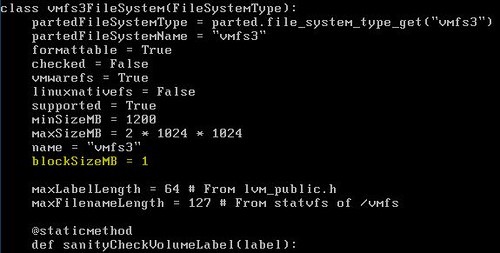
  7. scroll down to the part which says “class vmfs3FileSystem(FileSystemType):”
  8. edit the “blockSizeMB” parameter to the block size that you want. it will currently be set to ‘1’. the only values that will probably work are 1, 2, 4, and 8.
  9. save and exit the file
  10. cd /
  11. /bin/weasel

After that, run through the installer as you normally would. To check that it worked, after the installer has completed you can go back to a different terminal (try Ctl-Alt-F3 since weasel is now running on tty2) and look through /var/log/weasel.log for the vmfstools creation command.

Hope that helps.

Block sizes, think before you decide

Duncan Epping · Nov 10, 2009 ·

I wrote about block sizes a couple of times already but I had the same discussion twice over the last couple of weeks at a customer site and on Twitter(@VirtualKenneth) so lets recap. First the three articles that started these discussions: vSphere VM Snapshots and block size, That’s why I love blogging… and Block sizes and growing your VMFS.

I think the key take aways are:

  • Block sizes do not impact performance, neither large or small, as the OS dictates the block sizes used.
  • Large block sizes do not increase storage overhead as sub-blocks are used for small files. The sub-blocks are always 64KB.
  • With thin provisioning there theoretically are more locks when a thin disk is growing but the locking mechanism has been vastly improved with vSphere which means this can be neglected. A thin provisioned VMDK on a 1Mb block size VMFS volume grows in chunks of 1MB and so on…
  • When separating OS from Data it is important to select the same block size for both VMFS volumes as other wise it might be impossible to create snapshots.
  • When using a virtual RDM for Data the OS VMFS volume must have an appropriate block size. In other words the maximum file size must match the RDM size.
  • When growing a VMFS volume there is no way to increase the block size and maybe you will need to grow the volume to grow the VMDK. Which might possibly be beyond the limit of the maximum file size.

My recommendation would be to forget about the block size. Make your life easier and standardize, go big and make sure you have the flexibility you need now and in the future.

  • « Go to Previous Page
  • Page 1
  • Interim pages omitted …
  • Page 8
  • Page 9
  • Page 10
  • Page 11
  • Page 12
  • Interim pages omitted …
  • Page 85
  • Go to Next Page »

Primary Sidebar

About the Author

Duncan Epping is a Chief Technologist and Distinguished Engineering Architect at Broadcom. Besides writing on Yellow-Bricks, Duncan is the co-author of the vSAN Deep Dive and the vSphere Clustering Deep Dive book series. Duncan is also the host of the Unexplored Territory Podcast.

Follow Us

  • X
  • Spotify
  • RSS Feed
  • LinkedIn

Recommended Book(s)

Also visit!

For the Dutch-speaking audience, make sure to visit RunNerd.nl to follow my running adventure, read shoe/gear/race reviews, and more!

Do you like Hardcore-Punk music? Follow my Spotify Playlist!

Do you like 80s music? I got you covered!

Copyright Yellow-Bricks.com © 2026 · Log in