• Skip to primary navigation
  • Skip to main content
  • Skip to primary sidebar

Yellow Bricks

by Duncan Epping

  • Home
  • Unexplored Territory Podcast
  • HA Deepdive
  • ESXTOP
  • Stickers/Shirts
  • Privacy Policy
  • About
  • Show Search
Hide Search

vsphere data protection

My vCenter Server 5.1 appliance crashed and I was using VDP… now what?

Duncan Epping · Sep 19, 2012 ·

I had this question this week, what if I am using vSphere Data Protection (VDP) and my vCenter Server appliance (VCVA) crashes… well lets just test it.

I just killed my vCenter Server appliance and deleted if from disk. Next step is to get a brand new vCenter Server appliance up and running. So I deploy a brand new VCVA first. As I have pointed my vSphere Client directly to a host I will need to login to the commandline to configure my networking, you can use vami_config_net but also Yast.

/opt/vmware/share/vami/vami_config_net

Next I go through the regular setup and configuration steps. Create a Datacenter and a Cluster and add some hosts. Now I see my VDP appliance again in my inventory… but I don’t see those nice shiny VDP icons. So how do I get those back? Well that is simple, just register the appliance to the new vCenter Server:

  • Point your browser to the VDP configuration web page
    https://<ip address or name of vdp appliance>:8543/vdp-configure/
  • Click on the “configuration” tab
  • Click on the lock to unlock the config
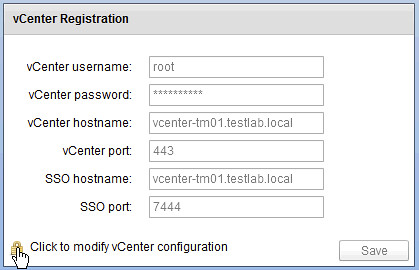
  • Now enter your appliance password
  • Provide the new vCenter Server details (in my case they are the same as the old so I just provide the password of the vCenter Server appliance)
  • Reboot the VDP appliance
  • Reboot the vCenter Server appliance

Now open up the Web Client and …

  • Click the “vSphere Data Protection” option in the left pane of your Web Client
  • If you see the “Not Connected” status, click “Connect”
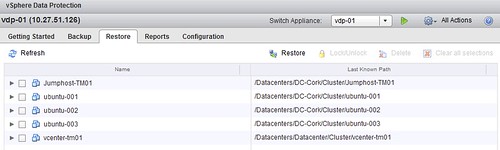
  • That is it… now you can restore VMs again
 

Back to Basics: Install, configure and use vSphere Data Protection

Duncan Epping · Sep 18, 2012 ·

Installing vSphere Data Protection is just a couple of steps. I downloaded the vSphere Replication virtual appliance. Note there are three different versions available and depending on how large your environment is you will need to select a version. I selected the 0.5TB version as I have a limited amount of virtual machines. This is how you import it and configure it, but before you begin I recommend ensuring DNS records are created before deploying the appliance!

  • Open the Web Client
  • Go to your cluster under “vCenter” —> “Hosts and Clusters”.
  • Right click the cluster object and click “All vCenter Actions” —> “Deploy OVF Template”
  • As a source I select the ova file I downloaded, now click “Next”
  • Validate the details and click “Next”
  • If you agree “Accept” the EULA and click “Next”
  • Enter the “Name” of the virtual machine and select the “Folder” this virtual machine will needs to be placed in and click “Next”
  • Select the “Datastore” it needs to be provisioned to and click “Next”
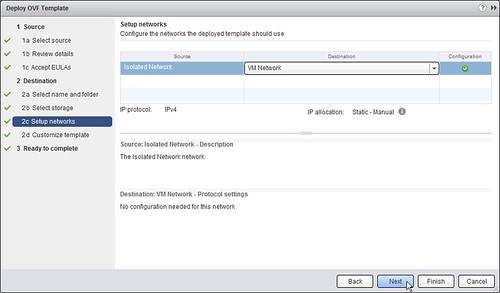
  • Select the “Network” it needs to be connected to and click “Next”
  • [Read more…] about Back to Basics: Install, configure and use vSphere Data Protection

Primary Sidebar

About the Author

Duncan Epping is a Chief Technologist and Distinguished Engineering Architect at Broadcom. Besides writing on Yellow-Bricks, Duncan is the co-author of the vSAN Deep Dive and the vSphere Clustering Deep Dive book series. Duncan is also the host of the Unexplored Territory Podcast.

Follow Us

  • X
  • Spotify
  • RSS Feed
  • LinkedIn

Recommended Book(s)

Also visit!

For the Dutch-speaking audience, make sure to visit RunNerd.nl to follow my running adventure, read shoe/gear/race reviews, and more!

Do you like Hardcore-Punk music? Follow my Spotify Playlist!

Do you like 80s music? I got you covered!

Copyright Yellow-Bricks.com © 2026 · Log in