• Skip to primary navigation
  • Skip to main content
  • Skip to primary sidebar

Yellow Bricks

by Duncan Epping

  • Home
  • Unexplored Territory Podcast
  • HA Deepdive
  • ESXTOP
  • Stickers/Shirts
  • Privacy Policy
  • About
  • Show Search
Hide Search

vmotion

vSphere 7.0 U2 Suspend VMs to Memory for maintenance!

Duncan Epping · Mar 17, 2021 ·

In vSphere 7.0 U2 a new feature popped up for Lifecycle Manager. This new feature basically provides the ability to specify what should happen to your workloads when you are applying updates or upgrades to your infrastructure. The new feature is only available for those environments which can use Quick Boot. Quick Boot basically is a different method of restarting a host. It basically skips the BIOS part, which makes a big difference in overall time to complete a reboot.

When you have LCM configured, you can enable Quick Boot by editing the “Remediation Settings”. You then simply tick the “Quick Boot” tickbox, which then provides you a few other options:

  • Do not change power state (aka vMotion the VMs)
  • Suspend to disk
  • Suspend to memory
  • Power off

I think all of these speak for themselves, and Suspend to Memory is the new feature that was introduced in 7.0 U2. When you select this option, when you do maintenance via LCM, the VMs which are running on the host which need to be rebooted, will be suspended to memory before the reboot. Of course, they will be resumed when the hypervisor returns for duty again. This should shorten the amount of time the reboot takes, while also avoiding the cost of migrating VMs. Having said that, I do believe that the majority of customers will want to migrate the VMs. When would you use this? Well, if you can afford a small VM/App downtime and have large mem configurations for hosts as well as workloads. As the migration of large memory VMs, especially when they are very memory active, could take a significant amount of time.

I hope that helps, if you want to know where to find the config option in the UI, or if you would like to see it demonstrated, simply watch the video below!

Can I vMotion a VM while IO Insight is tracing it?

Duncan Epping · Mar 4, 2021 ·

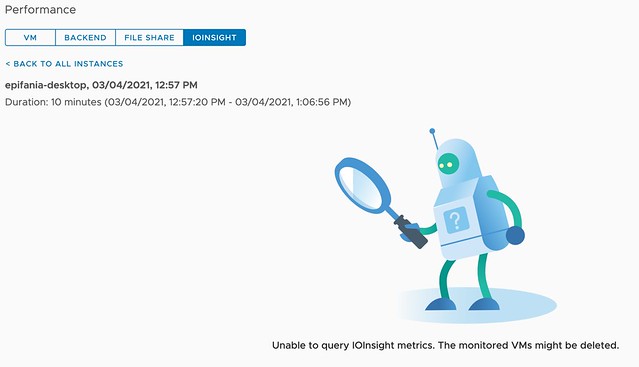
Today during the Polish VMUG we had a great question, basically, the question was if you can vMotion a VM while vSAN IO Insight is tracing it. I did not know the answer as I had never tried it, so I had to test and validate it in the lab. While testing it became obvious that IO Insight and vMotion are not a supported combination today. Or better said, when you vMotion a VM which has IO Insight enabled and the VM is being traced, then the tracing will stop and you will not be able to inspect the results. When you click on view results you will see the error suggesting that the “monitored VMs might be deleted” as shown below.

For now, if you are tracing a VM for an extended period of time, make sure to override the DRS automation level for that VM so that DRS does not interfere with the tracing. (You can do this on a per VM basis.) I would also recommend informing other administrators to not manually migrate the VM temporarily to avoid the situation where the trace is stopped.  You may wonder why this is the case, well it is pretty simple, tracing happens on a host level. We start a user world on the host where the VM is running to trace the IO. If you move the VM, the user world doesn’t know what has happened to the VM unfortunately. For now, who knows if this is something that may change over time… Either way, I would always recommend not migrating VMs while tracing, as that also impacts the data.

Hope that helps, and thank Tomasz for the great question!

vGPUs and vMotion, why the long stun times?

Duncan Epping · Feb 7, 2020 ·

Last week one of our engineers shared something which I found very interesting. I have been playing with Virtual Reality technology and NVIDIA vGPUs for 2 months now. One thing I noticed is that we (VMware) introduced support for vMotion in vSphere 6.7 and support for vMotion of multi vGPU VMs in vSphere 6.7 U3. In order to enable this, you need to set an advanced setting first. William Lam described this in his blog how to set this via Powershell or the UI. Now when you read the documentation there’s one thing that stands out, and that is the relatively high stun times for vGPU enabled VMs. Just as an example, here are a few potential stun times with various sized vGPU frame buffers:

  • 2GB – 16.5 seconds
  • 8GB – 61.3 seconds
  • 16GB – 100+ seconds (time out!)

This is all documented here for the various frame buffer sizes. Now there are a couple of things to know about this. First of all, the time mentioned was tested with 10GbE and the NVIDIA P40. This could be different for an RTX6000 or RTX8000 for instance. Secondly, they used a 10GbE NIC. If you use multi-NIC vMotion or for instance a 25GbE NIC than results may be different (times should be lower). But more importantly, the times mentioned assume the full frame buffer memory is consumed. If you have a 16GB frame buffer and only 2GB is consumed then, of course, the stun time would be lower than the above mentioned 100+ seconds.

Now, this doesn’t answer the question yet, why? Why on earth are these stun times this long? The vMotion process is described in this blog post by Niels in-depth, so I am not going to repeat it. It is also described in our Clustering Deep Dive book which you can download here for free. The key reason why with vMotion the “down time” (stun times) can be kept low is that vMotion uses a pre-copy process and tracks which memory pages are changed. In other words, when vMotion is initiated we copy memory pages to the destination host, and if a page has changed during that copy process we mark it as changed and copy it again. vMotion does this until the amount of memory that needs to be copied is extremely low and this would result in a seamless migration. Now here is the problem, it does this for VM memory. This isn’t possible for vGPUs unfortunately today.

Okay, so what does that mean? Well if you have a 16GB frame buffer and it is 100% consumed, the vMotion process will need to copy 16GB of frame buffer memory from the source to the destination host when the VM is stunned. Why when the VM is stunned? Well simply because that is the point in time where the frame buffer memory will not change! Hence the reason this could take a significant number of seconds unfortunately today. Definitely something to consider when planning on using vMotion on (multi) vGPU enabled VMs!

VMworld Reveals: vMotion innovations

Duncan Epping · Sep 3, 2019 ·

At VMworld, various cool new technologies were previewed. In this series of articles, I will write about some of those previewed technologies. Unfortunately, I can’t cover them all as there are simply too many. This article is about enhancements that will be introduced in the future to vMotion, the was session HBI1421BU. For those who want to see the session, you can find it here. This session was presented by Arunachalam Ramanathan and Sreekanth Setty. Please note that this is a summary of a session which is discussing a Technical Preview, this feature/product may never be released, and this preview does not represent a commitment of any kind, and this feature (or it’s functionality) is subject to change. Now let’s dive into it, what can you expect for vMotion in the future.

The session starts with a brief history of vMotion and how we are capable today to vMotion VMs with 128 vCPUs and 6 TB of memory. The expectation is though that vSphere in the future will support 768 vCPUs and 24 TB of memory. Crazy configuration if you ask me, that is a proper Monster VM.

[Read more…] about VMworld Reveals: vMotion innovations

How to disable DRS for a single host in the cluster

Duncan Epping · Jan 17, 2017 ·

I saw a question today which was interesting, how do I disable DRS for a single host in the cluster? I thought about it, and you cannot do this within the UI, at least… there is no “disable DRS” option on a host level. You can enable/disable it on a cluster level but that is it. But there are of course ways to ensure a host is not considered by DRS:

  1. Place the host in maintenance mode
    This will result in the host not being used by DRS. However it also means the host won’t be used by HA and you cannot run any workloads on it.
  2. Create “VM/Host” affinity rules and exclude the host that needs to be DRS disabled. That way all current workloads will not run, or be considered to run, on that particular host. If you create “must” rules this is guaranteed, if you create “should” rules then at least HA can still use the host for restarts but unless there is severe memory pressure or you hit 100 CPU utilization it will not be used by DRS either.
  3. Disable the vMotion VMkernel interface
    This will result in not being able to vMotion any VMs to the host (and not from the host either). However, HA will still consider it for restarts and you can run workloads on the host, and the host will be considered for “initial placement” during a power-on of a VM.

I will file a feature request for a “disable drs” on a particular host option in the UI, I guess it could be useful for some in certain scenarios.

  • Page 1
  • Page 2
  • Page 3
  • Interim pages omitted …
  • Page 8
  • Go to Next Page »

Primary Sidebar

About the Author

Duncan Epping is a Chief Technologist and Distinguished Engineering Architect at Broadcom. Besides writing on Yellow-Bricks, Duncan is the co-author of the vSAN Deep Dive and the vSphere Clustering Deep Dive book series. Duncan is also the host of the Unexplored Territory Podcast.

Follow Us

  • X
  • Spotify
  • RSS Feed
  • LinkedIn

Recommended Book(s)

Also visit!

For the Dutch-speaking audience, make sure to visit RunNerd.nl to follow my running adventure, read shoe/gear/race reviews, and more!

Do you like Hardcore-Punk music? Follow my Spotify Playlist!

Do you like 80s music? I got you covered!

Copyright Yellow-Bricks.com © 2026 · Log in