• Skip to primary navigation
  • Skip to main content
  • Skip to primary sidebar

Yellow Bricks

by Duncan Epping

  • Home
  • Unexplored Territory Podcast
  • HA Deepdive
  • ESXTOP
  • Stickers/Shirts
  • Privacy Policy
  • About
  • Show Search
Hide Search

appliance

vCenter Appliance

Duncan Epping · Aug 10, 2011 ·

I was playing around in my lab and figured I would give the vCenter Appliance (VCVA)  a try. I realize that today there are limitations when it comes to the vCenter Appliance and I wanted to list those to get them out in the open:

  • No Update Manager
  • No Linked-Mode
  • No support for the VSA (vSphere Storage Appliance)
  • Only support for Oracle as the external database
  • With the embedded database it supports 5 hosts and 50 VMs
    • vSphere 5.0 embedded database uses DB2
    • vSphere 5.0 Update 1 and higher uses vPostgres
  • No support for vCenter Heartbeat

Now that you’ve seen the limitations why would you even bother testing it? You will still need Windows if you are running VUM and you can only use Oracle for large environments… Those are probably the two biggest constraints for 80% of you reading this and I agree they are huge constraints. But I am not saying that you should go ahead and deploy this in production straight away, I do feel that the VCVA deserves to be tested as it is the way forward in my opinion! Why? Most importantly, it is very simple to implement… Seriously setting it up takes a couple of minutes. You just import the OVF, accept the EULA, select the correct database type and start the vCenter service. Without any hassle it also includes the following services:

  • vSphere Web Client
  • vCenter Single Sign On (SSO)
  • vSphere Auto Deploy Server
  • ESXi Dump Collector
  • Inventory Service
  • Syslog Collector

But that’s not all… If you look at it from a strategic perspective this is the first step. A first step towards a possible distributed vCenter solution, and I know some of you have been waiting on that for a while, so why not get your hands dirty straight away and start testing it.

If you want to know how to deploy the vCenter 5.1 Appliance I highly recommend reading this article.

**info updated – 1st of february 2013**
Creating a VMware Converter Appliance

Duncan Epping · Feb 22, 2010 ·

I was playing around with VMware Converter and thought it would be cool to create a VMware Converter Appliance. I can’t put this up for download, yet, but I can describe how to build your own appliance. I will use Novell’s Suse Studio to create a thin Linux VM that contains only the necessary bits and pieces.

  • Go to susestudio.com and open an account
  • Click “Create New Appliance”
  • Select “GNOME Desktop” and click “Create Appliance”
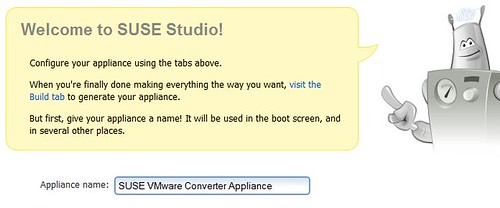
  • Change the name of the appliance to something that makes a bit more sense…
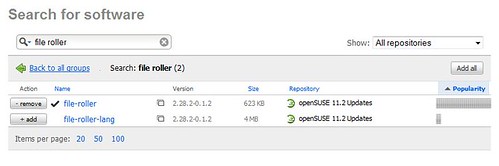
  • I would personally add “File Roller” and “GCC” so that you can actually open archives from the GUI and make modules, which is need to install VMware tools.
  • Go to the  “Configuration Tab” and click on “Appliance”
  • Increase the memory to 1024MB for a better running appliance
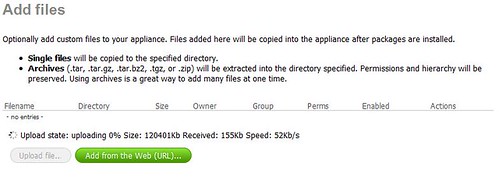
  • Download VMware Converter Standalone for Linux and add it as a file in the “Overlay Files” tab
  • When uploading is finished select a folder where the tar.gz file should be extracted, I picked “/vmwconverter”
  • Click on the “Build” Tab and wait for it to complete

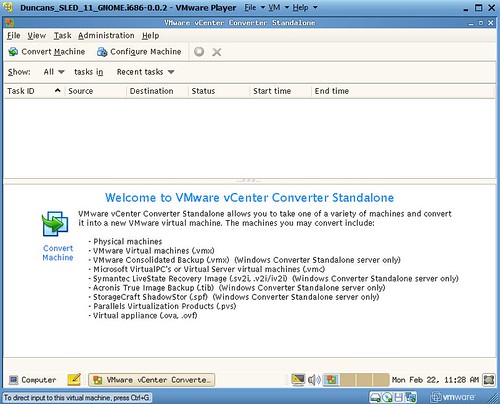
It’s as easy as that! With SUSE you have the option to Test Drive it and make changes to the image while test driving it. I would recommend to just download it and install VMware Converter while running the VM with VMware player. Or you could import it with vCenter and run it on an ESX host. This way you can also install VMware tools immediately.

  • Open the VMX file with VMware Player
  • Install VMware Tools:
    Right click VM “install VMware tools”
  • Open a terminal session within the VM and type:
    cd /media/VMware Tools
    tar -C /tmp -xvf <VMware Tools File>
    /tmp/vmware-tools-distrib/vmware-install.pl

    Agree with all the defaults…

  • Now to install VMware Converter open a terminal session and do the following:
    cd /vmwconverter/vmware-converter-distrib
    ./vmware-install.pl

    Use all the defaults!

  • You can add an icon to the desktop by right clicking the desktop and selecting “Create Launcher”
  • Select “/usr/bin/vmware-converter-client”
  • And add the correct icon! (/usr/share/icons/vmware-converter.png)

Now your appliance is good to go and can be used everywhere in your virtual infrastructure. I would recommend making it a template or vApp and deploy it multiple times when doing many parallel migrations!

  • « Go to Previous Page
  • Page 1
  • Page 2

Primary Sidebar

About the Author

Duncan Epping is a Chief Technologist and Distinguished Engineering Architect at Broadcom. Besides writing on Yellow-Bricks, Duncan is the co-author of the vSAN Deep Dive and the vSphere Clustering Deep Dive book series. Duncan is also the host of the Unexplored Territory Podcast.

Follow Us

  • X
  • Spotify
  • RSS Feed
  • LinkedIn

Recommended Book(s)

Also visit!

For the Dutch-speaking audience, make sure to visit RunNerd.nl to follow my running adventure, read shoe/gear/race reviews, and more!

Do you like Hardcore-Punk music? Follow my Spotify Playlist!

Do you like 80s music? I got you covered!

Copyright Yellow-Bricks.com © 2026 · Log in