• Skip to primary navigation
  • Skip to main content
  • Skip to primary sidebar

Yellow Bricks

by Duncan Epping

  • Home
  • Unexplored Territory Podcast
  • HA Deepdive
  • ESXTOP
  • Stickers/Shirts
  • Privacy Policy
  • About
  • Show Search
Hide Search

8.0

What can I change about a vSAN ESA Ready Node?

Duncan Epping · Jan 23, 2023 ·

I’ve had half a dozen people asking about this over the past weeks, it really seems more and more people are at the point of adopting vSAN ESA (Express Storage Architecture. When they look at the various vSAN ESA Ready Node configurations what stands out is that the current list is limited in terms of server models and configurations. (https://vmwa.re/vsanesahcl)

The list is being updated every week, last week for instance Supermicro popped up as a Server vendor. Of course, Dell, HPe, and Lenovo had been on the list since day 1. When you select the vendor, the ready node type, and the model you will then have the option to select a number of things, but in most cases, you seem to be limited to “Storage Device” and “Number of Storage Devices”. This however does not mean you cannot change anything. A knowledge base article has been released which describes what you can, and cannot change when it comes to these configurations! The KB article is listed on the vSAN ESA VMware Compatibility Guide list, but somehow it seems people don’t always notice the link. (Yes, I have asked the team to make the link more obvious somehow.)

Now when you look at the KB it lists what you can change, and what the rules are when it comes to making changes. For instance, you can change the CPU, but only for the same or higher core count and the same or higher base clock speed. For memory, you can increase the amount, and the same applies to storage capacity for instance. For storage it is even a bit more specific, you need to use the same make/model, so basically if the ReadyNode configuration lists a P5600 of 1.6TB, you can swap it for a P5600 of 3.2TB. We recently (May 20th 2023) had a change in support, and we now support the change of device model/make, as long as you follow the other guidelines mentioned in the KB. For instance, you can swap an Intel device for a Samsung, but that Samsung would need to be supported by the OEM vendor and needs to be the same (or higher) performance and endurance class. And of course the device needs to be certified for vSAN ESA: http://vmwa.re/vsanesahclc. Anyway, if you are configuring a Ready Node for ESA, make sure to check the KB so that you make supported changes!

Cross connecting vSAN Datastores with HCI Mesh in vSAN 8 OSA

Duncan Epping · Jan 4, 2023 ·

Yesterday I had a discussion internally on Slack about a configuration for a customer. The customer had multiple locations and had the potential to create various clusters within locations, or across locations. Now, as most of you know, I have been talking a lot about stretched clusters for the past decade. However, stretched clusters are not the answer to every problem. Especially not in situations where you end up with unbalanced configurations, or where you lack the ability to place a witness in a third location. Customers tend to gravitate towards stretched clusters as it provides them resiliency, and pooling of all resources even though they are across locations.

With vSAN when you have multiple clusters, you also have multiple vSAN Datastores. Having that separation of resources is typically appreciated. However, in some cases, customers prefer the flexibility of movement with limited overhead. Sure if you have multiple clusters you can simply Storage vMotion VMs from source cluster to destination cluster, but it does mean you need to move ALL the data with the VM, where in some cases you may not care where the data resides.

This is where HCI Mesh comes into play. With HCI Mesh you have the ability to mount a vSAN Datastore. Meaning, you have a “client” and a “server” cluster, and the client mounts the server. Within our documentation on core.vmware.com this is demonstrated as follows:

If you look at this diagram then the top two clusters are “client” clusters and the bottom one is the “server” cluster. This basically means that the “client” cluster consumed the datastore capacity from the “server” cluster. The above diagram however resulted in a bit of confusion as it does not show a situation where your client cluster can simultaneously be a server cluster. This is something I want to point out. You can create a true “mesh” with HCI Mesh! If you have two clusters, let’s say Cluster A and Cluster B, then you can mount the vSAN Datastore from Cluster A to Cluster B and the datastore from Cluster B to Cluster A. This is fully supported, and works great, as demonstrated in the below two screenshots. I tested this with vSphere/vSAN 8.0 OSA, but it is also supported with vSAN 7.0 U1 and up. Do note, vSAN ESA today does not support HCI Mesh just yet, hopefully it will in the near feature!


So before you decide how to configure vSAN, please look at all the capabilities provided, write down your requirements, and see what helps solving the challenges you are facing while meeting those requirements (in a supported way)!

vSAN 8.0 ESA – Introducing Adaptive RAID-5

Duncan Epping · Nov 15, 2022 ·

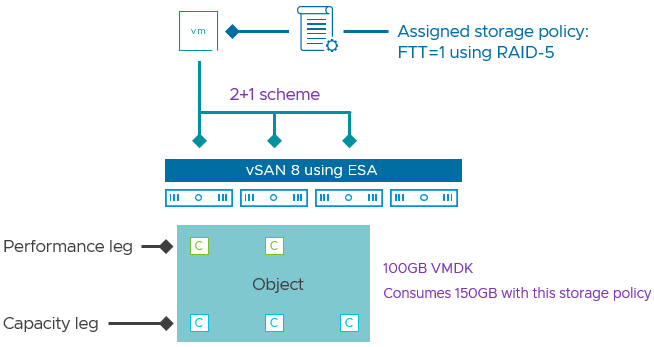
Starting with vSAN 8.0 ESA (Express Storage Architecture) VMware has introduced an adaptive RAID-5 mechanism. What does this mean? Essentially, vSAN deploys a particular RAID-5 configuration depending on the size of the cluster! There are two options, let’s list them out and discuss them individually.

  • RAID-5, 2+1, 3-5 hosts
  • RAID-5, 4+1, 6 hosts or more

As mentioned in the above list, depending on the cluster size, you will see a particular RAID-5 configuration. Clusters of up to 5 hosts will see a 2+1 configuration when RAID-5 is selected. For those wondering, the below diagram will show what this looks like. 2+1 configurations will have a 150% overhead, meaning that when you store 100GB of data, this will consume 150GB of capacity.

Now, when you have a larger cluster, meaning 6 hosts or more, vSAN will deploy a 4+1 configuration. The big benefit of this is that the “capacity overhead” goes down from 150% to 125%, in other words, 100GB of data will consume 125GB of capacity.

What is great about this solution is that vSAN will monitor the cluster size. If you have 6 hosts and a host fails, or a host is placed into maintenance mode etc, vSAN will automatically scale down the RAID-5 configuration from 4+1 to 2+1 after a time period of 24 hours. I of course had to make sure that it actually works, so I created a quick demo that shows vSAN changing the RAID-5 configuration from 4+1 to 2+1, and then back again to 4+1 when we reintroduce a host into the cluster.

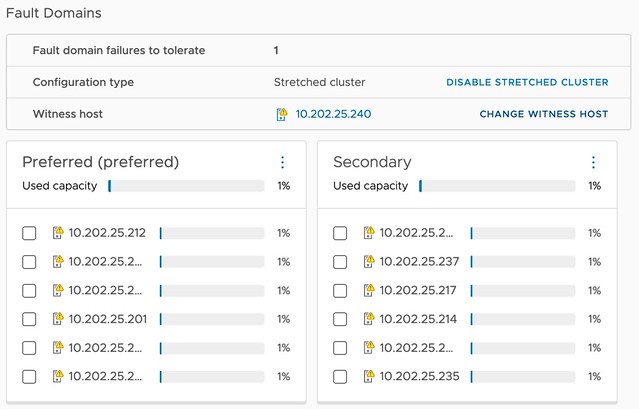
One more thing I need to point out. The Adaptive RAID-5 functionality also works in a stretched cluster. So if you have a 3+3+1 stretched cluster you will see a 2+1 RAID-5 set. If you have a 6+6+1 cluster (or more in each location) then you will see a 4+1 set. Also, if you place a few hosts into maintenance mode or hosts have failed then you will see the configuration change from 4+1 to 2+1, and the other way around when hosts return for duty!

For more details, watch the demo, or read this excellent post by Pete Koehler on the VMware website.

How to convert a standard cluster to a stretched cluster while expanding it!

Duncan Epping · Sep 27, 2022 ·

On VMTN a question was asked about how you could convert a 5-node standard cluster to a stretched cluster. It is not documented in our regular documentation, probably as the process is pretty straightforward, so I figured I would write it down. When you create a stretched cluster you will need a Witness Appliance in a third location first. I would recommend deploying that Witness Appliance before doing anything else.

After you deployed the Witness Appliance add the additional hosts to vCenter Server. DO NOT yet add them to the cluster yet though! First, configure each host separately. After you have configured each host, place the host into maintenance mode. After the host is placed into maintenance mode, move it into the cluster and do not take it out of maintenance mode!

Now, when all hosts are part of the cluster you can create the Stretched Cluster. This process is simple, you pick the hosts that belong to each location, and then you select the witness. After the cluster has been created you simply take the hosts out of maintenance mode and you should be good! Note, you take the host out of maintenance after the Stretched Cluster has been created to ensure that you don’t have any rebalancing happening while you are creating the stretched cluster. Simply avoiding unneeded resyncs from occuring.

Do note, all VMs will have the same storage policy assigned still, so you will need to change that policy to ensure that the vSAN objects are placed and replicated according to your requirements! (RAID1 across locations and RAID-1/5/6 within a location for instance.)

Podcast episodes: vSphere 8, vSAN 8, and VMware Explore wrap-up…

Duncan Epping · Sep 5, 2022 ·

It was a busy week at VMware Explore last week, but we still managed to record new content to discuss what was happening at VMware Explore. We spoke with folks like Kit Colbert, Chris Wolf, Dave Morera, Sazzala Reddy, and many others. We also recorded episodes to cover the vSAN 8.0 and vSphere 8.0 release. For vSAN 8.0 we asked Pete Koehler to go over all the changes with vSAN Express Storage Architecture. vSphere 8.0 was covered by Feidhlim O’Leary, going into every aspect of the release, and it is a lot.

  • « Go to Previous Page
  • Page 1
  • Page 2
  • Page 3
  • Page 4
  • Go to Next Page »

Primary Sidebar

About the Author

Duncan Epping is a Chief Technologist and Distinguished Engineering Architect at Broadcom. Besides writing on Yellow-Bricks, Duncan is the co-author of the vSAN Deep Dive and the vSphere Clustering Deep Dive book series. Duncan is also the host of the Unexplored Territory Podcast.

Follow Us

  • X
  • Spotify
  • RSS Feed
  • LinkedIn

Recommended Book(s)

Also visit!

For the Dutch-speaking audience, make sure to visit RunNerd.nl to follow my running adventure, read shoe/gear/race reviews, and more!

Do you like Hardcore-Punk music? Follow my Spotify Playlist!

Do you like 80s music? I got you covered!

Copyright Yellow-Bricks.com © 2026 ยท Log in