• Skip to primary navigation
  • Skip to main content
  • Skip to primary sidebar

Yellow Bricks

by Duncan Epping

  • Home
  • Unexplored Territory Podcast
  • HA Deepdive
  • ESXTOP
  • Stickers/Shirts
  • Privacy Policy
  • About
  • Show Search
Hide Search

Archives for January 2009

Tripwire Configcheck

Duncan Epping · Jan 12, 2009 ·

When I published my article on tools/scripts I use during a VMware Healthcheck I received a couple of emails on Tripwire’s Configcheck. I’ve been on a holiday for a couple of weeks so it took me a bit longer than usual to check out the product.

Configcheck can be downloaded for free. Configcheck is a Java Application so you will need to install JRE. Installing JRE can be a bit of a pain sometimes on a server so this is one of the reasons for me that will make it hard to actively use Configcheck at customer sites. (This depends on the customers policy.) Installing the product is fairly easy though:

  1. Download Java JRE.
  2. Download the file configcheck.zip to a Windows machine that has Java Runtime Environment (JRE) version 1.5, or higher.
  3. Unzip the configcheck.zip file

That’s it, fairly easy. Now you can run “configcheck.cmd” to check the specified ESX host on security issues. Once the check is complete you can click the test results to view remediation steps. The test results will look like this:
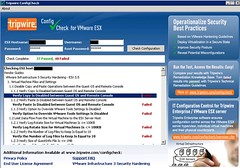
As you can see, 37 Passed and 40 Failed. Not really surprising considering the fact that I ran this against a newly build ESX 3.5 U3 host. No modifications whatsoever. Clicking the test results didn’t work on my test servers because of the lack of an internet connection. Unfortunately it’s also not possible to export the data in this version. It’s free and Tripwire’s Enterprise edition does give you this capability, if you need export and a whole lot more check it out. You can find a data-sheet with a comparison between Configcheck and enterprise here.

Luckily Tripwire also provides the remediation steps in pdf form. For instance the remediation steps for 1.2.2 “Verify the log files to keep is equal to 10”:

Description: 
This test determines if virtual machines are configured to keep 10 log files when the recommended log rotate size of 100KB is exceeded. Virtual machines log activity in their respective vmware.log files. If growth of these log files is not limited, it is possible for virtual machines to cause a denial of service on the ESX Server by filling up the VMFS volume. There are two options for preventing virtual machines from flooding the hard disk of the host: size-based log file rotation or disabling logging for the virtual machine. This policy checks for size-based log file rotation because disabling logging altogether limits troubleshooting options.

Remediation:
To remediate failure of this policy test, configure the virtual machine to keep 10 log files when the recommended log rotate size of 100KB is exceeded. Configuring the virtual machine to keep 10 log files when the recommended log rotate size of 100KB is exceeded:

Login to the VirtualCenter or use the VI Client to connect directly to the ESX Server hosting the improperly configured virtual machine.

  1. Power off the virtual machine if needed.
  2. Right click the virtual machine and click Edit Settings.
  3. Select the Options tab.
  4. Select Advanced > General, and click the Configuration Parameters button.
  5. Look for a row with log.keepOld and set the value to 10.
  6. If the row does not exist, then click the Add Row button.
  7. In the Name field type log.keepOld.
  8. In the Value field type the value to 10.
  9. Click OK to close the Configuration Parameters dialog.
  10. Click OK to close the Virtual Machine Properties dialog.
As you can see, the description and remediation explain why and what to do in a fairly extensive manner. Which is great cause not does this make solving the “problem” really easy, Tripwire’s Configcheck also educates the SysAdmin!

Cool Tool Update: RVTools 2.2

Duncan Epping · Jan 11, 2009 ·

I’ve wrote about this tool several times so most of you must have tested it by now and are probably actively using it: RVTools. Rob just notified me that he uploaded a brand new version of his tool. The following have been added to version 2.2:

  • New vDatastore tab. The “vDatastore” tab displays for each datastore the name, connectivity status, file system type, number of virtual machines on the datastore, total capacity in MB’s, free capacity in MB’s, multiple host access indication and the url.
  • Your custom defined fields are now visible on most of the tab-pages
  • New menu option “export data to csv file”
  • New “upgrade policy” field on vTools tab-page
  • New “Sync time with host” field on vTools tab-page
  • The field “OS” which is displayed on most of the tab-pages now displays the name of the guest OS according to the VMware Tools. In previous versions we used the configuration value. The vTools tab displays both “OS” fields.

Here’s a screenshot of the new tab “vDatastore”:

If you’ve never used RVTools before besure to check it out, it’s worth it. And if you are already using it download it and upgrade!

EMC will reduce workforce with 7%

Duncan Epping · Jan 7, 2009 ·

I was just reading the Press Release on the “Preliminary Fourth-Quarter Financial Results” over on EMC’s website and noticed the following:

The restructuring program will reduce EMC’s global Information Infrastructure workforce by approximately 2,400 positions, or about 7% of its headcount as of September 30, 2008.

Don’t know if anyone had already noticed it or not. But it seems like major news to me. Especially with all the rumours floating around on layoffs at other huge software firms.

Compare specific ESX configuration items

Duncan Epping · Jan 7, 2009 ·

Hugo posted a great script. It will compare configuration items between a given set of hosts. This can especially come in handy when you’ve got a huge amount of datastores, portgroups or a huge amount of ESX hosts for that matter. Hugo’s post contains a set of excellent examples. Just check his post for more details and the script, heres what the outcome would look like for now:

InputObject                         SideIndicator
———–                                ————-
esxServer1_Local               <=
esxServer2_Local               =>
DATASTORE_TEST1            =>

Update: Hugo just posted a follow up to his original blog. This new script creates a CSV file, which can be imported in to Excel for example and the result will look like this:

New version of the Powershell Healthcheck script released

Duncan Epping · Jan 6, 2009 ·

Ivo Beerens just published a new version of his Powershell Healthcheck script. The script will report the following in a nicely formatted html file:

  • VMware ESX server Hardware and version
  • VMware vCenter version
  • Cluster information
  • VMware statistics
  • Active Snapshots
  • CDROMs connected to VMs
  • Floppy drives connected to VMs
  • Datastores Information such as free space
  • RDM information
  • VM information such as VMware tools version,  processor and memory limits
  • VM’s and there datastore
  • VMware timesync enabled
  • Percentage disk space used inside the VM
  • VC error logs last 5 days

Go to Ivo’s website for the download of the script and the source blog post. I use this script personally just to keep track of changes and get a quick overview of the current situation of an environment.

  • « Go to Previous Page
  • Page 1
  • Interim pages omitted …
  • Page 6
  • Page 7
  • Page 8
  • Page 9
  • Go to Next Page »

Primary Sidebar

About the Author

Duncan Epping is a Chief Technologist and Distinguished Engineering Architect at Broadcom. Besides writing on Yellow-Bricks, Duncan is the co-author of the vSAN Deep Dive and the vSphere Clustering Deep Dive book series. Duncan is also the host of the Unexplored Territory Podcast.

Follow Us

  • X
  • Spotify
  • RSS Feed
  • LinkedIn

Recommended Book(s)

Also visit!

For the Dutch-speaking audience, make sure to visit RunNerd.nl to follow my running adventure, read shoe/gear/race reviews, and more!

Do you like Hardcore-Punk music? Follow my Spotify Playlist!

Do you like 80s music? I got you covered!

Copyright Yellow-Bricks.com © 2026 · Log in