We just published the third episode of the Unexplored Territory. This time we are talking to Shawn Bass, who is the CTO for the EUC business unit. Shawn talks about various aspects of End User Computing, especially security is a big focus at the moment, aka zero trust. Make sure to listen to the episode, either via the embedded player below, or just add the podcast to your podcast app (google, apple, overcast etc), or spotify, and listen to it that way.
Project Monterey, Capitola, and NVIDIA announcements… What does this mean?
At VMworld, there were various announcements and updates around projects that VMware is working on. Three of these announcements/projects received a lot of attention at VMworld and from folks attending. These announcements were Project Monterey, Project Capitola, and the NVIDIA + VMware AI Ready Platform. For those who have not followed these projects and/or announcements, they are all about GPUs, DPUs, and Memory. The past couple of weeks I have been working on developing new content for some upcoming VMUGs, these projects most likely will be part of those presentations.
When I started looking at the projects I looked at them as three separate unrelated projects, but over time I realized that although they are separate projects they are definitely related. I suspect that over time these projects, along with other projects like Radium, will play a crucial role in many infrastructures out there. Why? Well, because I strongly believe that data is at the heart of every business transformation! Analytics, artificial intelligence, machine learning, it is what most companies over time will require and use to grow their business, either through the development of new products and services or through the acquisition of new customers in innovative ways. Of course, many companies already use these technologies extensively.
This is where things like the work with NVIDIA, Project Monterey, and Project Capitola come into play. The projects will enable you to provide a platform to your customers that will enable them to analyze data, learn from the outcome, and then develop new products, services, be more efficient, and/or expand the business in general. When I think about analyzing data or machine learning, one thing that stands out to me is that today close to 50% of all AI/ML projects never go into production. This is for a variety of reasons, but key reasons these projects fail typically are Complexity, Security/Privacy, and Time To Value.
This is why the collaboration between VMware and NVIDIA is extremely important. The ability to deploy a VMware/NVIDIA certified solution should mitigate a lot of risks, not just from a hardware point of view, but of course also from a software perspective, as this work with NVIDIA is not just about a certified hardware stack, but also the software stack that is typically required for these environments will come with it.
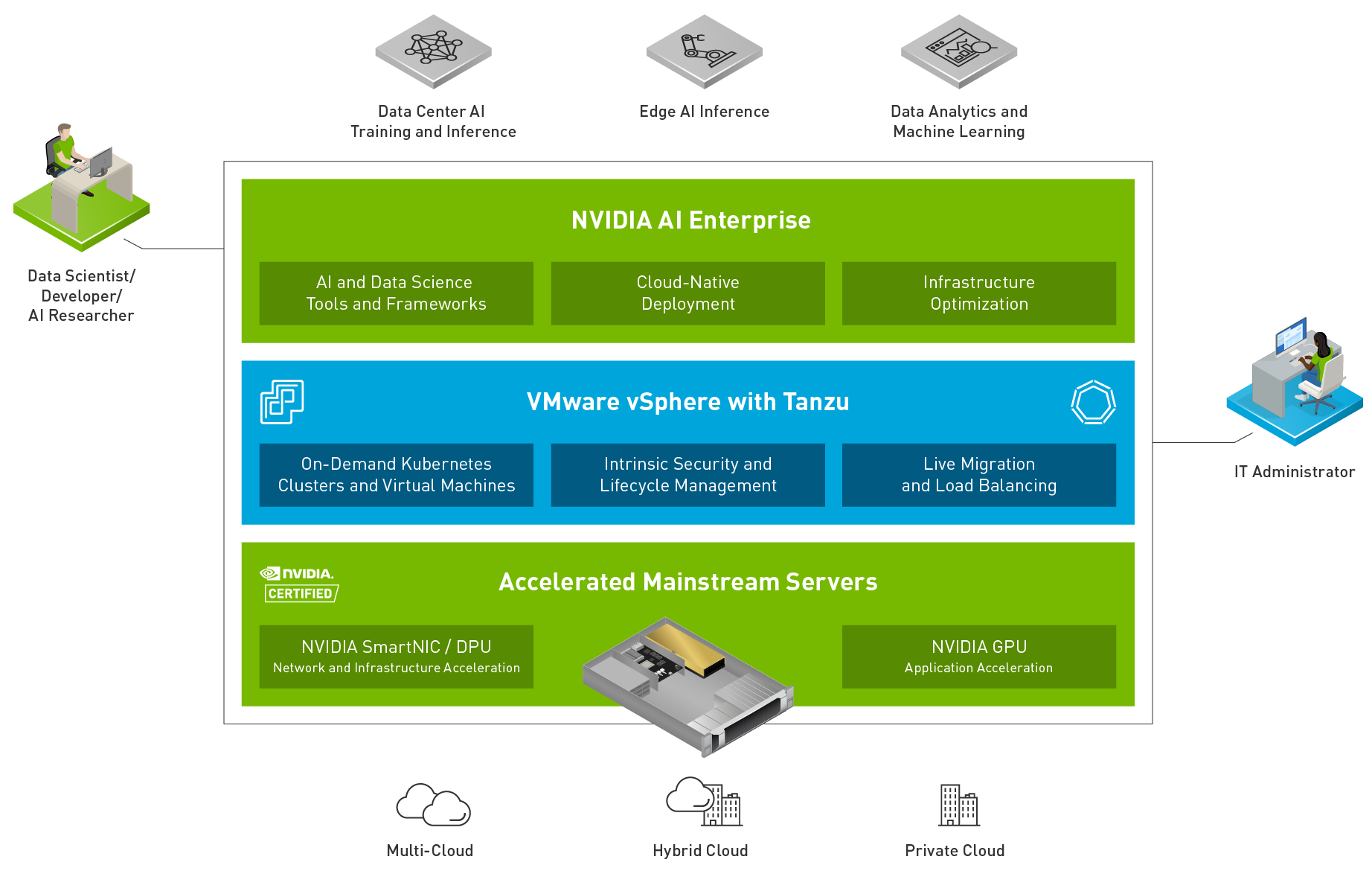
So what has Monterey and Capitola to do with all of this? If you look at some of Frank’s posts on the topic of AI and ML, it becomes clear that there are a couple of obvious bottlenecks in most infrastructures when it comes to AI/ML workloads. Some of these bottlenecks have been bottlenecks for storage and VMs in general as well for the longest time. What these bottlenecks are? Data movement and memory. This is where Monterey and Capitola come into play. Project Monterey is VMware’s project around SmartNICs (or DPUs as some vendors call them). SmartNICs/DPUs provide many benefits, but the key benefit is definitely the offloading capabilities. By offloading certain tasks to the SmartNIC, the CPU will be freed up for other tasks, which will benefit the workloads running. Also, we can expect the speed of these devices to also go up, which will allow ultimately for faster and more efficient data movement. Of course, there are many more benefits like security and isolation, but that is not what I want to discuss today.

Then lastly, Project Capitola, all about memory! Software-Defined Memory as it is called in this blog. This remains the bottleneck in most environments these days, with-or-without AI/ML, you can never have enough memory! Unfortunately, memory comes at a (high) cost. Project Capitola may not make your DIMMs cheaper, but it does aim to make the use of memory in your host and cluster more cost-efficient. Not only does it aim to provide memory tiering within a host, but it also aims to provide pooled memory across hosts, which will directly tie back to Project Monterey, as low latency and high bandwidth connections will be extremely important in that scenario! Is this purely aimed at AI/ML? No of course note, tiers of memory and pools of memory should be available to all kinds of apps. Does your app need all data in memory, but is there no “nanoseconds latency” requirement? That is where tiered memory comes into play! Do you need more memory for a workload than a single host can offer? That is where pooled memory comes into play! So many cool use cases come to mind.

Some of you may have already realized where these projects were leading too, some may not have had that “aha moment” yet, hopefully, the above helps you realizing that it is projects like these that will ensure your datacenter will be future proof and will enable the transformation of your business.
If you want learn more about some of the announcements and projects, just go to the VMworld website and watch the recordings they have available!
Unexplored Territory: recovering from a ransomware attack /w Sazzala Reddy!
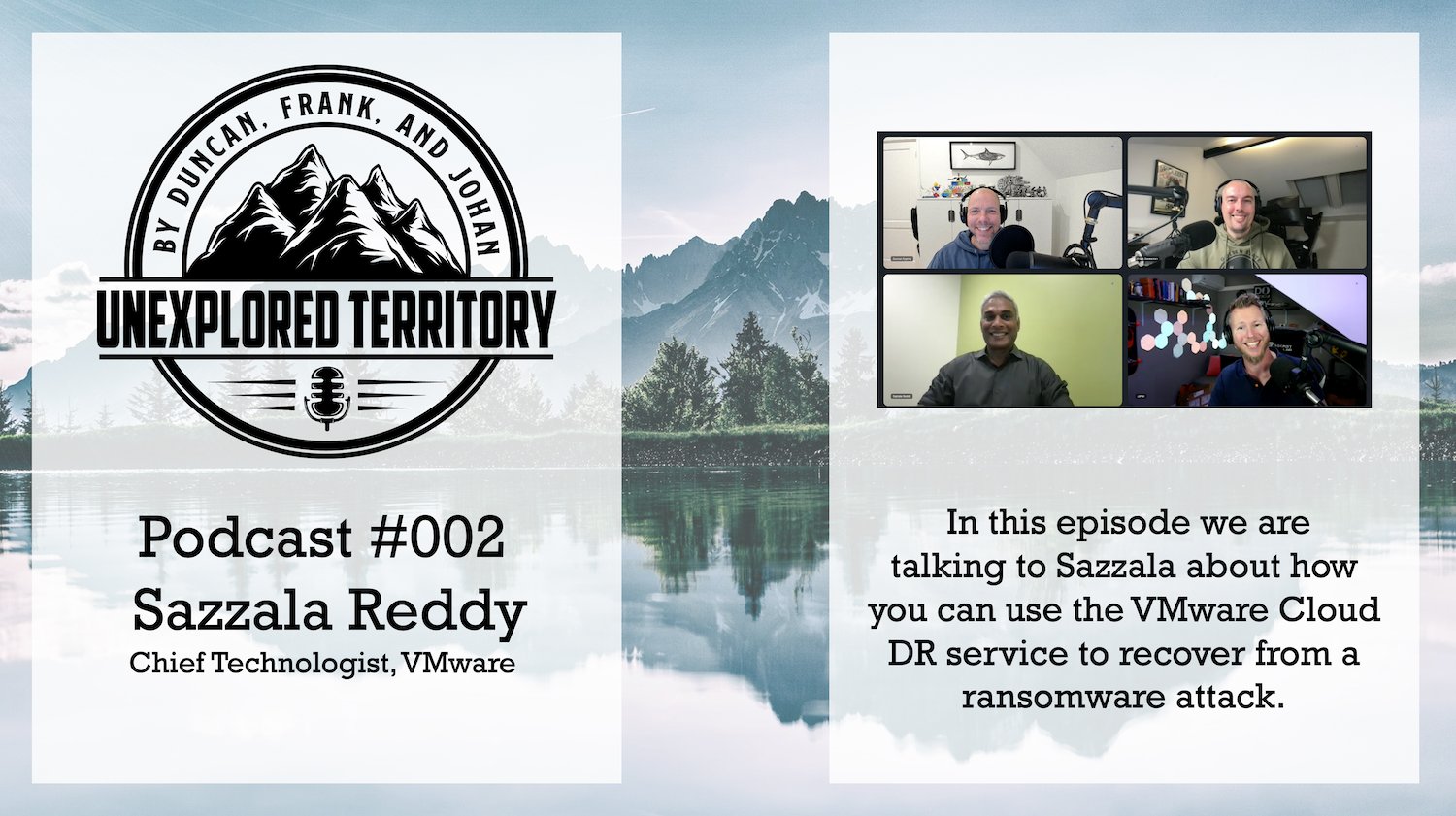
There we go, episode 002 of the Unexplored Territory Podcast was just published. In this episode we talk to Sazzala Reddy. Sazzala is a Chief Technologist at VMware who joined via the Datrium acquisition, where he was the CTO. Before founding Datrium, he was at Dell/EMC, where he came in via the DataDomain acquisition. I think it is fair to say that Sazzala has a heavy data/storage DNA. We discuss Sazzala’s career path, why better is sometimes worse, and we extensively discuss VCDR and the new cloud file system that is being developed. I think it is a very interesting episode and would encourage everyone to give it a listen!
Make sure to follow Sazzala on twitter (https://twitter.com/sazzala) and read his blog post on the VCDR filesystem: https://bit.ly/3CiQoav.
Listen now via Apple Podcasts: https://apple.co/2ZOziDx, Spotify: https://spoti.fi/3BEkFja, Google: https://bit.ly/3Cy3ssF, Overcast: https://overcast.fm/+zyG9k_hks, Website: https://bit.ly/3w70FnV.
Unexplored Territory: A conversation with Kit Colbert, VMware’s new CTO
One of my goals for this year was starting the Unexplored Territory Podcast. A podcast however is only relevant when people bother to listen to it, as such I figured I would use my blog to promote the podcast for now. As you can imagine, we are hoping to grow our audience fast, and we can use all the help we can get. If you enjoyed the podcast, make sure to subscribe, like, and share the episode on all social platforms, and preferably with your colleagues and friends. You can find the podcast in your favorite podcast app by searching for “Unexplored Territory, or simply click one of the following links: Apple Podcasts, Spotify, Google Podcasts, Overcast, Stitcher, or Amazon Music. You can also listen to the episode by hitting play in the embedded player below.
In this episode, we talk to Kit Colbert. Kit was recently promoted to CTO within VMware. Kit talks about how he started as an intern and managed to find his way through the company to ultimately become the CTO. We also discuss various projects that were introduced at VMworld like Project Monterey, Project Capitola, and Project Santa Cruz. I hope you will enjoy this episode as much as we did recording it.
Announcing the Unexplored Territory Podcast!
 Frank, Johan, and I have been working on this for a few months already, but today I can finally share that a brand new podcast series will be out soon. This bi-weekly podcast (released on Monday) is titled “Unexplored Territory“. We will be discussing topics such as public cloud, virtualization, cloud-native applications, Kubernetes, end-user computing, storage, business continuity, and important (VMware-based) emerging technologies with industry/subject matter experts.
You may wonder, where you will be able to find it/us? Well of course we have a website: UnexploredTerritory.Tech. You can find us on Twitter on @UnexploredPod. You can listen to the podcast via any of your favorite podcast apps: Apple Podcasts, Spotify, Google Podcasts, Overcast, Stitcher, Amazon Music, Stitcher, Pocket Cast. Or use the RSS Feed to add the podcast to your favorite podcast player.
Make sure to subscribe and download the episodes automatically! Our very first guest will be a very special one, we invited VMware’s brand new CTO Kit Colbert to join us, and this episode will be available on Monday the 18th of October! We created a short teaser for the podcast, you can find it in your podcast app or check it out below via the embedded player. We hope everyone will enjoy the podcast, we are looking forward to many great conversations!