Installing vSphere Data Protection is just a couple of steps. I downloaded the vSphere Replication virtual appliance. Note there are three different versions available and depending on how large your environment is you will need to select a version. I selected the 0.5TB version as I have a limited amount of virtual machines. This is how you import it and configure it, but before you begin I recommend ensuring DNS records are created before deploying the appliance!
- Open the Web Client
- Go to your cluster under “vCenter” —> “Hosts and Clusters”.
- Right click the cluster object and click “All vCenter Actions” —> “Deploy OVF Template”
- As a source I select the ova file I downloaded, now click “Next”
- Validate the details and click “Next”
- If you agree “Accept” the EULA and click “Next”
- Enter the “Name” of the virtual machine and select the “Folder” this virtual machine will needs to be placed in and click “Next”
- Select the “Datastore” it needs to be provisioned to and click “Next”
- Select the “Network” it needs to be connected to and click “Next”
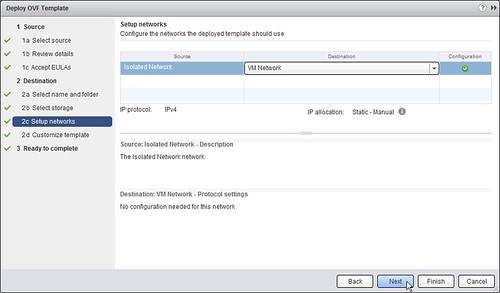
- Provide the “Networking properties” and click “Next”
- Review the selected settings and click “Finish” (I ticked “Power on after deployment”)
- Now it is a matter of minutes before the appliance is deployed, you can track the progress in the upper right pane called “recent tasks”
When the VDP appliance has been deployed we can continue with configuring it.
- Open a browser window and point it at “https://<ip address or name of VDP>:8543/vdp-configure”
- Your browser will now inform you that you are connecting to a secure site by that the identification of it cannot be confirmed. Confirm this.
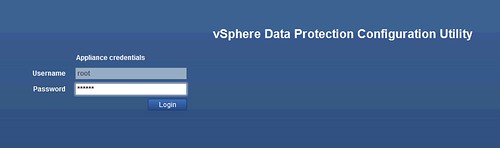
- Enter the password, which is “changeme” (yes that is a hint!) and click “Next” on the welcome screen.
- Next the network settings that you entered during the deployment of the virtual appliance will be presented, you can still make changes if you need. I added a hostname and domain name
- Make sure that the hostname is resolvable through DNS, as other wise you will get a nice error as shown in the screenshot below

- Select the correct time-zone and click “Next”
- Create a new password, note the complexity requirements for it. I used “VMwar3VDP” 🙂
- Next enter the vCenter Server and SSO Server details and test the connection
- If the test is successful click “Next” and then “Finish”
- Configuration is now completed and you can reboot the appliance so that it can initialize properly.
- I rebooted it by right clicking the appliance in the Web Client and clicking “Restart Guest OS”

Reinitializing the appliance is going to take a couple of minutes (in my case almost 30), so be patient…
Now that we have installed and configured it we can start using vSphere Data Protection (VDP). I had to logout of the Web Client before I could see the new shiny VDP icon in my menu.
Let’s get started:
- Click the “vSphere Data Protection” option in the left pane of your Web Client.
- If you see the “Not Connected” status, click “Connect”.
- Click on “Configuration”.
- At the bottom you will see the “Backup Window”, make sure this aligns with your agreed backup hours.
- I turned the backup duration down from 12 to “10 Hours” so that at 06:00 in the morning the backup windows ends. Make sure to hit “Save”.
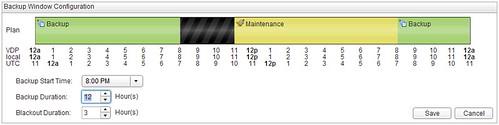
Now that we have defined our backup windows. Lets start with creating a backup job.
- Click on the “Backup” tab and then “New”.
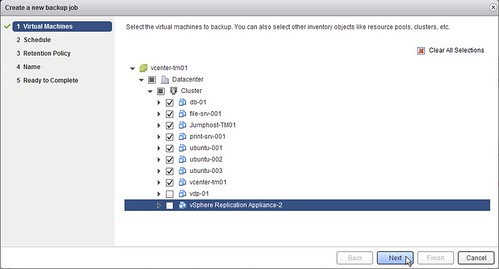
- I am going to backup all my virtual machines in my cluster so I select my “Cluster” object. I did de-select my vSphere Replication and the vSphere Data Protection appliance as I don’t need it to be backed up. Now click “Next”.
- I select “Daily” as I want to do a regular backup of all my virtual machines.

- I have selected “60 Days” as the “Retention Period” but you should change this based on your requirements. Click “Next”.
- Provide the a “Name” to the backup job, I’ve named it “daily-all-vms” and click “Next”
- Review your selected options and click “Finish”.
Now you have configured a backup window and created backup job. You can immediately kick off the backup process if you want by hitting the “Backup Now” button.
Make sure to check the “Reports” screen for more details around which virtual machines were successfully backed up, which virtual machines were not and why…
How about restoring?
Now that we have backed stuff up, I am guessing you also want to know how to restore it. Restoring is just as simple as backing up.
- Go to “vCenter” —> “Hosts and Clusters”
- Right click the virtual machine you want to restore
- Go to “All VDP Actions” and select “Restore from Last Backup”
- Now you will have the option to select the “Restore Point”, I will select the most recent one
- Next you can “Restore” to the original location, I don’t want to interfere with my running virtual machine so decide to restore it to a different volume. Make sure to provide a different name and datastore
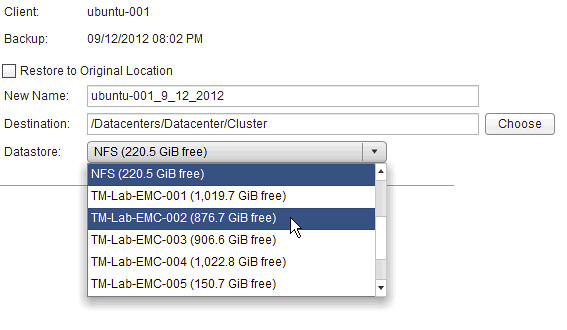
- Review your selections and proceed
- You will now see some new tasks in the upper right pane called “Recent Tasks” and the restore is on its way

- When the virtual machine is restored, make sure to hit “Refresh”
Now you can power-on the virtual machine. Note that although the virtual machine has a different name it is still very much the same virtual machine. If you power it on while the original is also still running you will end up with an IP conflict, so make sure to disconnect the network card if you want to keep the original up and running.
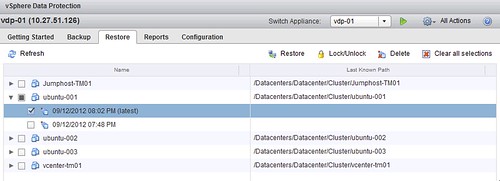
One thing I want to point out is that you can also do a restore from within the “vSphere Data Protection” tab itself.
Excellent tutorial.
Too made some of us cannot test DP, Replication, SRM and other stuff that are not available for GA download. VMWare should change the policy so people can download and test the product.
Excellent tutorial.
Too bad some of us cannot test DP, Replication, SRM and other stuff that are not available for GA download. VMWare should change the policy so people can download and test the product.
You can test everything but DP, just download from their website.
https://www.vmware.com/try-vmware/
Almost all of my customers have a single SAN. If the SAN dies and you lose VCenter can you restore from VDP without VCENTER? Is backing up vcenter with VDP supported as well (assuming vcenter is a vm). I have played with vdp a bit. it is good for backing up vms but if you lose vcenter I don’t see a way to do a restore which is going to be a major problem
You should use Veeam zip, its a free backup tool. You can then backup to a physical server with local storage. The downside is that it will be a backup over the network unless you place the physical server onto the same iSCSI storage network, and Veeam zip can not schedule backups only ad hoc. Still if your SAN went and you had only a week old copy you could get alot of stuff running in 5 minutes!
I haven’t tried restoring without vCenter, so I can’t tell you if it is possible or not. I will test it when I have some spare time available.
Duncan,
Really appreciate the “Back to Basics” series. Good stuff. How about one or more regarding SSO? Trying to setup multisite SSO for dual vCenter and SRM config to emulate a forthcoming assignment. It’s a bear to say the least.
Thanks for your hard work.
Tom Miller
A white paper is actually planned around that. I have reached out to my colleague to ask what the target release date is for it.
Absolutely… Similar problem here, trying to set up a multi-site configuration where two pairs of sites each use SRM and I just can’t find the documentation to support this. Assuming linked mode is to be used, how should SSO be configured. Some examples of this would be great.
Thanks
Hi Duncan,
I’m currently implementing VDP, it’s not quite hard but i cannot find out where VDP appliance store the backup data in SUSE, do you have any ideas?
Anybody else experiencing the issue outlined here? Kind of a pain – http://communities.vmware.com/message/2114744.
I can’t imagine implementing this in production and having to modify every W2K8 guest’s .vmx file.
Great article and I would love to test it my self but am unfortunutly not able to due to the VMware download policy on DP. Maybe this will change in the future.
Funny thing happened when, I tried to install DP on NFS share with 50 GB space on SSD. I got error “Insufficient disk space”. I did not really understand why it said insufficient disk space. I selected thin provision while deploying ova.
Now, I know why after, I completed the deployment on NAS storage. After the deployment and configuring dp and b4 reboot, I looked at drives. DP has 7 HD of 250GB each. That is why, I was getting insufficient disk space.
Always good to read through the manual before deploying the appliance.
Excellent post ….
Check this links as well if you face connection issue with DP – http://www.vladan.fr/vsphere-data-protection/
Hi Duncan, Great tutorial.
Is there any chance installing this on V-Sphere 5.0
How can, I fix this error on DP – It was working for 2 days now, I get this error – DP is disconnected.
“the most common cause for this error is that the time on the vdp appliance and your sso server are not in sync”
I checked the time on DP and vCenter – They are in sync.
We had the same issue. The error message was erroneous. We have 8 vdp appliances. The ones that were under a heavy load (currently backing up guests) were the ones that threw the message about “most common cause….time…sync.” Once they had finished backing up their guests, we could connect to them just fine.
What to do if the VDP icon does not show up in the web client? Install & configure completed without errors.
Same here, no icon in vSphere Web Client
“What to do if the VDP icon does not show up in the web client? Install & configure completed without errors.”
I had the same problem. The reason of such behaviour in my case was that when vSphere Data Protection Appliance was restarted it was “hung” for a long time – approx 15 minutes and I decided to reboot appliance. It was a mistake because in documentation said that first restart applicance can take up to 30 minutes.
So, I re-configured appliance once more, give the appliance enough time to restart – 30 minutes and now I have an item in vSphere Web Client named: “vSphere Data Protection”.
I can’t even get jobs to run. They don’t even start and just show as failed a couple seconds later. Strange. At least VDR told you why it failed, but it seems event log is all it uses to report and nothing shows up there.
@KellyO – I’m having a sililar issue. I was able to spin up two appliances and configure multiple backup jobs, but I’m having about a 50% failure rate. There is no information on the failure. I can see the task start on vCenter, but completes in seconds. Just shows as a failure on vDP and flagged as out of sync.
@KellyO, @TWalker – Same problem here some time works some time doesn’t and no information on the failure.
Great Site – keep up the good work!
The following link is useful when I stumbled upon it – i couldn’t get passed the Network screen ‘IP/DNS could not be resolved, please recheck the hostname, domain and DNS for forward and reserve lookup validation.”
Turns out it was a case-sensitivity issue – at the bottom of the page it states:-
Note: FQDN validation also appears to be literal (case sensitive.) If you enter uppercase or mixed case names and DNS returns it in any other way the test will fail.
http://kb.vmware.com/selfservice/microsites/search.do?language=en_US&cmd=displayKC&externalId=2036396
Hi.
Does VDP support backup in next setup: vdp running on host A, all vm`s on host B, but no shared storage?
Both esxi 5.1 connected to vcenter 5.1, live migration via web client works.
Thanks
I agree with Nick, it’s rather bizar that you cannot backup a Windows 2008R2 VM out of the box, without having to change the .vmx file.
I noticed it is reported, but still no finished?
http://kb.vmware.com/selfservice/microsites/search.do?language=en_US&cmd=displayKC&externalId=2035736
Maybee you can tell us something more about this Duncan? I am implementing this VDP appliance for a customer now and would really like to make sure it works 😉
Duncan, any issues with backing up VMs running Windows Server 2008 R2. I found a VMware KB that proposes setting UUID to false but have read comments that this disables VSS functionality inside the guest OS. Any thoughts concerning this?
worst software VMware ever released. I’ve been troubleshooting it for a month now. I do hope VMware will give out some updated version that will work, because with current version you just can’t get stable daily backup job with several VMs. All failed, some failed, scheduler stops, no warnings, … nothing but troubles.
I totally disagree about the comment worst software – once I’d set this up its been successfully backuping up VM’s for over 4 months with no issues at all – easy to restore too…
Scott, it’s great that it’s working for you. It’s not working for me unfortunately.
Check this for example : http://communities.vmware.com/thread/424454?start=0&tstart=0
Is there any way to see how much space a particular backup job takes up?
I can see the storage summary but we have multiple backup jobs on this single VDP
Would it be a case of having to use multiple VDPs or am I missing something?
Cheers
Sam – @sam_perrin
I liked VDP to some degree until this happened …
In our vSphere 5 setup w/ VDP (6.1.80-179 aka 5.1.0.56-179) we see a terrible VDP error.
A datastore failed and there is a critical VM which now shows disks w/ 0 Byte on the failed datastore.
When trying to restore the impacted VM we always get the following error in VDP:
E30931:Failed to initiate a backup or restore for a virtual machine because no proxy was found to service the virtual machine…
Other VMs can be restored either to original or alternate location w/ this VDP.
All backups are shown as successful and the daily integrity checks did not
show any errors.
Autsch! No errors and presumably good backup BUT no way to restore 🙁
How can I restore this critical VM from our VDP backup?
Thx for any help!
Hello ,
For myself , i have use this product in small deployements for a lot of month (in fact a the beginning age of product).
the product i simple: no pbm for backup, always good integrity check (don’t look like the “unable to use” previous datarecovery) and seem robust…
But unable to restore …..in any ways… with the same upper message (ie: E30931)
I believe that there is a bug with the bad detection size of esxi datastore
I don’t now the reason why vmware make a so complex product with many dependancy with names, dns , etc.. ->
–> So So fragile….
Vmware don’t understand the need of small business with backup –> easy to use !!!
All of our custommer have the same problem…
I’m clearly missing something simple but I can’t get the VDP to register with vcentre. I’ve followed the instructions, got to the very end and restarted the VDP and everything looks correct but the VDP doesn’t show on the vcentre web client.
I’ve restarted the VDP appliance and the web client but it still doesn’t appear.
Toby,
I’ve seen similar problems in my environment. I’ve noticed that it actually does register, but it just doesn’t show up in vCenter Web Client. I wrote up a short blog a couple of days ago that might help you.
http://virtualizingit.wordpress.com/2013/09/05/vdp-not-showing-up-in-vsphere-web-client/
Toby:
You might try restarting vCenter first (!), then restarting the VDP appliance. I’m using the VCSA, and found that merely restarting the vCenter service was not sufficient. If you’re not using the VCSA, your mileage may vary.
There is a KB article for this:
VMware Data Protection plug-in does not appear in the vCenter Server Appliance (2036092)
Key here also is that after you enter the basic configuration info via the “vdp-configure” web interface, the appliance needs to reboot and register with vCenter. If the vCenter appliance has not yet rebooted post-VDP installation, followed by a reboot of the VDP VM, then the VDP will not have registered and submitted the configuration information that you just entered – including the new password! So although the “vdp-configure” web interface is available, you will not be able to login with the new password. Note that immediately after the first reboot cycle of vCenter/VDP, you can still access the “vdp-configure” web page with the “changeme” password. Once you login, you simply get a one-liner prompt telling you that configuration information has been submitted and that you must restart. After the VDP console restarts, you should be able to observe the registration process in the console – and it really does take nearly 30 minutes. Once complete (you’ll see “Registering to vCenter” and “Successfully added the vCenter Client”, followed by integrity check messages), you should be able to login – with the new password.
You’ll then need to reload the web client to get the VDP plugin to appear.
I’ve only done this once, so am reciting this from memory and believe it to be correct.
That said, this product has a very “un-VMware” feel to it, and it’s a terribly crufty install. The installation sequence in the Administration Guide is very poorly written. I also had issues with the OVF installation regarding network mappings (inexplicable), so I changed to the standard vi-client to perform the installation and it went through. Installing VDPa (the latest version as of September 21, 2013) was a very unpleasant experience.
I wasn’t ignoring your relpies, I’ve been having trouble leaving my own replies.
I read on a blog that if anything goes wrong you need to start again from scratch so I did.
Again, everything went through fine, it all looked correct but the VDP didn’t register in vSphere web client.
This time rather than restart the VDP and the web client I rebooted the vCentre server. This time when it came up the VDP was present.
I haven’t tried restoring without vCenter, so I can’t tell you if it is possible or not. I will test it when I have some spare time available.
—-
any update on this ?
We have a VDPA working with no problems for few months now, but never had a need to restore vc.
I have another bacup solution and i can easy restore ANy vm with it ,includin virtual center directly to esxi host so this is a very important question.
another thing : somebody in comments mentioned customer with a single storage device…i hope you do not have VDP on it also with other vms ??
Restore vCenter:
http://kb.vmware.com/selfservice/microsites/search.do?language=en_US&cmd=displayKC&externalId=2048288
For 100 GB restoration, it is taking around 50 minutes. is it common ? then how this solution is different from legacy backup and restore solutions in terms of restoration ?