I was playing around with VMware Converter and thought it would be cool to create a VMware Converter Appliance. I can’t put this up for download, yet, but I can describe how to build your own appliance. I will use Novell’s Suse Studio to create a thin Linux VM that contains only the necessary bits and pieces.
- Go to susestudio.com and open an account
- Click “Create New Appliance”
- Select “GNOME Desktop” and click “Create Appliance”
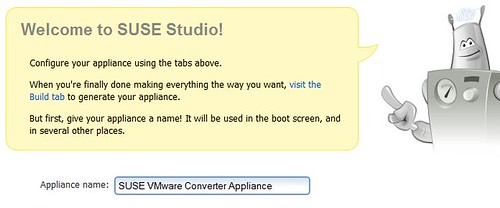
- Change the name of the appliance to something that makes a bit more sense…
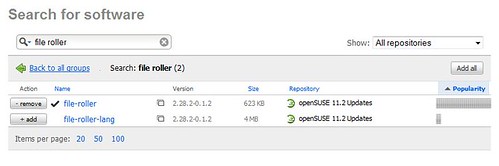
- I would personally add “File Roller” and “GCC” so that you can actually open archives from the GUI and make modules, which is need to install VMware tools.
- Go to the “Configuration Tab” and click on “Appliance”
- Increase the memory to 1024MB for a better running appliance
- Download VMware Converter Standalone for Linux and add it as a file in the “Overlay Files” tab
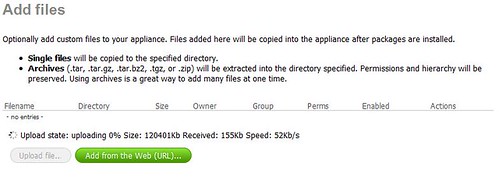
- When uploading is finished select a folder where the tar.gz file should be extracted, I picked “/vmwconverter”
- Click on the “Build” Tab and wait for it to complete

It’s as easy as that! With SUSE you have the option to Test Drive it and make changes to the image while test driving it. I would recommend to just download it and install VMware Converter while running the VM with VMware player. Or you could import it with vCenter and run it on an ESX host. This way you can also install VMware tools immediately.
- Open the VMX file with VMware Player
- Install VMware Tools:
Right click VM “install VMware tools” - Open a terminal session within the VM and type:
cd /media/VMware Tools
tar -C /tmp -xvf <VMware Tools File>
/tmp/vmware-tools-distrib/vmware-install.pl
Agree with all the defaults…
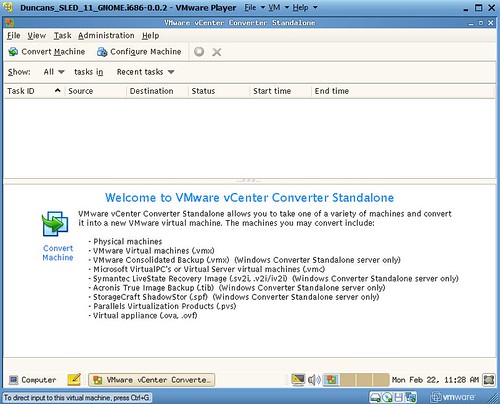
- Now to install VMware Converter open a terminal session and do the following:
cd /vmwconverter/vmware-converter-distrib
./vmware-install.pl
Use all the defaults!
- You can add an icon to the desktop by right clicking the desktop and selecting “Create Launcher”
- Select “/usr/bin/vmware-converter-client”
- And add the correct icon! (/usr/share/icons/vmware-converter.png)
Now your appliance is good to go and can be used everywhere in your virtual infrastructure. I would recommend making it a template or vApp and deploy it multiple times when doing many parallel migrations!
Another nice appliance would be a small one that does nothing but automate updating VMware Tools on any/all Linux VMs one has installed to the host(s).
veddy eeeenteresting, Mr. Bond… now that you know my secret, things will have to change….
/no idea
//haven’t seen this before at all – Thanks for the automagical appliance maker thingy.
@Tom vCenter Update Manager will do that job for you 😉
I love SuSE Studio, played with their beta at VMWorld 2008 and was an immediate fan. Thanks for taking the time to put this together.
UPDATE:
The site does not support IE (any version) you’ll need FireFox/Opera/Safari and you’ll need to get a free Invitation… I used my Gmail/Google Account and got an invite almost instantly 🙂
You can always use VMware Studio for this same purpose! It’s certainly a better option to make sure you have VMware Tools installed.
@Thomas Bryant @Duncan why not using the VMware’s vMA appliance for that?
as it is only commandline, and most P2V Teams consists of Windows Admins.
Boohoo for me.. I used my gmail account and still haven’t received the invite after taking the survey.
far too impatient.. got it, works great.. really useful.
I realy like this idea, however when I try to follow the instructions it looks like ther is not converter for linux available…. Did I miss a point ??